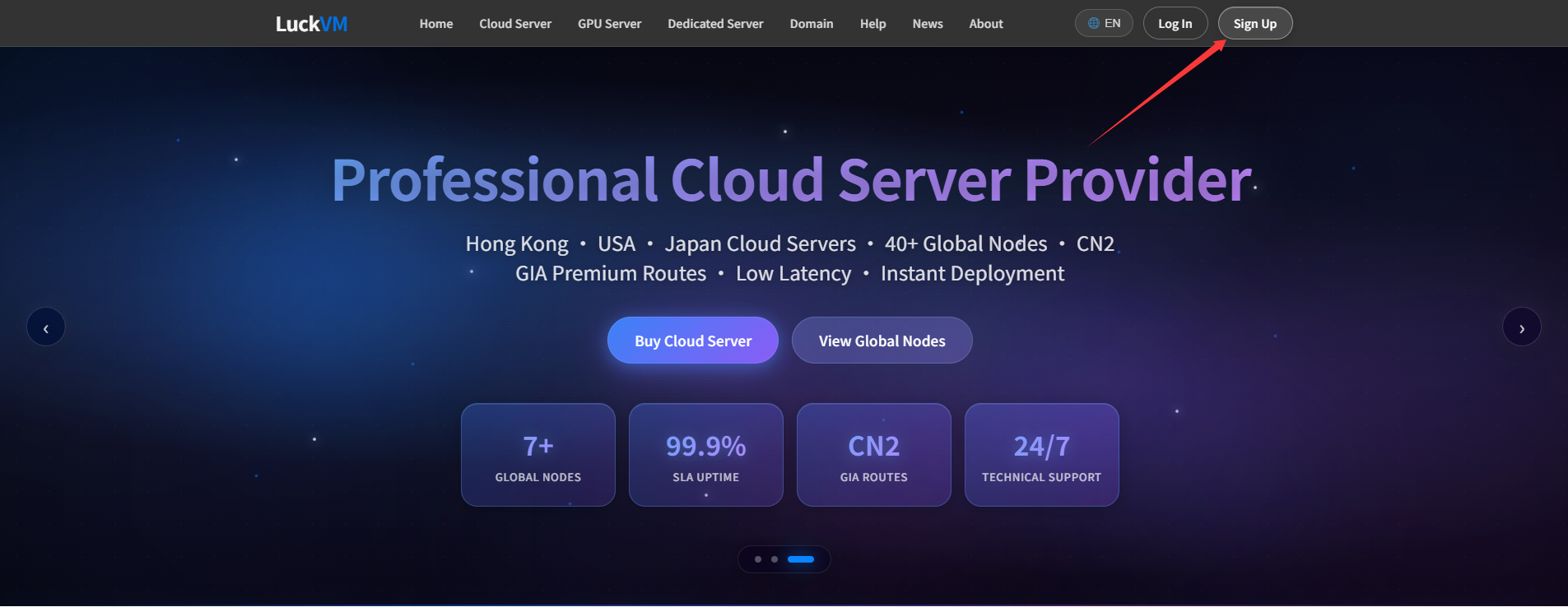
After submitting a ticket, you can view and manage it in the “Ticket Center”. For instructions on submitting a ticket, please refer to How to Submit a Ticket .
Steps
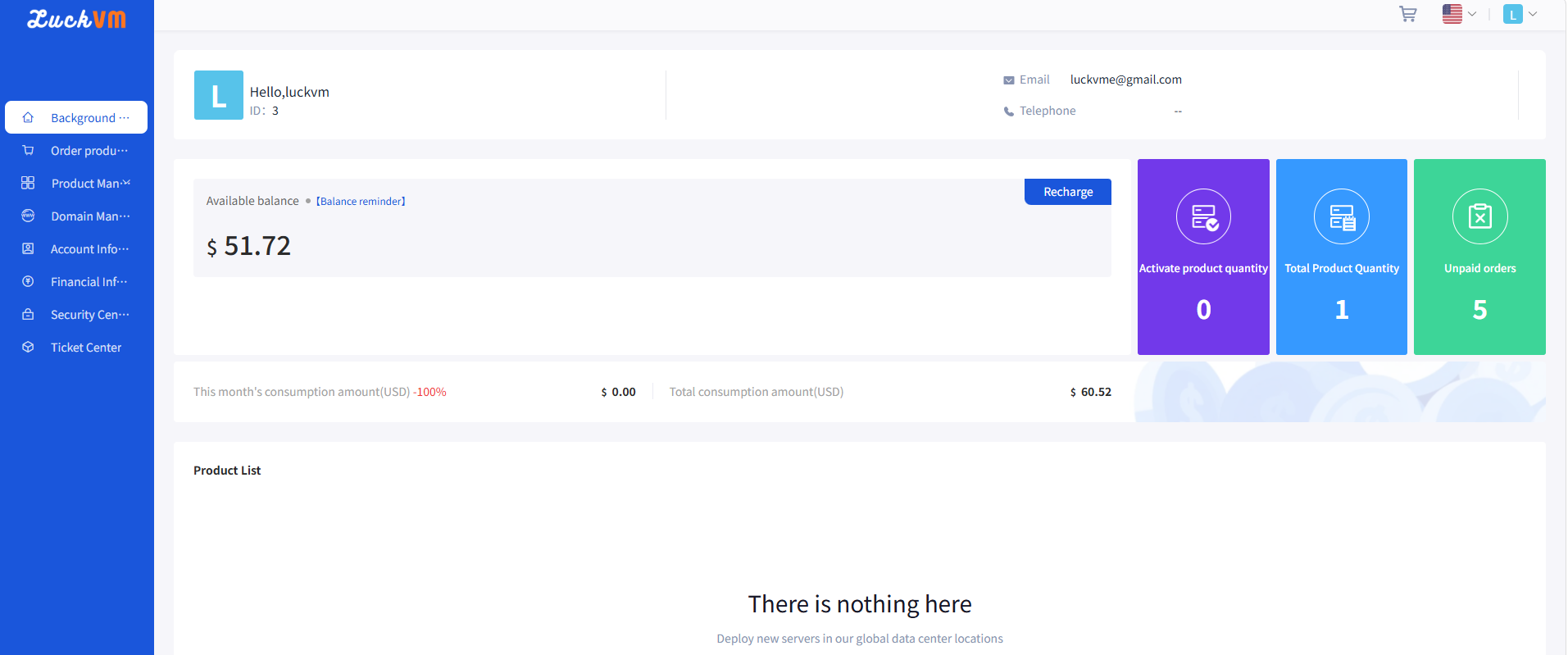
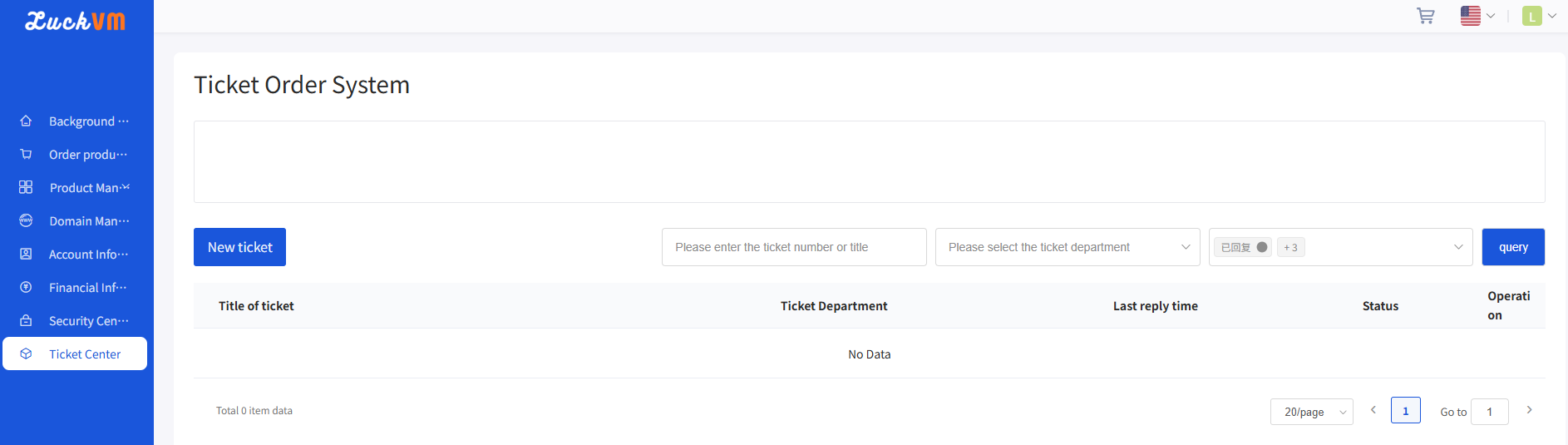
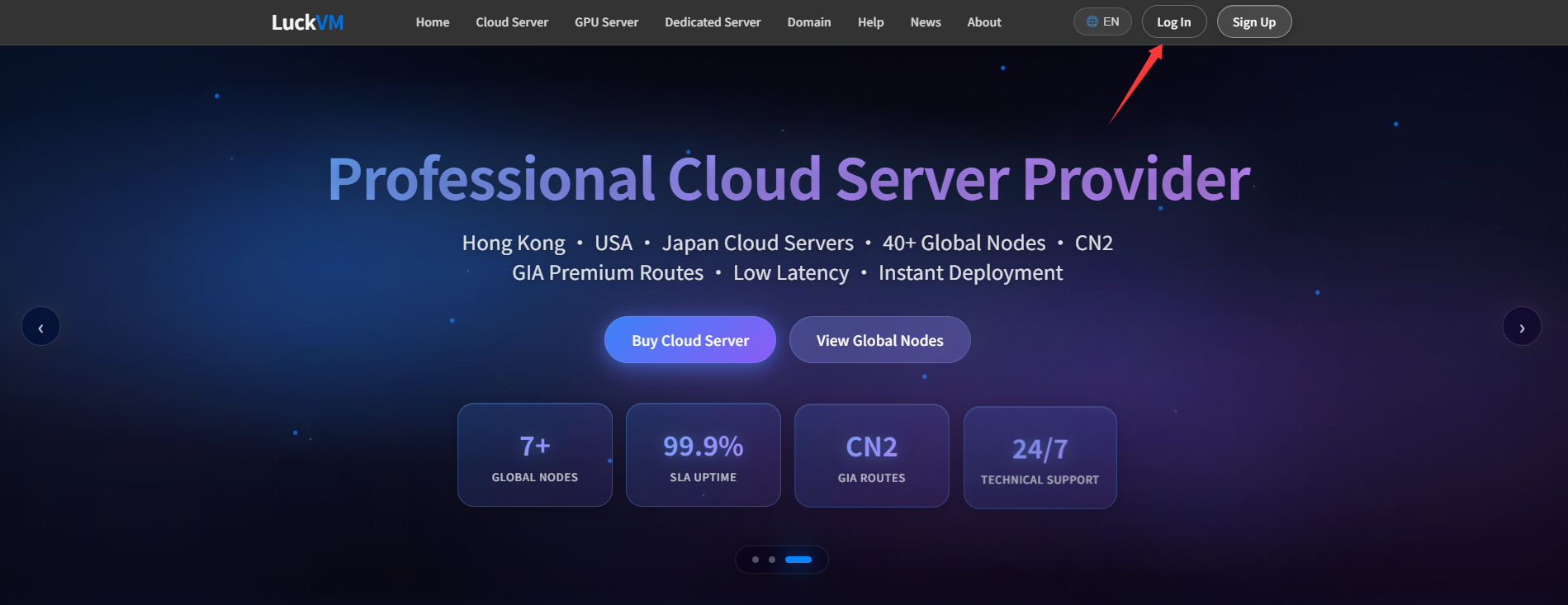
① After entering the Client Area, click Ticket Center to view ticket information and processing status.
Figure 1
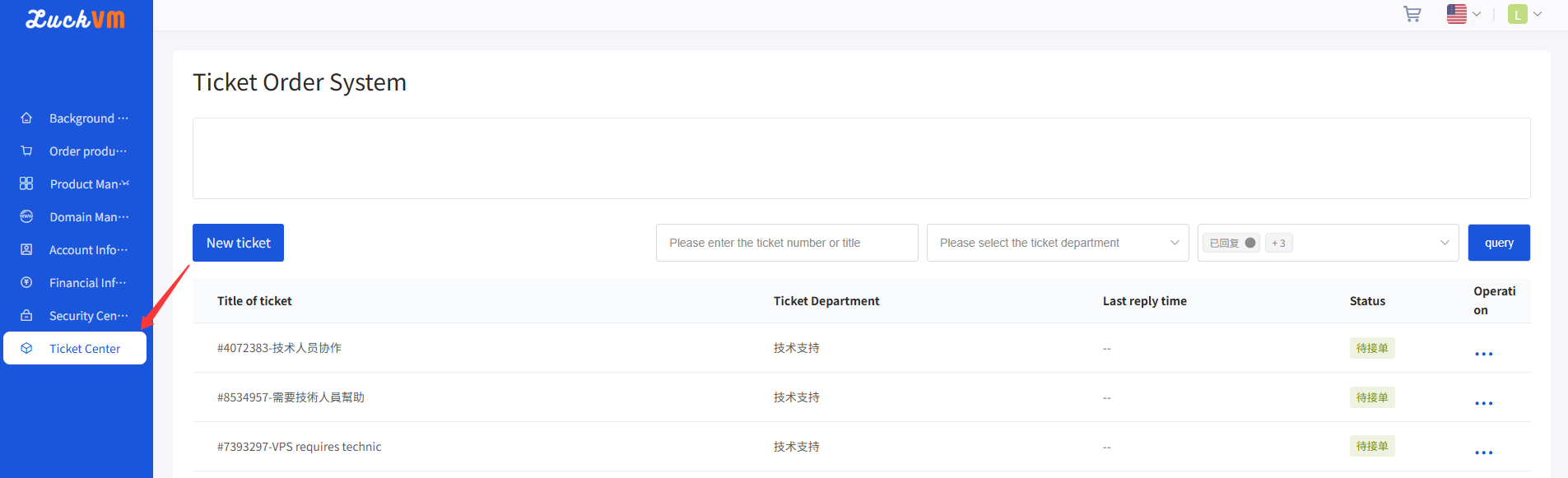
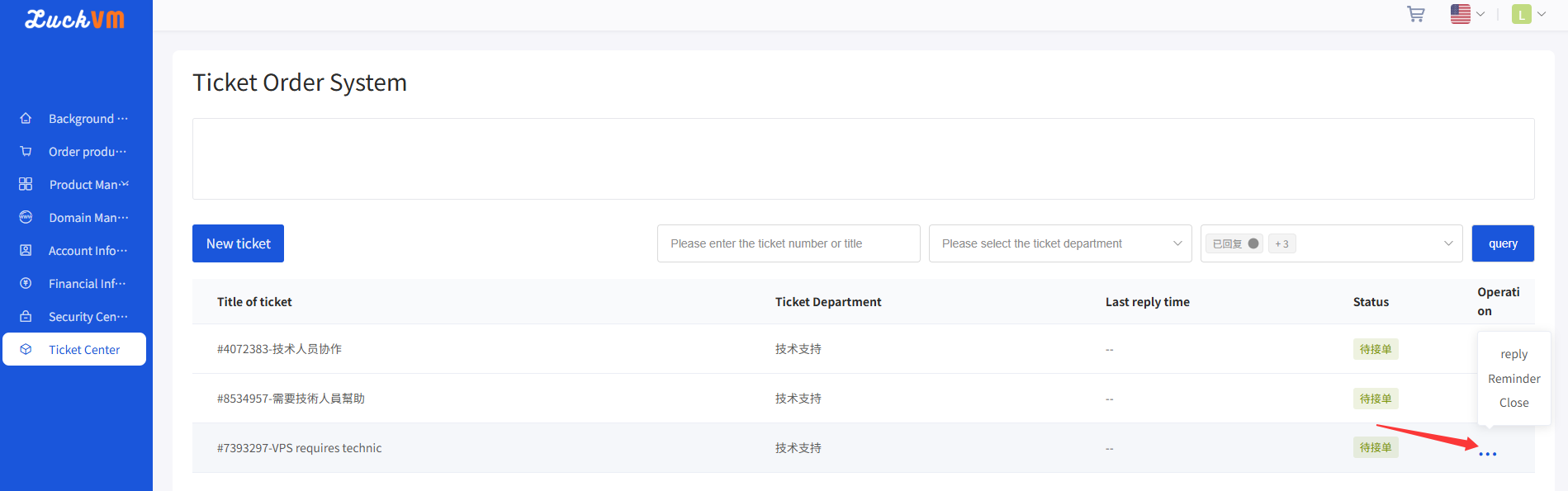
② Click the operation bar on the right to perform actions such as Reply, Expedite, or Close.
Figure 2
· Reply
ⅰ. Directly click “” on the right operation bar, or hover your mouse over “
” on the operation bar, and select “Reply” .
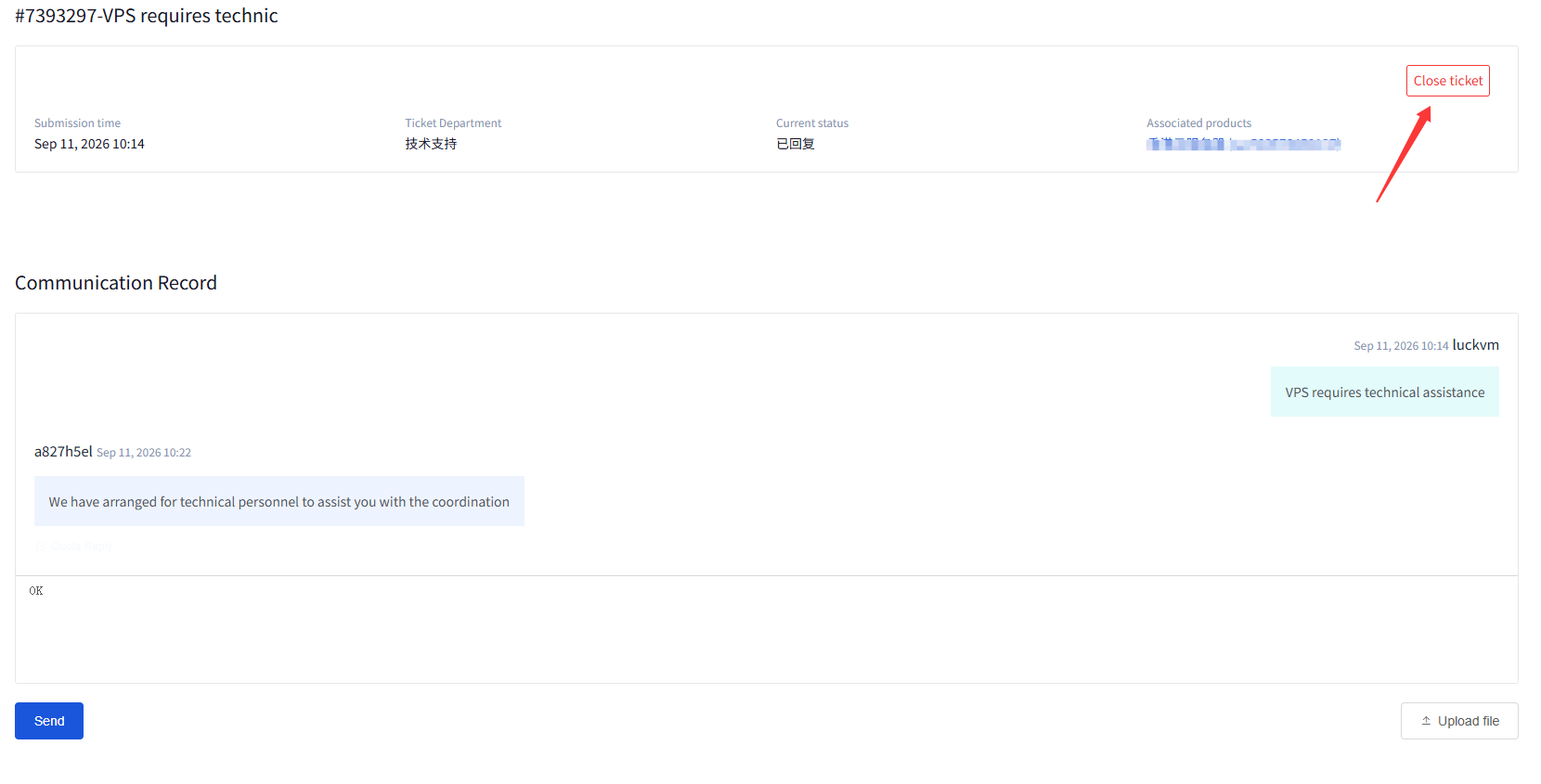
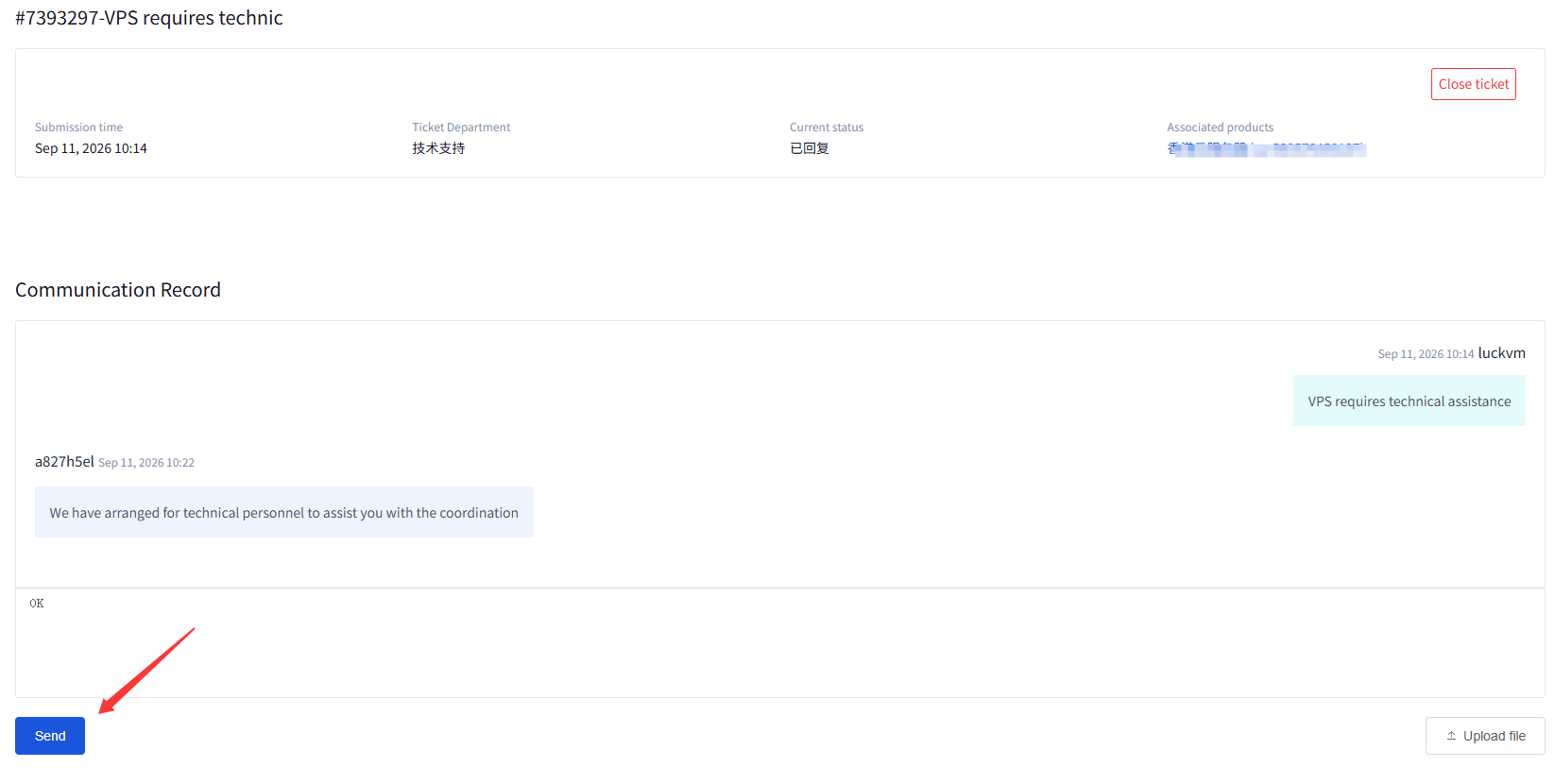
ⅱ. The ticket page shows the request details and conversation history.
Figure 3
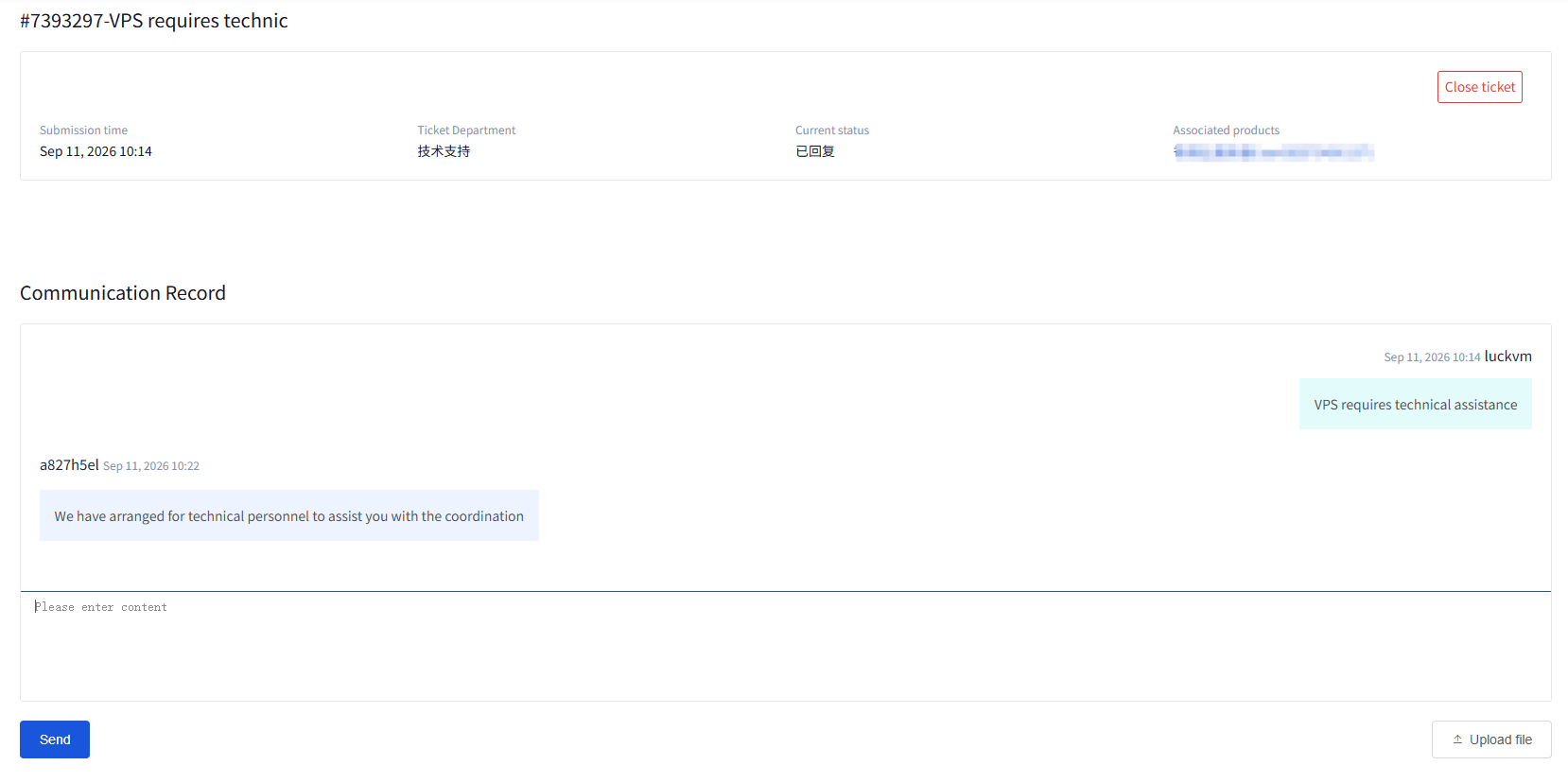
ⅲ.Write your reply in the text box and select Send.
Figure 4
· Expedite
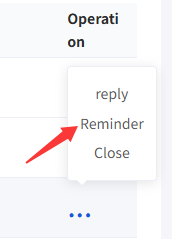
ⅰ.In the ticket information list, hover your mouse over “” on the operation bar, and select “Expedite” in the floating box.
Figure 5
· Close
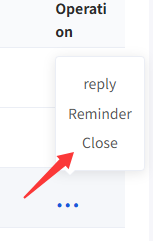
If your problem has been resolved or you no longer need our technical support, you can click “Close” in the floating box to directly close the ticket.
Figure 6
Or click “”, and after confirming the ticket details on the redirected page, click “Close Ticket” in the upper right corner.
Figure 7