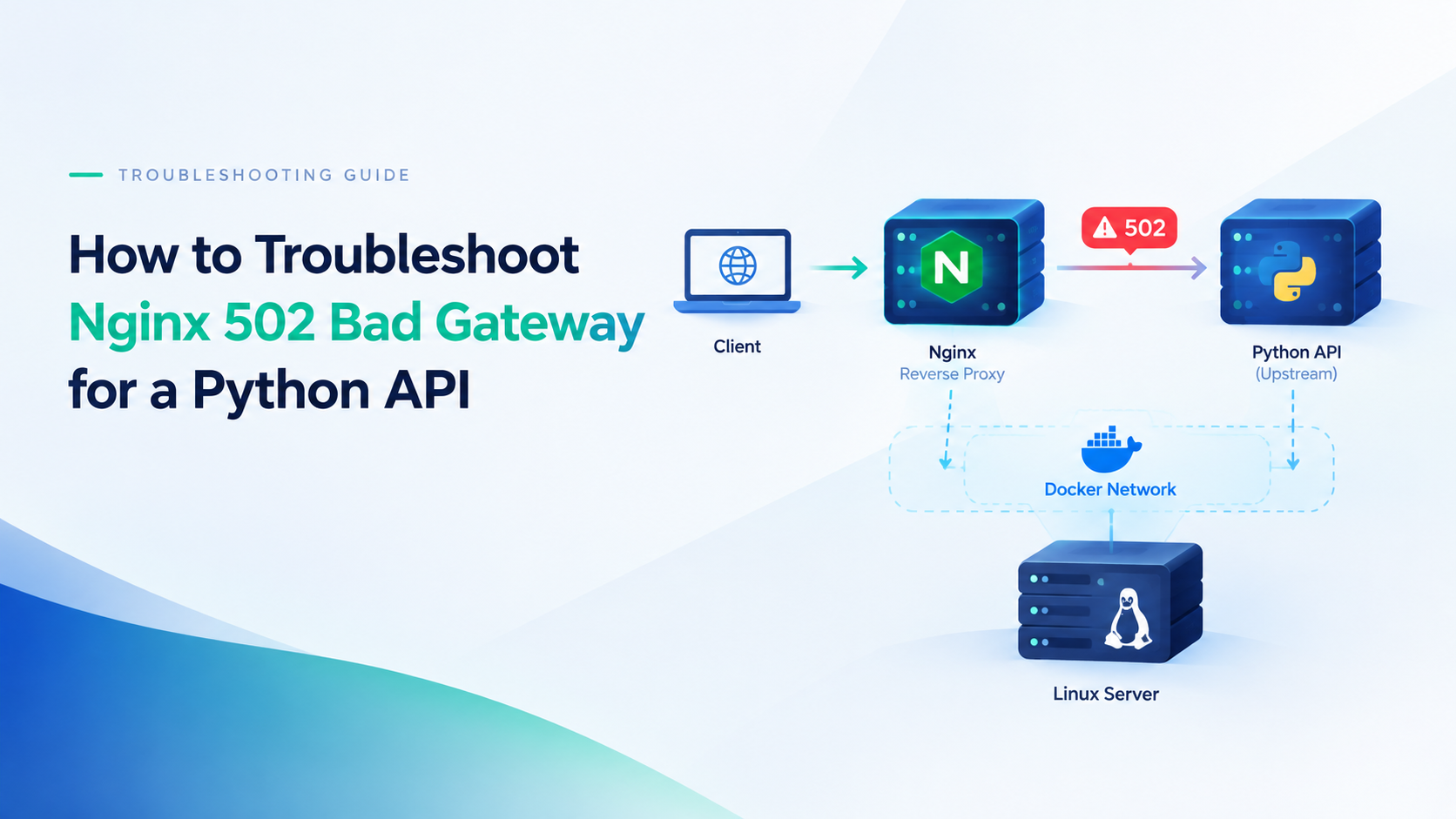
A 502 Bad Gateway error occurs when Nginx cannot obtain a valid response from an upstream server.
For a Python API running behind Nginx, the problem may involve an unavailable application process, an incorrect upstream address, Docker networking, socket permissions, or an application that closes the connection unexpectedly.
The important first step is to identify what Nginx actually reports in its error log. Changing timeout values or restarting services without diagnosing the underlying issue can hide useful evidence.
This guide provides a practical troubleshooting workflow for Python applications running with frameworks and servers such as FastAPI, Flask, Uvicorn, and Gunicorn.
1. Check the Nginx error log
Start with the error log on the machine or container running Nginx:
sudo tail -n 100 /var/log/nginx/error.logThe log path may differ depending on your operating system and installation. For a containerized Nginx deployment, inspect the container logs as well.
Look for messages that match the time of the failed request.
Common examples include:
| Error log message | What to investigate |
|---|---|
connect() failed (111: Connection refused) while connecting to upstream |
The upstream address or port may be wrong, or the application may not be listening. |
upstream prematurely closed connection while reading response header |
The application may have terminated the connection, crashed, or encountered a runtime problem. |
connect() failed (13: Permission denied) while connecting to upstream |
Check Unix socket permissions and applicable operating-system security policies. |
no live upstreams |
Check the upstream configuration and whether all configured upstream servers are unavailable. |
upstream timed out |
Determine whether the timeout occurred while connecting, sending the request, or reading the response. |
These messages indicate different failure modes. Use the exact log entry rather than assuming that every 502 error has the same cause.
2. Verify that the Python application is running
If the application is managed by systemd, inspect its status:
sudo systemctl status my-api --no-pagerReplace my-api with the actual service name.
Then inspect recent application logs:
sudo journalctl -u my-api -n 100 --no-pagerLook for startup failures, missing environment variables, dependency errors, worker crashes, or exceptions occurring at the time of the failed request.
A service that was running earlier may have stopped, restarted, or failed to initialize correctly.
For Docker deployments, inspect the container status and logs instead:
docker ps
docker logs --tail=100
Replace the placeholder with the actual container name.
3. Check the upstream address and listening port
Suppose the Nginx configuration forwards requests to port 8000.
Check which processes are listening:
sudo ss -lntp | grep ':8000'Then test the backend directly from the same network environment as Nginx:
curl -i http://127.0.0.1:8000/healthUse the actual application port and an endpoint that exists in your application. The example assumes that the API exposes a /health endpoint.
Interpret the result carefully:
-
If the connection is refused, verify that the application is running and listening on the expected address and port.
-
If the endpoint responds successfully, continue by comparing the upstream configuration with the real request path.
-
If the endpoint returns an application error, investigate that error before changing Nginx settings.
A successful request from the host does not prove that the same address works from a separate container.
4. Check Docker networking and bind addresses
Docker introduces an important distinction between the host network and a container's own network namespace.
If Nginx and the Python application run in separate containers, 127.0.0.1 inside the Nginx container refers to the Nginx container itself, not automatically to the Python application container.
In a typical Docker Compose setup, the upstream may need to use the application service name and its internal listening port.
For example:
location / {
    proxy_pass http://api:8000;

    proxy_set_header Host $host;
    proxy_set_header X-Real-IP $remote_addr;
    proxy_set_header X-Forwarded-For $proxy_add_x_forwarded_for;
    proxy_set_header X-Forwarded-Proto $scheme;
}
Here, api is an illustrative service name. Replace it with the actual service name and confirm that both containers can communicate over the appropriate Docker network.
For a Python service inside a container, the application may need to listen on 0.0.0.0 so it can accept connections through the container network interface.
For a Python application and Nginx running directly on the same host, binding the application to 127.0.0.1 may be appropriate when only local proxy access is required.
Choose the bind address according to your deployment architecture rather than applying one configuration to every environment.
5. Review the Nginx proxy configuration
For an application running on the same host and listening on port 8000, a basic configuration can look like this:
server {
    listen 80;
    server_name example.com;

    location / {
        proxy_pass http://127.0.0.1:8000;

        proxy_set_header Host $host;
        proxy_set_header X-Real-IP $remote_addr;
        proxy_set_header X-Forwarded-For $proxy_add_x_forwarded_for;
        proxy_set_header X-Forwarded-Proto $scheme;
    }
}
This is an illustrative configuration, not a universal replacement for an existing production configuration.
Check the following details:
-
Does
proxy_passpoint to the address where the application actually listens? -
Is Nginx using the correct protocol, such as HTTP rather than HTTPS, for the upstream?
-
Does the location block forward the intended request path?
-
Does the selected server block match the requested domain?
-
Are any Unix socket paths, permissions, or upstream service names correct?
The exact behavior of a URI in proxy_pass depends on how the directive and location are configured. Review the official documentation before changing a trailing slash or rewriting request paths.
Reference: Nginx proxy module documentation.
6. Distinguish connection errors from timeout errors
Not every upstream problem should be fixed by increasing a timeout.
A refused connection usually points toward an unavailable listener, an incorrect destination, or a connectivity problem. Increasing proxy_read_timeout will not make a process start listening on the correct port.
A slow application may require a different investigation. Check whether the application is waiting on a database, external API, CPU-intensive operation, or another downstream dependency.
Nginx can return a 504 Gateway Timeout when an upstream operation times out, although the exact diagnosis depends on the phase of the request and the configuration.
When the error log shows a timeout, determine whether the delay occurs during connection establishment or while waiting for an application response.
Only adjust timeout settings when the expected workload requires it and you have evidence that the relevant timeout is the problem.
Reference: Nginx upstream module documentation.
7. Validate changes and test the complete request path
After making a targeted configuration change, test the Nginx configuration:
sudo nginx -tIf the test succeeds, reload Nginx using the appropriate service management method for your environment:
sudo systemctl reload nginxThen test the API through the actual hostname and request path, not only by calling the backend directly.
For example:
curl -i https://api.example.com/healthReplace the example hostname and endpoint with your real values.
If the request still fails, correlate the request time with both Nginx and application logs. This helps distinguish failures introduced by the proxy from failures inside the application.
Change one thing at a time and keep a record of the original configuration so you can revert an unsuccessful change.
Frequently Asked Questions
Why does my Python API work directly but return 502 through Nginx?
The direct test and the proxied request may use different network paths, destinations, protocols, or request paths. In Docker, the two requests may even originate from different network namespaces.
Compare the actual upstream address, the listening port, the request path, and the Nginx error log.
Does increasing proxy_read_timeout always fix a 502 error?
No. A timeout adjustment does not resolve a refused connection, an incorrect upstream address, a stopped process, or a permissions problem.
Identify the relevant failure from the logs before changing timeout values.
Is a 502 error always caused by Nginx itself?
No. Nginx acts as the gateway, but the underlying failure may be in the upstream application, its runtime, the network, or the proxy configuration.
What information should be collected before asking for technical help?
Record the operating system, Nginx version, application framework, deployment method, upstream address, exact error log entry, and the result of a direct backend test. Remove passwords, API tokens, private keys, and sensitive customer information before sharing logs or configuration.
About the Author
About the Author
This technical guide is published by the LuckVM team. It is intended to help developers diagnose common Nginx and Python API deployment issues. Examples should be validated against the reader's actual environment