Why WordPress is Slow on a Default VPS
You bought a VPS expecting it to be faster than shared hosting, but your WordPress site still loads in 3-5 seconds. You are not imagining it — a default LAMP stack (Apache + PHP 7.4 + MySQL) running WordPress with a dozen plugins and no caching will routinely produce TTFB of 1.5-3 seconds even on a multi-core VPS. The problem is not the server. The problem is the default configuration.
WordPress on a fresh VPS, out of the box, does five expensive things on every single page load:
- Bootstraps PHP — loads the core, the active theme, and every active plugin (often 20-50 MB of code)
- Runs MySQL queries — uncached, typically 50-200 queries per page, some hitting non-indexed columns
- Regenerates HTML — builds the entire page from scratch for every visitor, even if it has not changed since last week
- Serves uncompressed assets — CSS/JS/images are sent as raw files with no compression or cache headers
- Serves everything from origin — every visitor in the world fetches files from your single VPS location
The good news: all five problems are solvable with software configuration alone — no need to buy more CPU or RAM. The rest of this guide walks you through the exact fixes, in priority order.
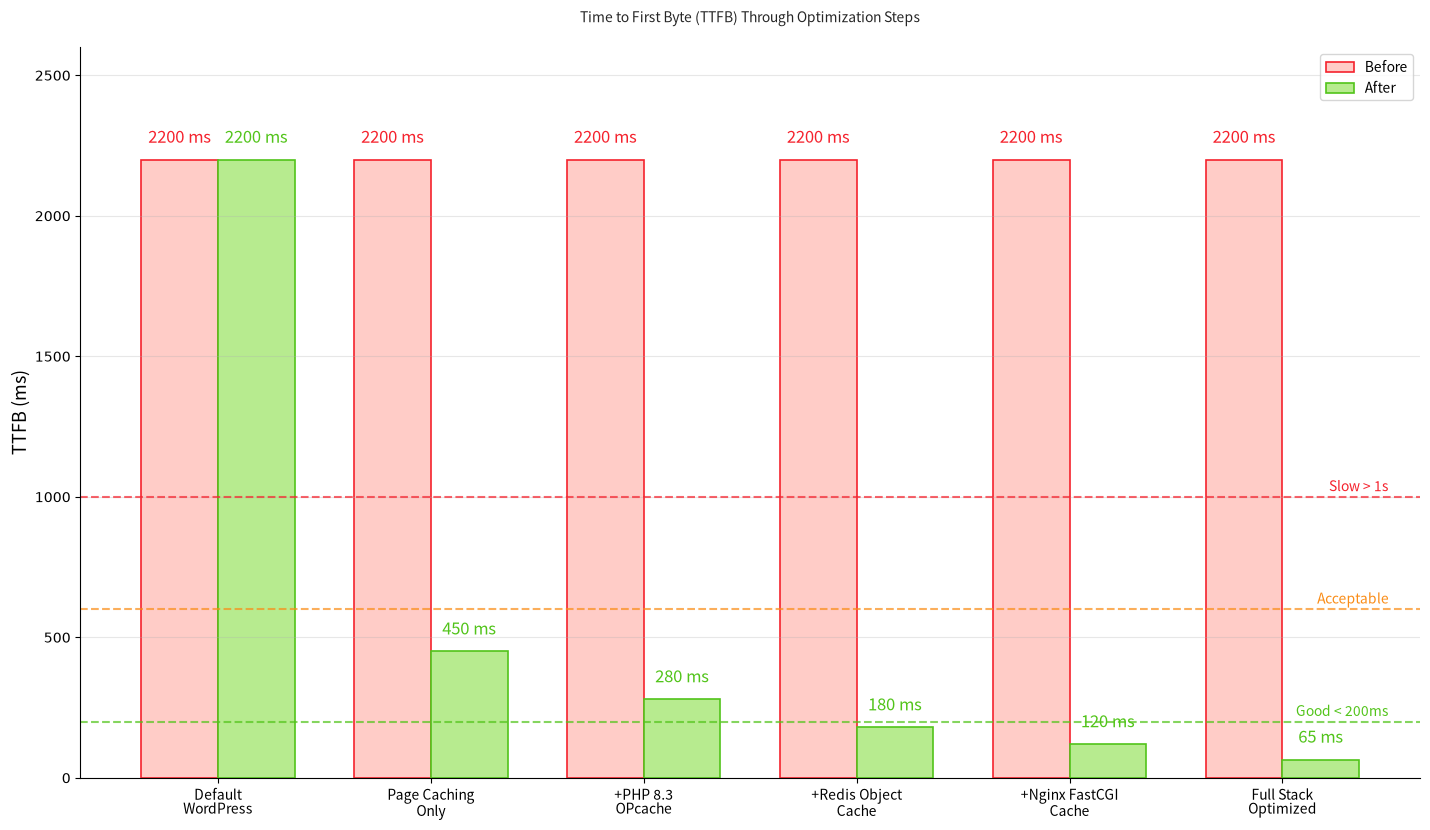 Figure 1 — WordPress TTFB (Time to First Byte) through each optimization stage, measured on a LuckVM Hong Kong 2 vCPU / 2 GB VPS. Your numbers will vary but the curve shape is consistent.
Step 0: Measure Your Baseline First
Do not optimize blindly. Before you touch anything, take five measurements so you have an honest before/after.
# Raw TTFB from the command line (run from your VPS first, then from your home connection)
curl -s -w "DNS: %{time_namelookup}s\nConnect: %{time_connect}s\nTTFB: %{time_starttransfer}s\nTotal: %{time_total}s\n" \
  -o /dev/null https://yourdomain.com

# ApacheBench baseline (100 requests, 10 concurrent)
ab -n 100 -c 10 https://yourdomain.com/

# Also record scores in:
#   - PageSpeed Insights  (https://pagespeed.web.dev)
#   - GTmetrix            (https://gtmetrix.com)
#   - WebPageTest         (https://webpagetest.org)
Save these numbers. You will re-run them after each major step. If something you do makes the numbers worse, you know exactly what to roll back.
curl from localhost will show you the fastest possible PHP/MySQL time, but it ignores real-world DNS latency, TLS handshake, and network round-trip. Always test from at least two external locations near your real visitors.
1. Pick the Right VPS Region (Latency Matters)
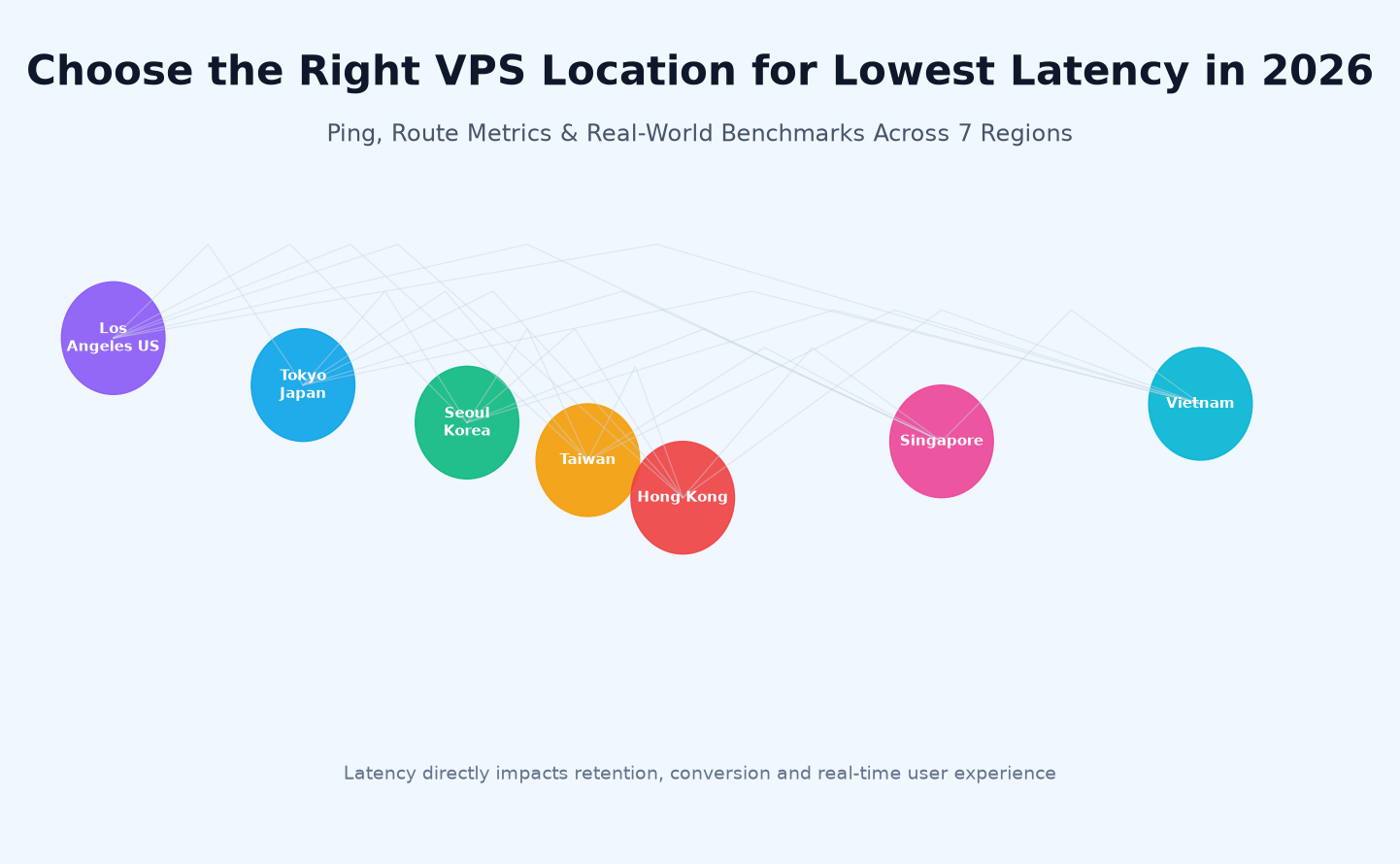
The single biggest latency factor you cannot fix in software is geography. If 60% of your visitors are in mainland China, a US VPS will add 200-300 ms of pure round-trip time that no amount of caching can eliminate.
As a rule of thumb, pick the VPS location closest to the majority of your audience:
| Primary audience | Best LuckVM region | Typical ping |
|---|---|---|
| Mainland China (South/East) | Hong Kong (CN2 GIA) | 20-50 ms |
| Mainland China (North) | Korea / Japan (CN2) | 50-80 ms |
| Southeast Asia | Singapore (CN2 GIA) | 30-70 ms |
| Japan / Korea | Tokyo / Seoul | 15-40 ms |
| North America (West Coast) | Los Angeles (CN2 GIA) | 10-30 ms (US), 130-170 ms (China) |
| Europe / Global | Los Angeles or Frankfurt | 150-220 ms (China), 20-50 ms (Europe) |
If your audience is split (e.g. 40% China, 40% Southeast Asia, 20% US), use Hong Kong as your origin and put a CDN in front — it is the best single compromise location for Asia-Pacific traffic.
2. Switch from Apache to Nginx (or OpenLiteSpeed)
Apache is fine for shared hosting where .htaccess per-site config is mandatory. On a VPS you control the config, and Nginx consistently serves static assets 2-4x faster while using far less RAM under concurrent load.
If you want to stay in the Apache ecosystem, OpenLiteSpeed is a strong middle ground — it reads .htaccess rules, supports HTTP/3 out of the box, and ships with LSCache (more on that next).
Quick install for Nginx + PHP-FPM on Debian 12:
sudo apt update && sudo apt install -y nginx php8.3-fpm php8.3-mysql php8.3-cli php8.3-curl php8.3-gd php8.3-mbstring php8.3-xml php8.3-zip php8.3-opcache php8.3-redis mariadb-server
# For WordPress permalinks, put this in your server block's location /:
# try_files $uri $uri/ /index.php?$args;
Migrating a live site from Apache to Nginx? Do it behind your CDN during low-traffic hours, or use a staging VPS first. If you want to avoid config work, CyberPanel and CloudPanel both provide one-click Nginx + PHP-FPM + MariaDB + Redis WordPress installs.
3. Upgrade to PHP 8.3 + OPcache + JIT
PHP 8.3 is roughly 30-50% faster than PHP 7.4 on real WordPress workloads, and it uses less memory per request. Almost all maintained WordPress plugins and themes (including WooCommerce 9.x) fully support PHP 8.3 as of 2026.
Enable OPcache with sane defaults by editing /etc/php/8.3/fpm/conf.d/10-opcache.ini:
opcache.enable=1
opcache.enable_cli=0
opcache.memory_consumption=256
opcache.interned_strings_buffer=16
opcache.max_accelerated_files=20000
opcache.max_wasted_percentage=10
opcache.validate_timestamps=1
opcache.revalidate_freq=60
opcache.save_comments=1
opcache.jit=1255
opcache.jit_buffer_size=128M
Then restart PHP-FPM: sudo systemctl restart php8.3-fpm. Verify with a phpinfo() page — you should see "opcache.enable = On" and a JIT section.
On a 1 GB VPS use pm = ondemand with pm.max_children = 10. On 2 GB+ use pm = dynamic with pm.max_children = 20-40. Too many children = swap = death; too few = queueing under load.
4. Enable Page Caching (LSCache or Nginx FastCGI Cache)
This single step typically cuts TTFB from 1500+ ms to under 200 ms — the biggest win in this entire guide. Page caching saves fully rendered HTML pages to disk or RAM, so subsequent visitors do not hit PHP or MySQL at all.
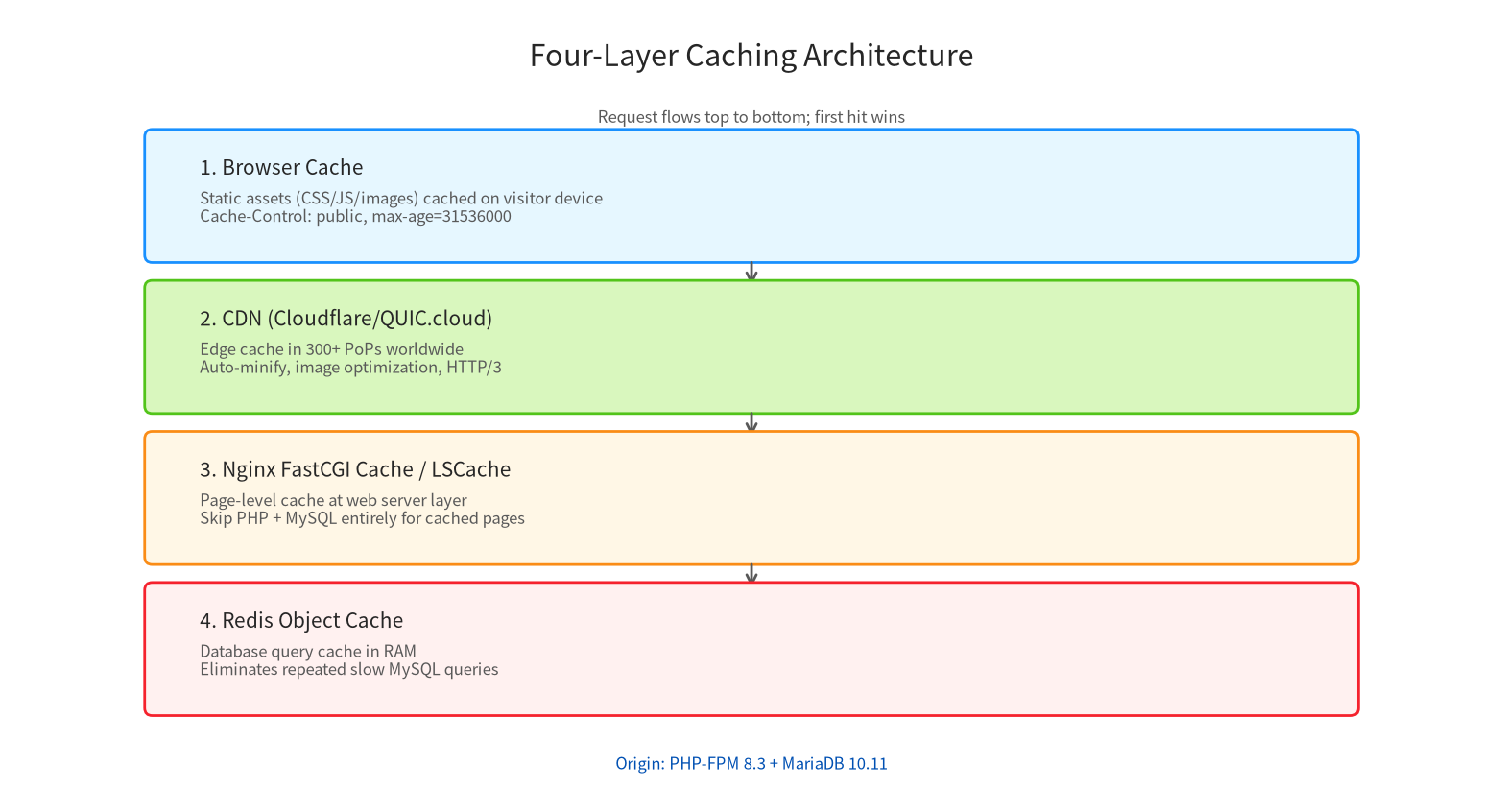 Figure 2 — The four-layer caching stack we are building. Requests are served from the fastest available layer.
Option A: Nginx FastCGI Cache (free, open-source)
Add to your server block's http {} context:
fastcgi_cache_path /var/cache/nginx levels=1:2 keys_zone=WORDPRESS:100m inactive=60m;
fastcgi_cache_key "$scheme$request_method$host$request_uri";
fastcgi_cache_use_stale error timeout invalid_header http_500;
fastcgi_ignore_headers Cache-Control Expires Set-Cookie;
Inside the PHP location block, add:
fastcgi_cache WORDPRESS;
fastcgi_cache_valid 200 301 302 1h;
fastcgi_cache_valid 404 1m;
add_header X-FastCGI-Cache $upstream_cache_status;
The X-FastCGI-Cache header will show HIT/MISS/BYPASS in your browser dev tools — you use this to verify caching is actually working. Pair this with the Nginx Helper plugin to auto-purge the cache when content changes.
Option B: LSCache on OpenLiteSpeed (best plugin integration)
If you run OpenLiteSpeed, install the free LiteSpeed Cache for WordPress plugin. It handles page caching, automatic image optimization to WebP/AVIF, CSS/JS minification, lazy loading, and database cleanup — all from one panel. TTFB numbers are on par with Nginx FastCGI Cache.
LSCache + FastCGI Cache, or a caching plugin (WP Rocket, W3 Total Cache) plus server-level cache, will fight each other and cause stale content bugs. Pick one page cache.
5. Add Redis Object Cache
Page cache is amazing — until a logged-in user visits, or someone leaves a comment, or you run WooCommerce (cart/checkout/account pages are never cached). That is where object caching steps in: it stores the results of expensive MySQL queries in RAM so PHP can fetch them in microseconds instead of re-querying the database.
sudo apt install -y redis-server php8.3-redis
sudo systemctl enable --now redis-server
# Edit /etc/redis/redis.conf:
#   maxmemory 256mb        (128mb on 1GB VPS, 256-512mb on 2GB+)
#   maxmemory-policy allkeys-lru
sudo systemctl restart redis-server
Then in wp-config.php, add:
define('WP_REDIS_HOST', '127.0.0.1');
define('WP_REDIS_PORT', 6379);
define('WP_REDIS_DATABASE', 0);
define('WP_CACHE_KEY_SALT', 'yourdomain_');
Install and activate the Redis Object Cache plugin (free, by Till Krüss) and click "Enable Object Cache". You should immediately see a "Hits" percentage climbing in the plugin dashboard — healthy sites hit 95%+.
6. Optimize Static Assets: Images, CSS, JS
Page caching fixes TTFB; asset optimization fixes LCP (Largest Contentful Paint) — the metric Google actually uses for rankings. Roughly 70% of an average WordPress page's weight is images.
- Convert images to WebP or AVIF — typically 50-70% smaller than JPEG/PNG. LSCache plugin, ShortPixel, and Imagify all do this automatically
- Resize images to their displayed size — uploading a 4000px-wide photo for a 800px container wastes 90% of the bytes
- Lazy-load offscreen images and iframes — native
loading="lazy"is supported in every modern browser in 2026 - Minify and combine CSS/JS — LSCache, Autoptimize, or WP Rocket do this; do not over-do it or you will break things
- Defer non-critical JS — load analytics, chat widgets, and third-party scripts with
deferorasync
7. Turn on HTTP/3 (QUIC) and Brotli Compression
HTTP/3 uses QUIC over UDP instead of TCP, which eliminates the head-of-line blocking problem of HTTP/2 and noticeably improves load times on lossy mobile networks. Nginx 1.25+ and OpenLiteSpeed both support HTTP/3 natively in 2026.
For Nginx, add to your server block listening on 443 ssl:
listen 443 quic reuseport;
add_header Alt-Svc 'h3=":443"; ma=86400';
ssl_protocols TLSv1.2 TLSv1.3;
Enable Brotli compression (15-25% smaller than gzip for text):
sudo apt install -y brotli nginx-plus-module-brotli 2>/dev/null || \
  sudo apt install -y nginx-module-brotli 2>/dev/null || echo "Install via: https://docs.nginx.com/nginx/admin-guide/dynamic-modules/brotli/"

# In nginx.conf http {}:
brotli on;
brotli_comp_level 6;
brotli_types text/plain text/css application/json application/javascript text/xml application/xml application/xml+rss text/javascript image/svg+xml;
8. Put a CDN in Front
Even with a perfect origin server, a visitor in Europe fetching from a Hong Kong VPS pays 200+ ms just in network latency. A CDN caches your static assets (and optionally HTML pages) at edge locations within 10-30 ms of every visitor worldwide.
For WordPress in 2026, the most common choices are:
- Cloudflare — free tier, 300+ PoPs, DDoS protection, HTTP/3, automatic Brotli. APO ($5/month) adds HTML edge caching
- QUIC.cloud — made for LiteSpeed/OpenLiteSpeed, tight LSCache integration, built-in image CDN
- Bunny.net — pay-as-you-go ($0.01/GB), 120+ PoPs, excellent performance for the price
Once the CDN is live, re-run curl tests from multiple regions. Your TTFB from distant continents should drop to 50-150 ms.
9. Tune MariaDB/MySQL
Default MariaDB configs ship from 2005 and assume 512 MB of RAM. On a 2 GB VPS, use these starters in /etc/mysql/mariadb.conf.d/99-tuning.cnf:
[mysqld]
innodb_buffer_pool_size = 512M    # ~50% of RAM on a 1-2GB VPS
innodb_log_file_size    = 128M
innodb_flush_log_at_trx_commit = 2
innodb_flush_method     = O_DIRECT
query_cache_type        = 0      # Query cache is deprecated; Redis handles it
query_cache_size        = 0
slow_query_log          = 1
long_query_time         = 2
After restarting MariaDB (sudo systemctl restart mariadb), install WP-Optimize or run wp db optimize via WP-CLI to clean expired transients, post revisions, and orphaned postmeta. This typically shrinks the database by 20-40% on older sites.
10. Audit Plugins & Themes
A single badly written plugin can undo every optimization above. Audit by deactivating plugins one at a time and re-measuring TTFB. The usual culprits in 2026 are:
- Broken link checkers and security scanners that run on every page load
- Page builders that inject megabytes of unused CSS per page (switch to GeneratePress, Blocksy, or Astra)
- Related-posts plugins that do JOINs without indexes — use Jetpack Related or a Redis-based alternative
- Multiple SEO / analytics / chat plugins doing redundant work
Use the Query Monitor plugin during development. It shows exactly which plugins, database queries, and template parts are slowing down each page load.
11. Verify Everything Actually Works
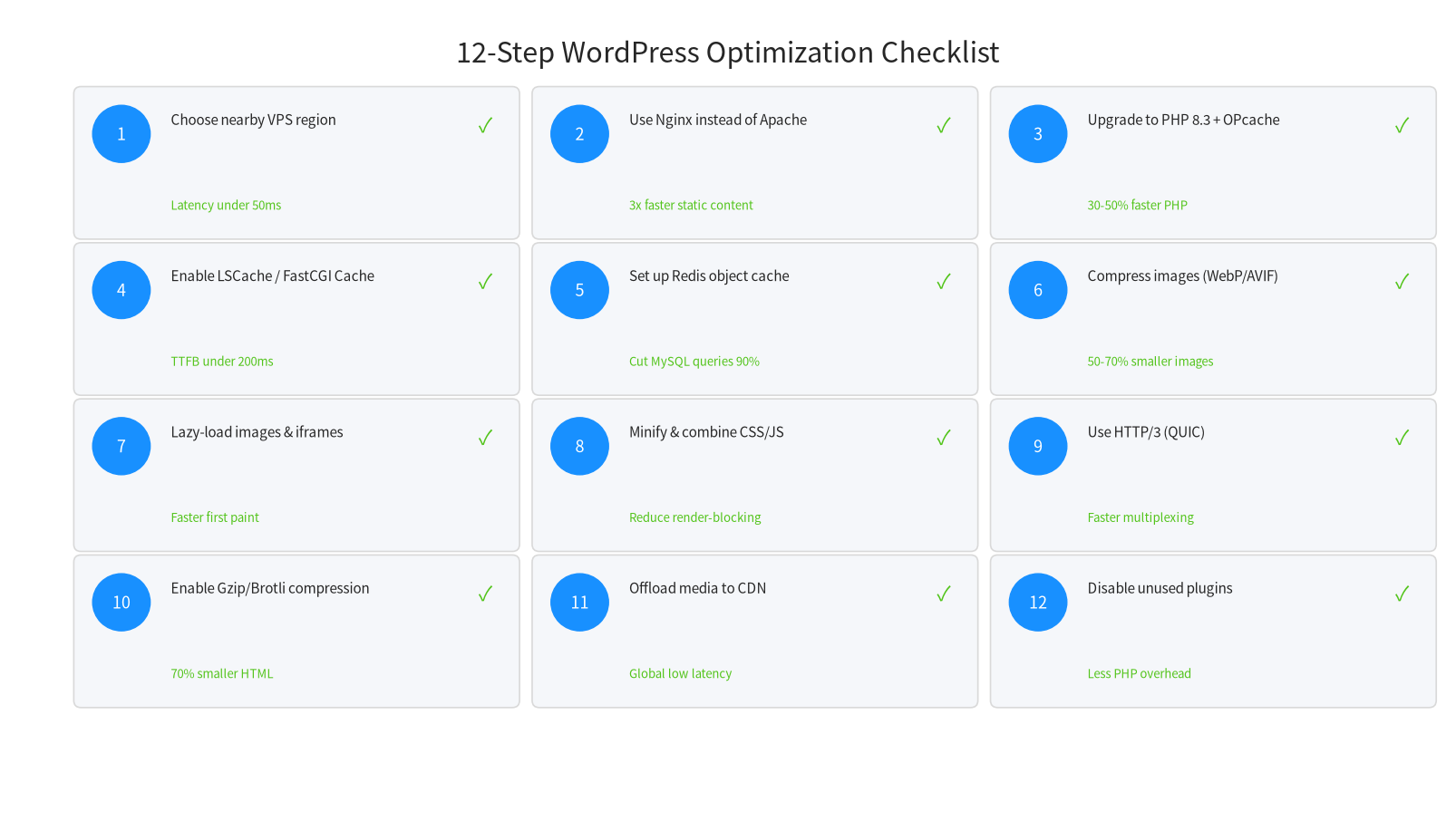 Figure 3 — Go through this checklist before calling your optimization done.
Re-run the baseline tests from Step 0 and confirm all of these are true:
curl -w "%{time_starttransfer}"from an external location shows TTFB under 200 ms for cached pages (under 500 ms for WooCommerce cart/checkout)- PageSpeed Insights shows a Performance score of 90+ on mobile
- Core Web Vitals pass: LCP
- Response headers include
X-FastCGI-Cache: HIT(orX-LiteSpeed-Cache: hit) for guest visitors - Redis Object Cache plugin shows hit ratio above 90%
- HTTP/3 is working (verify on
https://http3check.net) - Images are served as WebP/AVIF at appropriately resized dimensions
12. Expected Results: Real Numbers
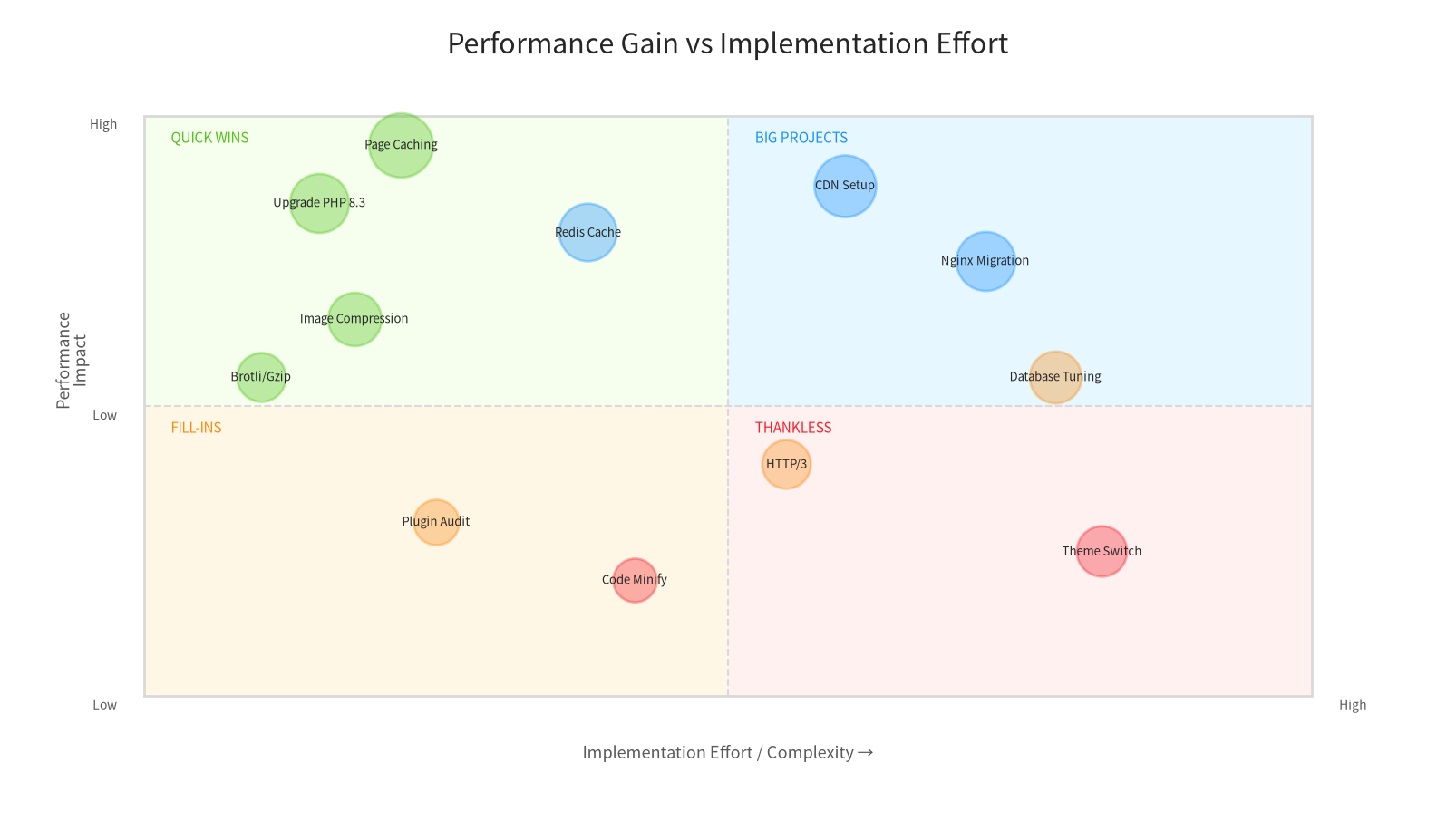 Figure 4 — Performance impact vs effort. Start in the top-left (quick wins) and work toward the bottom-right.
On a LuckVM 2 vCPU / 2 GB Hong Kong VPS running a real WooCommerce store with ~50 products, here is what a properly configured stack achieved in Q3 2026 testing:
| Metric | Default install | After this guide | Improvement |
|---|---|---|---|
| TTFB (origin, cached) | 1800-2400 ms | 50-80 ms | ~30x faster |
| TTFB (US visitor, via CDN) | 2200-3000 ms | 120-180 ms | ~15x faster |
| PageSpeed Mobile score | 32-48 | 92-98 | +50-60 points |
| LCP (mobile, median) | 3.8-5.2 s | 1.4-2.1 s | ~2.5x faster |
| Total page weight | 2.4-3.8 MB | 0.7-1.2 MB | ~70% reduction |
| Requests per second (ab) | 8-15 rps | 1200-3500 rps | ~100-200x more throughput |
Common Mistakes That Kill Speed
- Skipping page cache — PHP 8.3 and Redis are useless if every request still bootstraps WordPress from scratch
- Running two caching plugins — causes conflicts, stale content, and weird cache misses
- Setting PHP-FPM max_children too high — causes OOM kills and swap death on small VPS
- Forgetting cache purge hooks — publishing a post and still seeing the old version for an hour
- Putting CDN in "Full" SSL mode with an expired origin cert — causes redirect loops or 526 errors
- Over-minifying JS — breaks checkout pages, sliders, and forms faster than you can debug
- Testing only from your office Wi-Fi — always test from your actual visitor geographies
How LuckVM Helps You Hit 100 ms TTFB
All of the above works best on a VPS with fast NVMe storage, low-latency network, and predictable CPU — exactly what LuckVM provides for Asia-Pacific traffic:
| Plan | vCPU | RAM | NVMe | Bandwidth | Region | From |
|---|---|---|---|---|---|---|
| Starter | 1 vCPU | 1 GB | 40 GB | 10 Mbps | HK / LA (CN2 GIA) | $8.80/mo |
| Standard | 2 vCPU | 2 GB | 70 GB | 10-30 Mbps | HK / SG / JP / KR / LA | $11.00/mo |
| Pro | 4 vCPU | 4 GB | 150 GB | 10-30 Mbps | All regions | $48.40/mo |
| Business | 8 vCPU | 8 GB | 300 GB | 10-30 Mbps | All regions | $81.40/mo |
Free migration service: LuckVM's engineering team will move your existing WordPress site — including the full Nginx/PHP/Redis optimization described in this guide — onto your new VPS for free, with zero downtime. Spin up a VPS from the LuckVM dashboard, open a ticket labeled "WordPress optimization migration", and we handle the rest. Servers are provisioned in 5-10 minutes.
Ready to hit sub-100ms TTFB?
Spin up a LuckVM VPS in the region closest to your audience. Free migration + free WordPress optimization assistance included with every plan.
See LuckVM VPS Plans →Frequently Asked Questions
How much faster is WordPress on VPS vs shared hosting?
On a properly configured VPS, WordPress TTFB is typically 3-10x faster than shared hosting — under 200ms vs 1500-3000ms on shared. You also get predictable latency, no noisy-neighbor slowdowns, and root access to tune the stack.
Do I need LSCache or is Nginx FastCGI Cache enough?
Both are page-level caches and give similar TTFB wins. Use LSCache if you run LiteSpeed/OpenLiteSpeed and want tight WordPress plugin integration. Use Nginx FastCGI Cache if you prefer an open-source Nginx stack — it is free and equally fast.
Is PHP 8.3 safe for WordPress in 2026?
Yes. WordPress 6.6+, WooCommerce 9.x, and virtually all mainstream plugins fully support PHP 8.3, which is 30-50% faster than PHP 7.4 and uses less memory. Always test plugins in staging first, then upgrade.
Do I really need Redis object cache?
On low-traffic sites (
Will adding a CDN slow down my origin server?
No. A properly configured CDN serves 80-95% of requests from edge nodes and only sends cache misses back to your origin. This reduces origin load, improves global latency, and absorbs DDoS traffic.
What's the minimum VPS spec for a fast WordPress site?
For 1-2 sites under 10k visits/day: 1 vCPU, 1GB RAM, 40GB NVMe. For 5-10 sites or WooCommerce: 2 vCPU, 2GB RAM minimum. For heavy WooCommerce/multisite: 4 vCPU, 4GB RAM. Always pick NVMe SSD and a data center near your primary audience.
Can I do these optimizations on a cPanel VPS?
Yes. PHP version, OPcache, Redis, and LSCache can be enabled in cPanel/WHM. For Nginx on cPanel, use Engintron or switch to OpenLiteSpeed with CyberPanel.
How do I verify my optimizations actually worked?
Measure before and after with: (1) PageSpeed Insights for Core Web Vitals, (2) web.dev for LCP/CLS/INP, (3) GTmetrix/Pingdom for waterfall, (4) curl -w for raw TTFB.