1. What Is Docker and Why Use It on a VPS?
If you have ever tried to set up a piece of software on a new server and spent three hours debugging version conflicts between Python, OpenSSL, and a random C library, you have already felt the problem Docker solves. When you install software directly on a VPS, every app shares the same operating system. When one app needs Python 3.9 and another needs 3.12, or a database upgrade breaks your web app, you end up in what developers call "dependency hell."
Docker solves this by packaging each application and everything it needs (libraries, binaries, config files, environment variables) into a standardized unit called a container. Containers are isolated from each other and from the host system. You can run 10 containers on the same VPS using different versions of Node.js, PostgreSQL, and Redis, and they will never conflict.
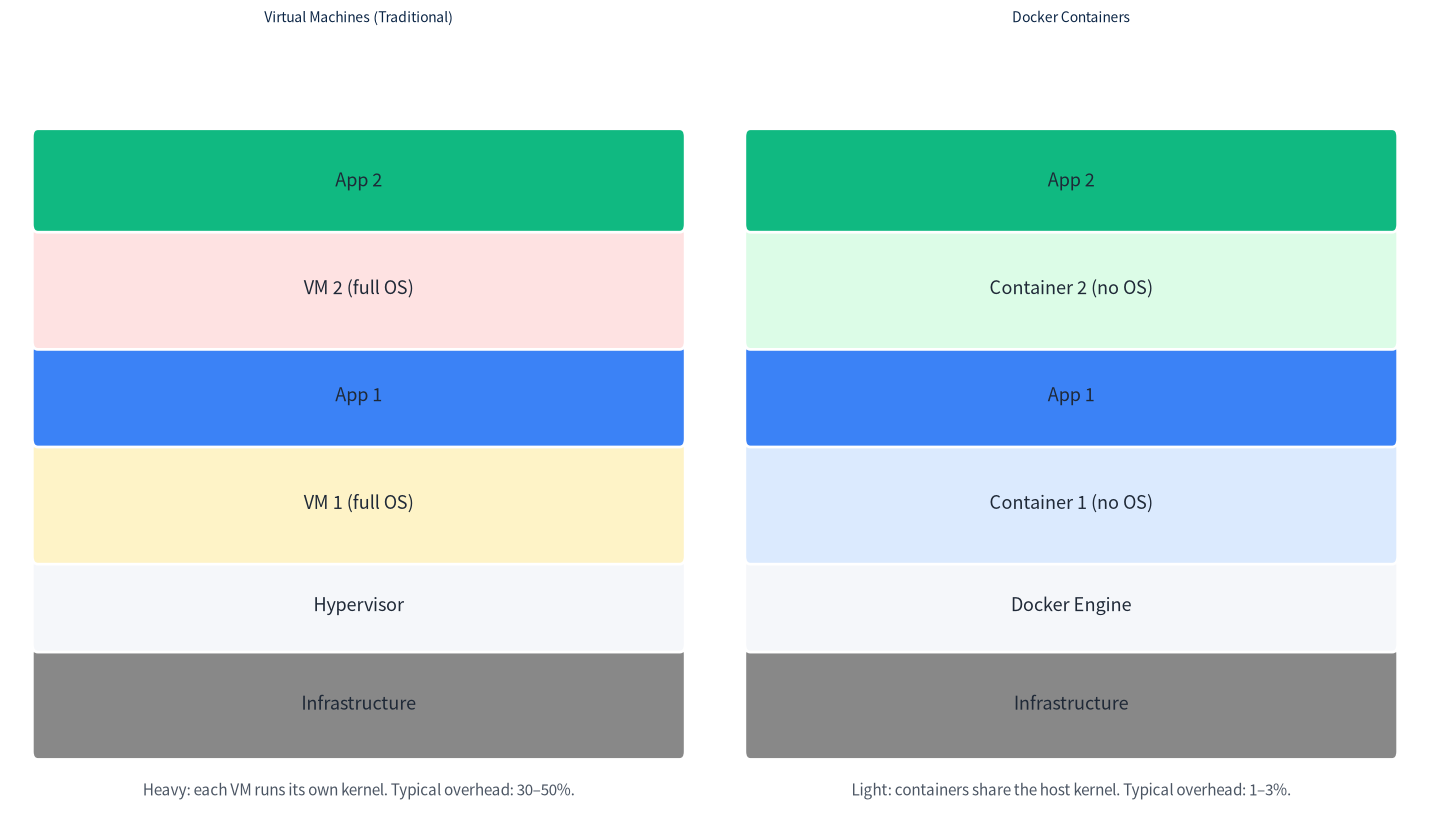
Figure 1: Containers share the host kernel and use 1-3% overhead. Traditional VMs run their own full OS and waste 30-50% resources.
Why Docker is especially valuable on a VPS:
- Reproducibility. An app that runs on your laptop will run identically on your VPS, on your friend's server, or on any cloud provider. The famous line "it works on my machine" stops being a problem.
- Isolation. One compromised app cannot easily reach into another. You can give a container its own network, filesystem, and limited resources.
- Speed. Spinning up a new app takes seconds, not hours. Destroying a container leaves no leftover packages scattered across your OS.
- Rollbacks. Updating an app is as simple as pulling a new image tag and restarting. If something breaks, roll back to the previous tag.
- One ecosystem. Tens of thousands of pre-built images exist on Docker Hub - WordPress, Nextcloud, Minecraft, PostgreSQL, Redis, Nginx, and every popular developer tool, all installable with a single command.
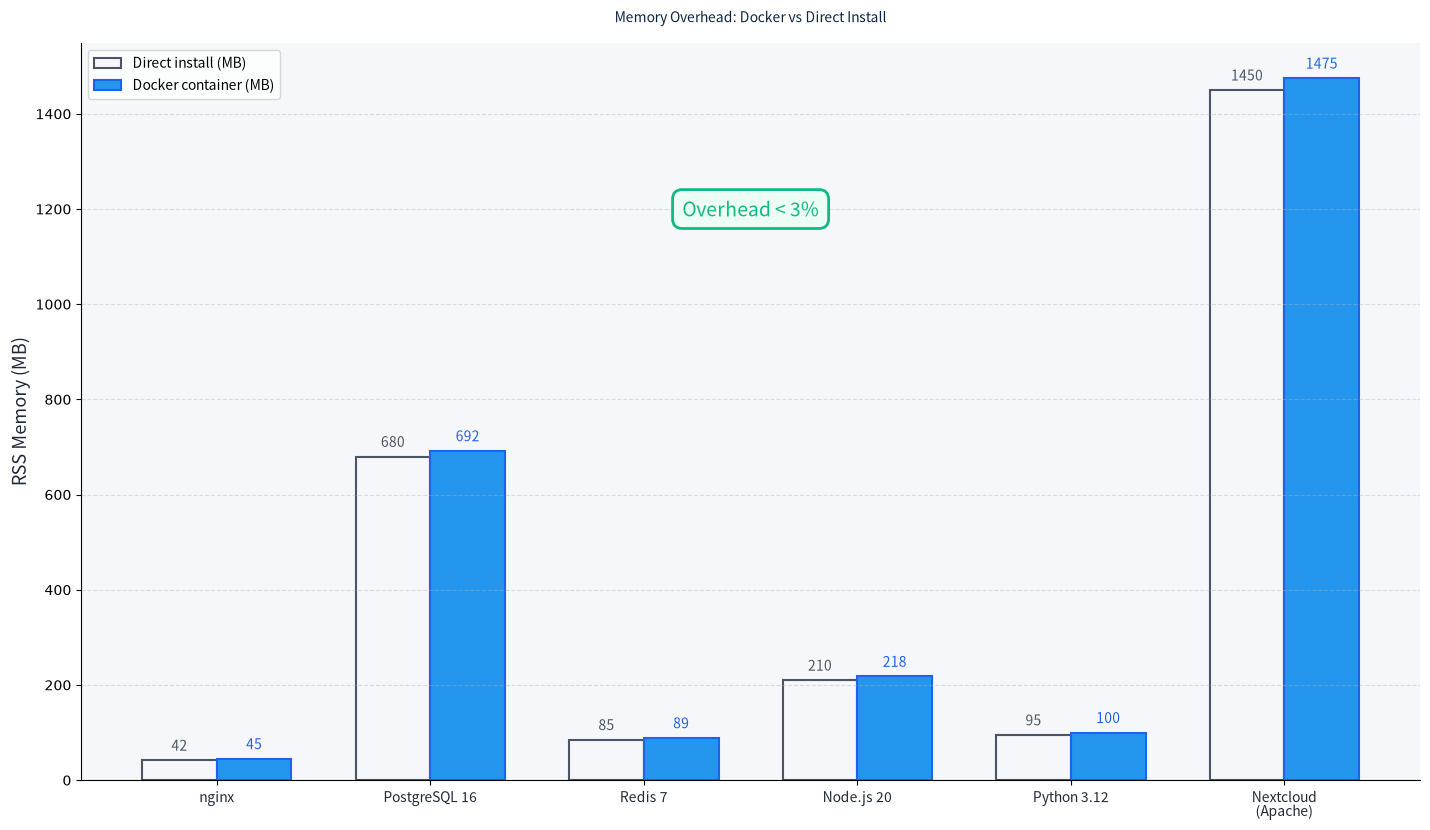
Figure 2: Docker adds roughly 1-3% memory overhead compared to running apps directly on the host OS, far less than virtual machines.
2. How Docker Actually Works: Core Concepts
Before you type a single command, understand four terms. Once you get these, every Docker command makes sense.
2.1 Images vs Containers
An image is a read-only template - like a blueprint - that describes exactly what filesystem, libraries, and commands an application needs. The official nginx:alpine image, for example, is a tiny 10 MB file containing a minimal Alpine Linux filesystem plus the Nginx web server binary.
A container is a running instance of an image. You can start 5 Nginx containers from the same image, each listening on a different port, each with its own isolated filesystem and process space. Think of image = class, container = instance if you come from programming.
2.2 The Dockerfile
A Dockerfile is a simple text file that describes how to build an image. It starts from a base image (like node:20-alpine), copies your source code in, runs your build steps, and declares which command starts the app. When you run docker build, Docker executes each line as a cached layer, so rebuilds are fast.
2.3 Volumes (Persistent Data)
Containers are ephemeral by design. If you delete a container, everything written inside its filesystem disappears. This is great for stateless apps (a web server serving static files) but terrible for databases. Volumes are Docker's mechanism for persistent storage - they live outside the container lifecycle and can be mounted into any container. Always use volumes for databases and uploaded files.
2.4 Networks
By default, containers on the same custom Docker network can talk to each other using their service names as hostnames. This means a WordPress container can reach a database container at hostname db on port 3306 without exposing the database to the internet. The host machine (your VPS) can reach containers only through explicitly published ports (-p 80:80).
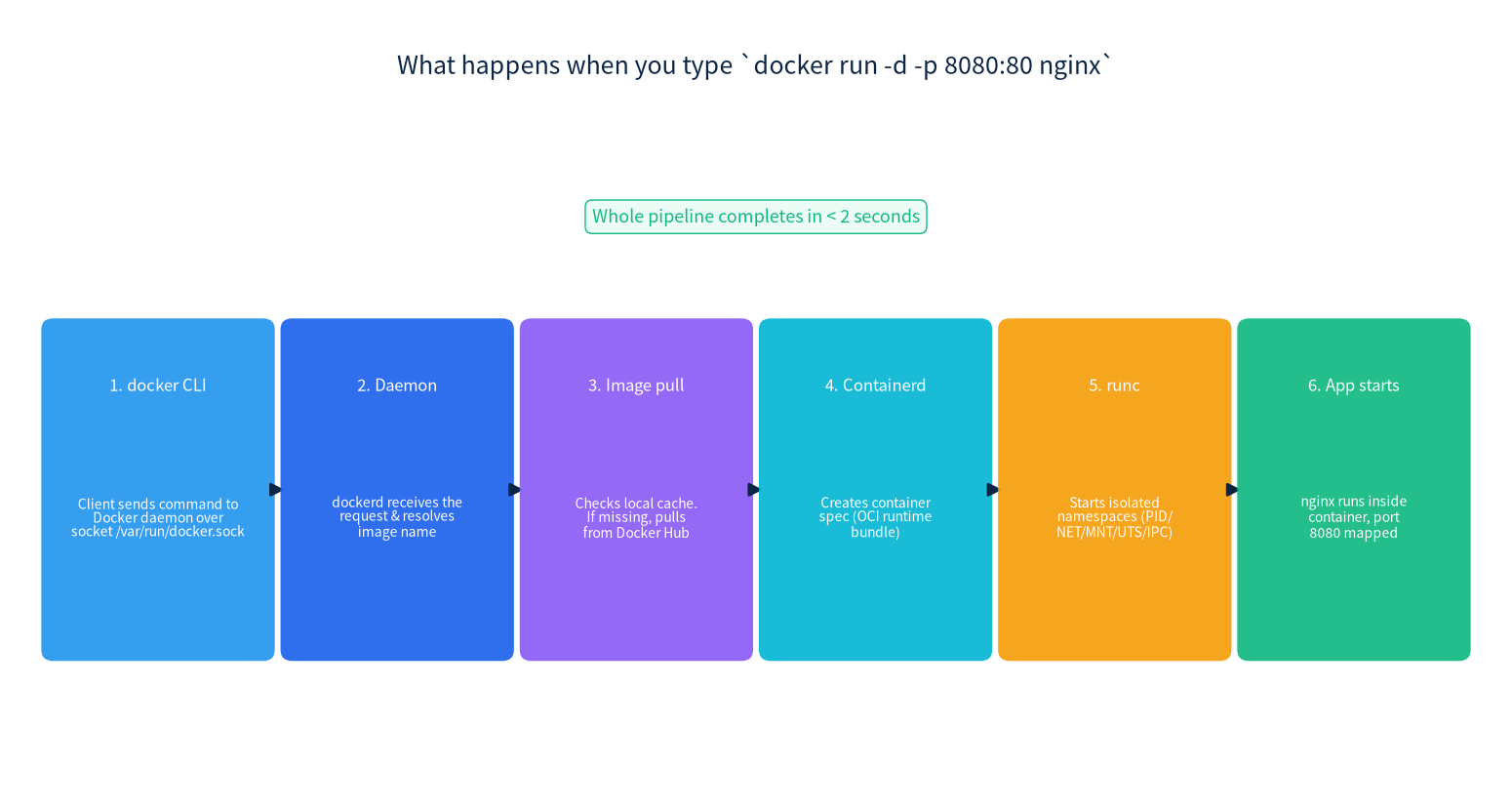
Figure 3: What happens internally when you type docker run. Understanding this pipeline helps you debug when something fails.
3. Docker Architecture on a VPS
Docker on Linux uses a client-server architecture. This is important because it explains why some commands require sudo and how the various pieces fit together.
- Docker CLI (client): The
dockercommand you type in your terminal. It talks to the daemon over a Unix socket at/var/run/docker.sock. - Docker daemon (dockerd): A background service running as root. It manages images, containers, volumes, and networks. It listens for API requests from the CLI or from other tools (like Portainer).
- containerd: The daemon delegates container lifecycle management (start, stop, pause, exec) to containerd, a CNCF-graduated project originally donated by Docker.
- runc: A low-level OCI-compliant runtime that actually creates the Linux namespaces (PID, NET, MNT, UTS, IPC) and cgroups that isolate containers from each other.
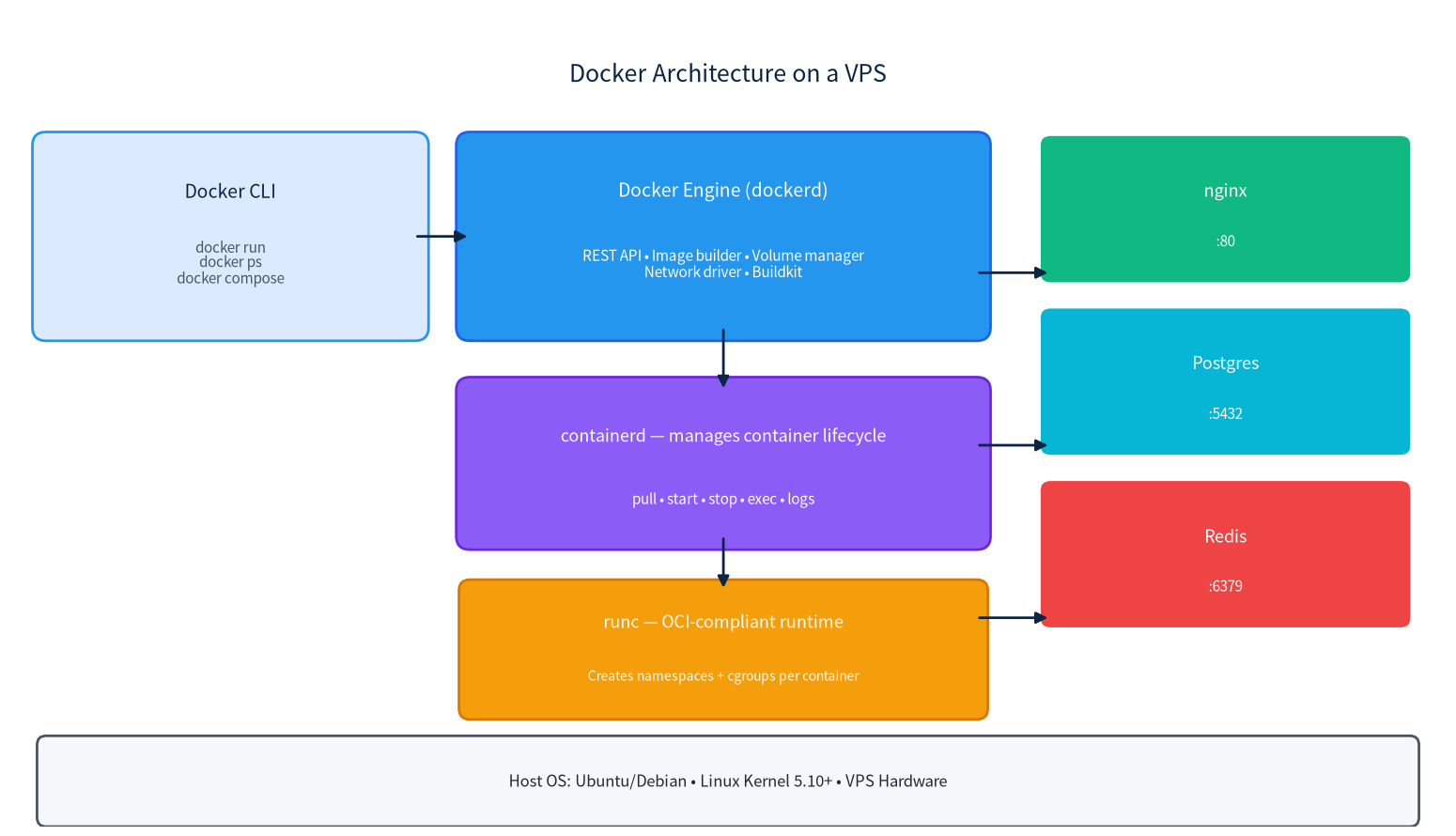
Figure 4: Docker's four-layer architecture on a Linux VPS. Each layer has a well-defined responsibility.
Isolation is enforced by kernel features that have existed in Linux for over a decade: namespaces give a container its own view of process IDs, network interfaces, mount points, hostnames, and IPC. cgroups (control groups) limit how much CPU, memory, and I/O each container can consume. This is why containers start in milliseconds and have negligible overhead compared to VMs.
4. Installing Docker on Ubuntu 24.04
We will install Docker Engine from Docker's official APT repository. This ensures you get the latest stable release (not the older version in Ubuntu's default repos) and security updates as they ship.
SSH into your VPS and run the following commands as root or with sudo. Copy the entire block at once:
# Update package index and install prerequisites
apt update && apt install -y ca-certificates curl gnupg

# Add Docker's official GPG key
install -m 0755 -d /etc/apt/keyrings
curl -fsSL https://download.docker.com/linux/ubuntu/gpg -o /etc/apt/keyrings/docker.asc
chmod a+r /etc/apt/keyrings/docker.asc

# Add Docker repository
echo "deb [arch=$(dpkg --print-architecture) signed-by=/etc/apt/keyrings/docker.asc] \
https://download.docker.com/linux/ubuntu $(. /etc/os-release && echo $VERSION_CODENAME) stable" \
> /etc/apt/sources.list.d/docker.list

# Install Docker Engine, CLI, containerd, and the Compose plugin
apt update && apt install -y docker-ce docker-ce-cli containerd.io \
  docker-buildx-plugin docker-compose-plugin

# Verify installation
docker --version
docker compose version
If both commands return version numbers (Docker 27.x and Docker Compose v2.x at time of writing), you are good to go.
sudo by adding your user to the docker group:
usermod -aG docker $USER
newgrp dockerdocker group effectively has root access to the host (they can mount the host filesystem into a container). Only add trusted users.4.1 Picking the right VPS size for Docker
Docker itself needs minimal resources (the daemon uses about 80 MB idle). What determines the VPS size is what you run on top of it.
| Stack | Minimum RAM | Recommended plan |
|---|---|---|
| 1-2 lightweight containers (Nginx, static site, small Node app) | 1 GB | LuckVM Hong Kong / LA Starter ($8.80/mo) |
| Web app + PostgreSQL + Redis + Nginx | 2 GB | LuckVM Standard ($26.40/mo) |
| WordPress / Nextcloud / Minecraft + backups | 4 GB | LuckVM Professional ($48.40/mo) |
| Multi-app lab (5-10 containers + monitoring) | 8 GB | LuckVM Enterprise ($81.40/mo) |
Prices as listed on luckvm.com at the time of writing; check the pricing page for current rates. All plans include unmetered inbound traffic and CN2-optimized routing for users in Asia if you pick the Hong Kong or Los Angeles nodes.
5. Deploying Your First Container
Let us run the classic Nginx web server with a single command:
docker run -d --name my-nginx -p 8080:80 nginx:alpineBreaking this down flag by flag:
docker runcreates and starts a new container.-druns the container in "detached" mode (in the background, returning your shell).--name my-nginxgives the container a human-friendly name instead of a random one likesharp_gates.-p 8080:80maps port 8080 on your VPS to port 80 inside the container. Visiting http://your-vps-ip:8080 will reach Nginx.nginx:alpineis the image name: official Nginx image using the tiny Alpine Linux base.
The first time you run this, Docker will download the nginx:alpine image (~10 MB) from Docker Hub, then start it. Subsequent starts use the local cache and complete in under a second.
Verify it worked:
docker ps                 # List running containers
docker logs my-nginx      # View access logs
curl http://localhost:8080  # Should return the Nginx welcome HTML
To stop and remove the container:
docker stop my-nginx      # Graceful stop (SIGTERM)
docker rm my-nginx # Delete the container (data inside is gone)docker run redis, PostgreSQL with docker run postgres, WordPress with docker run wordpress, etc.6. Docker Compose: Multi-Container Stacks
For single apps, docker run works fine. Real applications, though, are usually a composition of multiple services - a web app, a database, a cache, maybe a reverse proxy and a queue worker. Typing five separate docker run commands with the right flags, volumes, and networks quickly becomes error-prone.
Docker Compose (now a plugin shipped with Docker Engine as docker compose, hyphen-less) lets you declare your entire stack in one YAML file: which images to use, which ports to expose, which volumes to persist, which environment variables to set, and which networks to share. Then one command brings the whole thing up.
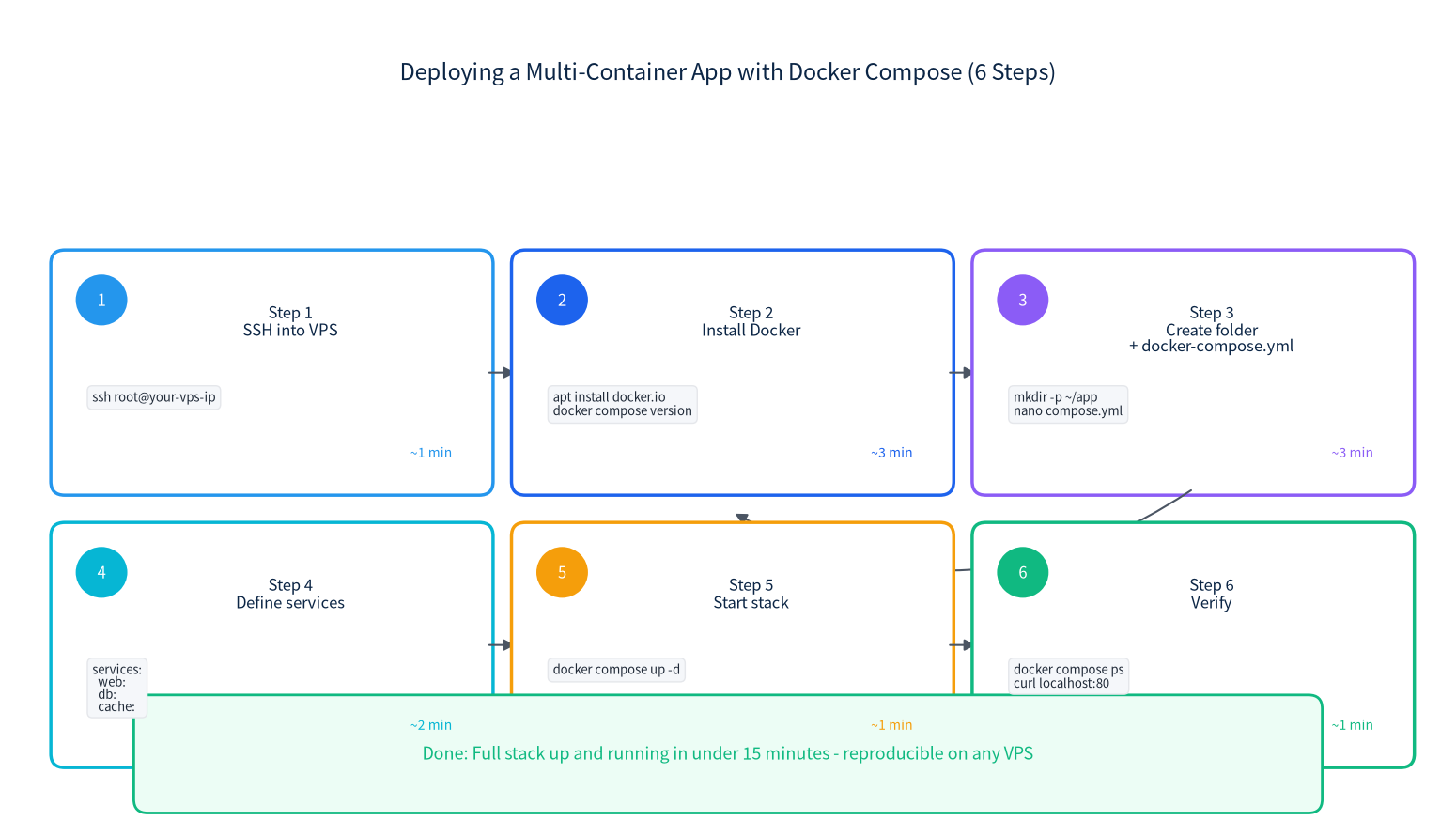
Figure 5: Deploying a multi-container app takes under 15 minutes with Docker Compose.
6.1 Real-World Example: WordPress + MariaDB + Nginx
Create a project directory and a compose.yml file:
mkdir -p ~/wordpress && cd ~/wordpress
nano compose.yml
Paste in:
services:
  db:
    image: mariadb:11
    restart: unless-stopped
    environment:
      MYSQL_ROOT_PASSWORD: change-me-to-a-strong-password
      MYSQL_DATABASE: wordpress
      MYSQL_USER: wp
      MYSQL_PASSWORD: another-strong-password
    volumes:
      - db_data:/var/lib/mysql

  wordpress:
    image: wordpress:6-apache
    restart: unless-stopped
    depends_on:
      - db
    environment:
      WORDPRESS_DB_HOST: db:3306
      WORDPRESS_DB_USER: wp
      WORDPRESS_DB_PASSWORD: another-strong-password
      WORDPRESS_DB_NAME: wordpress
    volumes:
      - wp_data:/var/www/html
    ports:
      - "8080:80"

volumes:
  db_data:
  wp_data:
Start the entire stack with one command:
docker compose up -dDocker pulls both images, creates a dedicated network, creates two persistent volumes, and starts both containers. Visit http://your-vps-ip:8080 and you will see the WordPress setup wizard. To stop everything:
docker compose down          # Stop and remove containers
docker compose down -v       # Stop AND delete volumes (data loss!)
That last -v flag destroys your database - only use it if you really want to wipe the stack.
6.2 Bind mounts for code during development
For custom apps where you want to edit code on the host and see changes reflected inside the container immediately, use a bind mount (a host path) instead of a named volume:
volumes:
  - ./myapp:/app       # Mount local ./myapp directory at /app inside container
  - /app/node_modules  # Exclude node_modules from being overwritten
7. Deploying Real Apps in Minutes
Here are four one-liners and Compose snippets to spark ideas - each of these can be a self-hosted alternative to a paid SaaS service.
7.1 Nginx reverse proxy with automatic SSL
Nginx Proxy Manager gives you a web UI to create reverse proxies with Let's Encrypt certificates - perfect if you host multiple sites on one VPS:
docker run -d --name npm \
  -p 80:80 -p 443:443 -p 81:81 \
  -v npm_data:/data -v npm_letsencrypt:/etc/letsencrypt \
  --restart unless-stopped \
  jc21/nginx-proxy-manager:latest
Visit http://your-vps-ip:81 and log in with default credentials admin@example.com / changeme (change them immediately).
7.2 Redis cache
docker run -d --name redis -p 6379:6379 \
  -v redis_data:/data --restart unless-stopped \
  redis:7-alpine redis-server --appendonly yes
7.3 PostgreSQL database
docker run -d --name postgres -p 5432:5432 \
  -e POSTGRES_PASSWORD=strong-password \
  -v pg_data:/var/lib/postgresql/data \
  --restart unless-stopped postgres:16-alpine
7.4 Uptime Kuma (status page for your sites)
docker run -d --name uptime-kuma -p 3001:3001 \
  -v kuma_data:/app/data --restart unless-stopped \
  louislam/uptime-kuma:1
Uptime Kuma monitors your websites from your VPS and sends alerts via email, Slack, Telegram, or Discord when something goes down. We use it ourselves for monitoring LuckVM's regional endpoints.
If you want to go deeper into self-hosting, we have written complete guides for running your own WireGuard VPN, hosting Nextcloud as a Google Drive alternative, and setting up a Minecraft server - all of which use Docker in their examples.
8. Production Hardening for Docker
Once you move past hobby projects, apply these practices.
8.1 Run containers as a non-root user
Many official images (Node, Python, Nginx) still run as root by default. Either use a USER directive in your Dockerfile, or pass --user 1000:1000 at runtime, or use images designed for non-root operation (like nginxinc/nginx-unprivileged). Root inside a container is not the same as root on the host, but it is still more privilege than you need.
8.2 Limit container resources
Prevent one runaway container from starving everything else:
docker run -d --name app \
  --memory=512m --cpus="1.0" \
  --restart unless-stopped \
  myapp:latest
8.3 Use specific image tags, never :latest
nginx:latest will update unpredictably when you pull. Pin to a specific version like nginx:1.27-alpine so you know exactly what you are running. Update deliberately as part of a maintenance window.
8.4 Scan images for vulnerabilities
docker scout cves nginx:1.27-alpine    # Built into recent Docker versions
# or use trivy for deeper scans:
docker run --rm -v /var/run/docker.sock:/var/run/docker.sock \
  aquasec/trivy image nginx:1.27-alpine
8.5 Never expose the Docker socket to containers
Mounting /var/run/docker.sock into a container gives that container full root control over the host. Avoid it unless you absolutely need it (e.g., Portainer, watchtower) and trust the image completely.
8.6 Use a reverse proxy in front of your containers
Do not publish every container directly to the internet on random ports. Run either Nginx, Caddy, or Traefik as a single entry point on ports 80/443 and route traffic to internal containers by hostname. This centralizes TLS termination, rate limiting, and access logs.
-p 127.0.0.1:5432:5432), or use a dedicated Docker network and access containers only through your reverse proxy. See our VPS security hardening checklist for the full firewall setup.9. Docker Command Cheat Sheet
Print this or keep it open in a tab. These are the commands you will use 95% of the time.
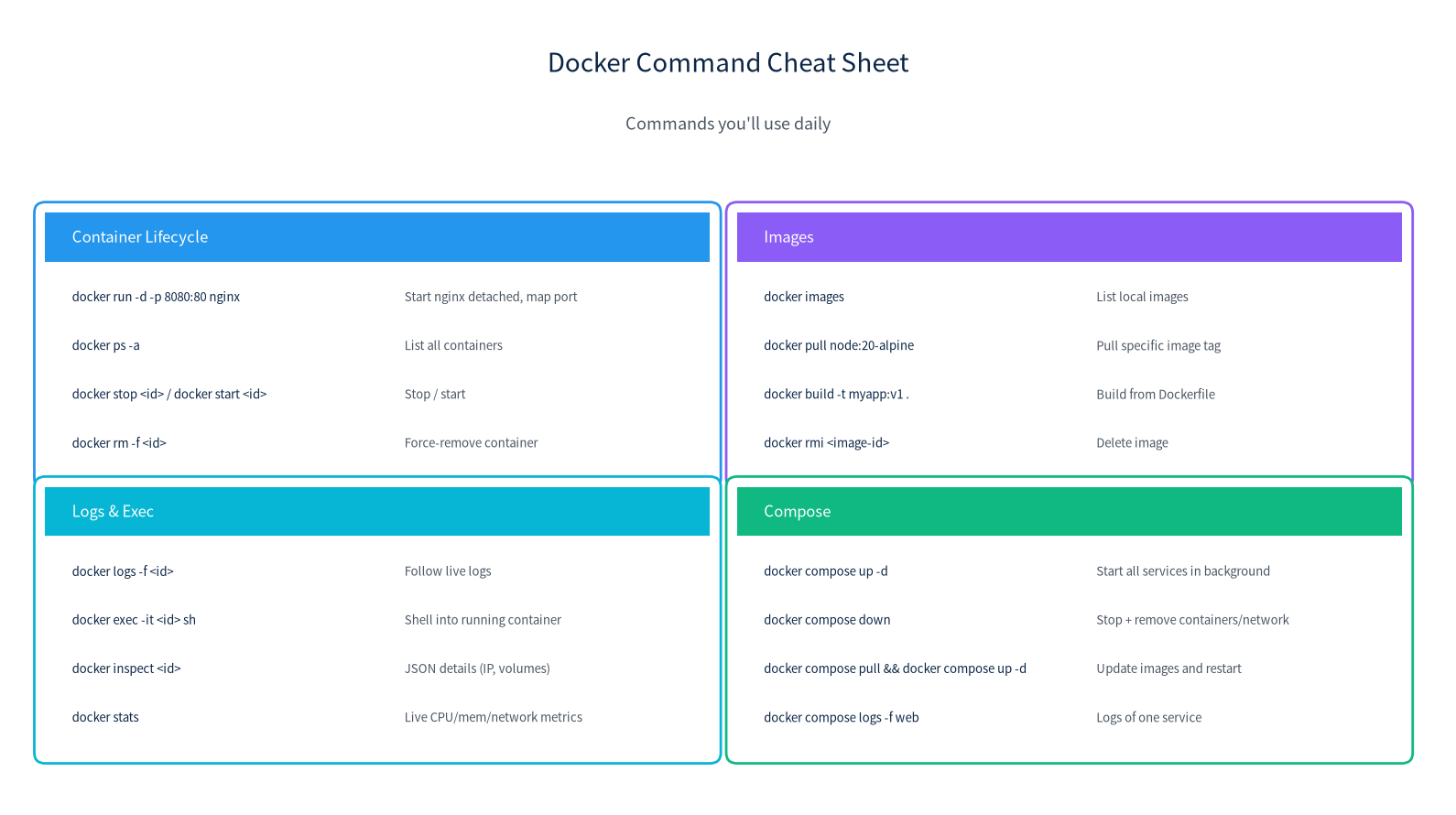
Figure 6: The Docker commands you will use daily, organized by category.
Essential patterns
| Task | Command |
|---|---|
| See running containers | docker ps |
| See all containers (including stopped) | docker ps -a |
| Follow logs in real time | docker logs -f |
| Shell into a running container | docker exec -it sh |
| See CPU / memory usage | docker stats |
| Clean up unused images/volumes/networks | docker system prune -a --volumes (warn: deletes unused volumes) |
| Update all Compose services | docker compose pull && docker compose up -d |
| Restart a single Compose service | docker compose restart |
10. Frequently Asked Questions
Docker Engine (Community Edition) is free under the Apache 2.0 license. Docker Desktop requires a paid subscription for companies with more than 250 employees or over $10M annual revenue, but Docker Engine on Linux servers - what you install on a VPS - remains free for everyone, including commercial use.
The Docker daemon uses approximately 50-100 MB at rest. Per-container overhead is typically 1-3% compared to running the same process directly on the host. A 1 GB VPS can comfortably run 3-5 lightweight containers.
Yes. Docker is the dominant container runtime used by over 80% of production workloads. Security best practices include: running containers as non-root, using official or well-maintained images, scanning for vulnerabilities with Docker Scout or Trivy, and keeping the Docker engine patched.
Docker is a container runtime - it builds and runs individual containers. Kubernetes is an orchestrator that manages hundreds or thousands of containers across multiple servers. Start with Docker and Docker Compose. Move to Kubernetes only when you have multiple hosts, need auto-scaling, or are running a team platform.
No. When a container is deleted, all data written inside its writable layer is lost. Use Docker volumes (docker volume create) or bind mounts (-v /host/path:/container/path) to persist data. Databases must always use volumes.
Yes. A 1 GB RAM, 1 vCPU VPS can run Docker plus a small stack such as Nginx + a lightweight app + SQLite. For production workloads with PostgreSQL or Redis, we recommend at least 2 GB RAM to avoid out-of-memory kills under load.
Docker wins for reproducibility, isolation, and clean rollbacks. It lets you deploy apps in minutes and tear them down without leaving config files scattered across your system. Direct installation makes sense only for very memory-constrained servers (under 512 MB RAM) or one-off single-purpose VPS that will never change.
With Docker Compose: run docker compose pull to fetch updated images, then docker compose up -d to restart services using the new images. Always test updates on a staging server first, and ensure volumes are preserved during recreation (they are by default unless you run docker compose down -v).
Ready to try Docker on a real VPS?
LuckVM's Hong Kong and Los Angeles VPS plans start at $8.80/month, ship with Ubuntu 24.04, and deliver low-latency connectivity across Asia and North America. Provision in 5-10 minutes, SSH in, and run your first container before your coffee gets cold.
Explore LuckVM VPS Plans