TL;DR — Your Minecraft server in 20 minutes for $8.80/month
Skip the overpriced "Minecraft hosting" brands. Buy a $8.80 VPS with 1 GB RAM and a fast single-core CPU (Hong Kong or Los Angeles on LuckVM for Asia/NA audiences), install Ubuntu 22.04 + Java 21 + PaperMC, open port 25565 in UFW, and your friends can join at
1. Why Host Minecraft on a VPS?
There are roughly 170 million active Minecraft players worldwide, and a huge number of them want a private place to play with friends — without paying $15/month for an overcrowded "Minecraft specialized" host, or dealing with Mojang's 10-player Realms cap.
Running your own Minecraft server on a general-purpose VPS is the sweet spot for most players because you get:
- Full root access — install any mod, plugin, or custom jar you want (Forge, Fabric, Paper, Purpur, Velocity proxies)
- Choice of location — put the server where your players live, not where a Minecraft host happens to have a datacenter
- Dedicated IPv4 — no fighting for a shared IP that's already been banned on Hypixel or Mojang auth servers
- Real DDoS protection — Minecraft servers are extremely common DDoS targets; reputable VPS providers include network-level protection
- A fraction of the cost — $8.80/month vs $15–$30/month for the same specs from "Minecraft hosts"
- Transferable skills — the same VPS can run a Discord bot, a website, or a WireGuard VPN when you're not playing
✅ Who this guide is for
You want to run a Java Edition server for 1–40 friends, have minimal Linux experience (we give copy-paste commands), and want to spend as little as possible without sacrificing performance. If you need 100+ players or heavily modded packs, we'll note when to upgrade.
2. Minecraft Hosting Options: Honest Comparison
Before we start, let's be honest about every option on the market so you can decide whether a VPS is actually right for you:
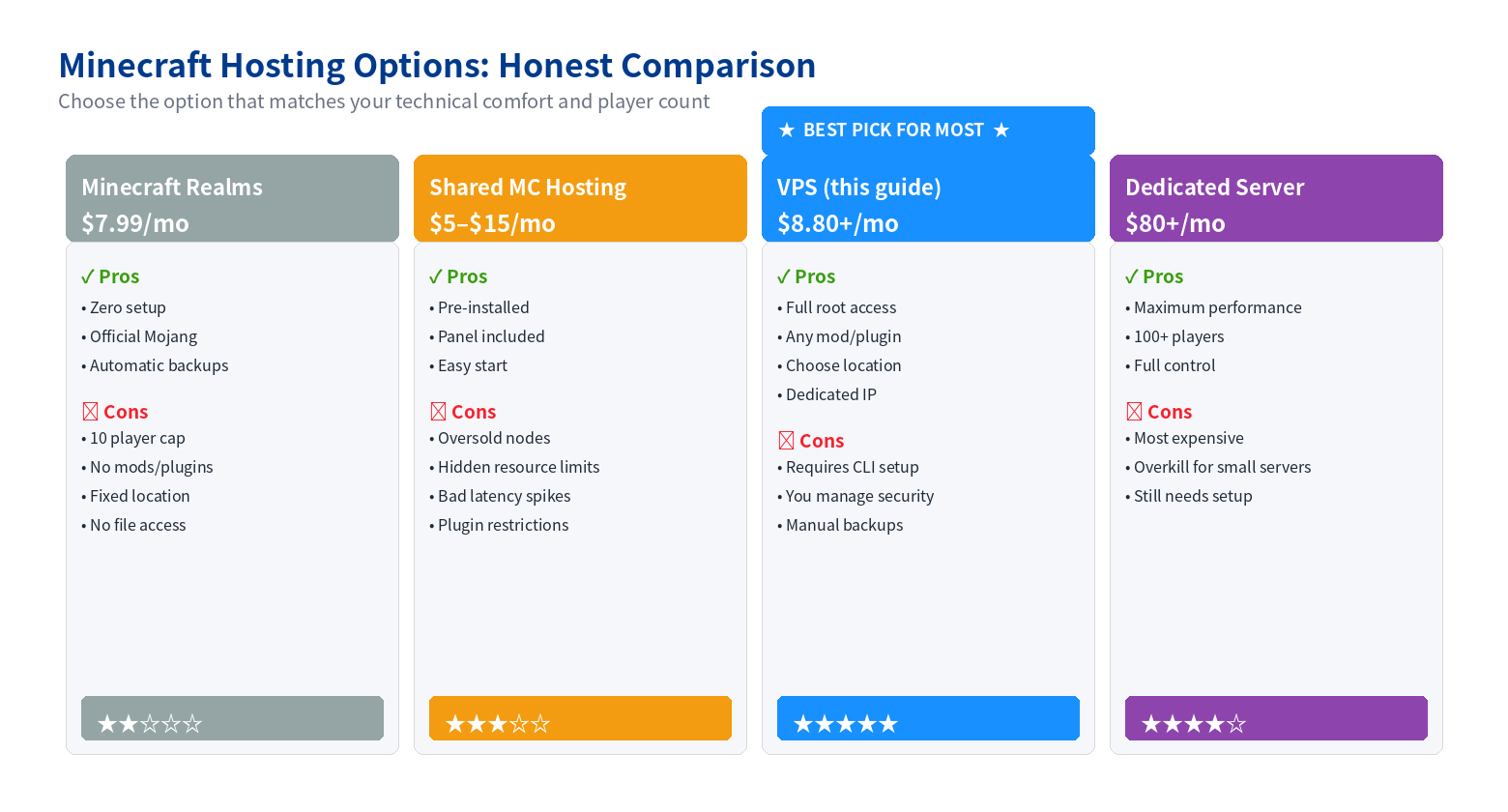
Figure 1: Four ways to host Minecraft — VPS wins for most groups who want control + low cost.
Our honest take:
- Minecraft Realms is fine if you're 4–5 friends who never want to touch a command line, but the 10-player cap and "no plugins" rule makes it boring fast.
- Shared Minecraft hosting (Apex, Shockbyte, Hostinger MC plans) is often oversold — 2 GB "guaranteed" RAM on paper translates to 1 GB usable with heavy CPU throttling during peak hours. The control panels are nice, but the hardware is usually worse than a VPS at the same price.
- A VPS is the best balance. You have to type ~15 commands (provided below), but you get predictable performance, root, and the ability to choose your location.
- A dedicated server is only justified for 80+ players, modpacks with 200+ mods, or networks running multiple servers behind a proxy.
3. How Much RAM & CPU Do You Need?
This is the #1 question, and Minecraft hosts love to upsell you on RAM you don't need. Here's the real-world breakdown for PaperMC (the recommended server software) running Java 21:
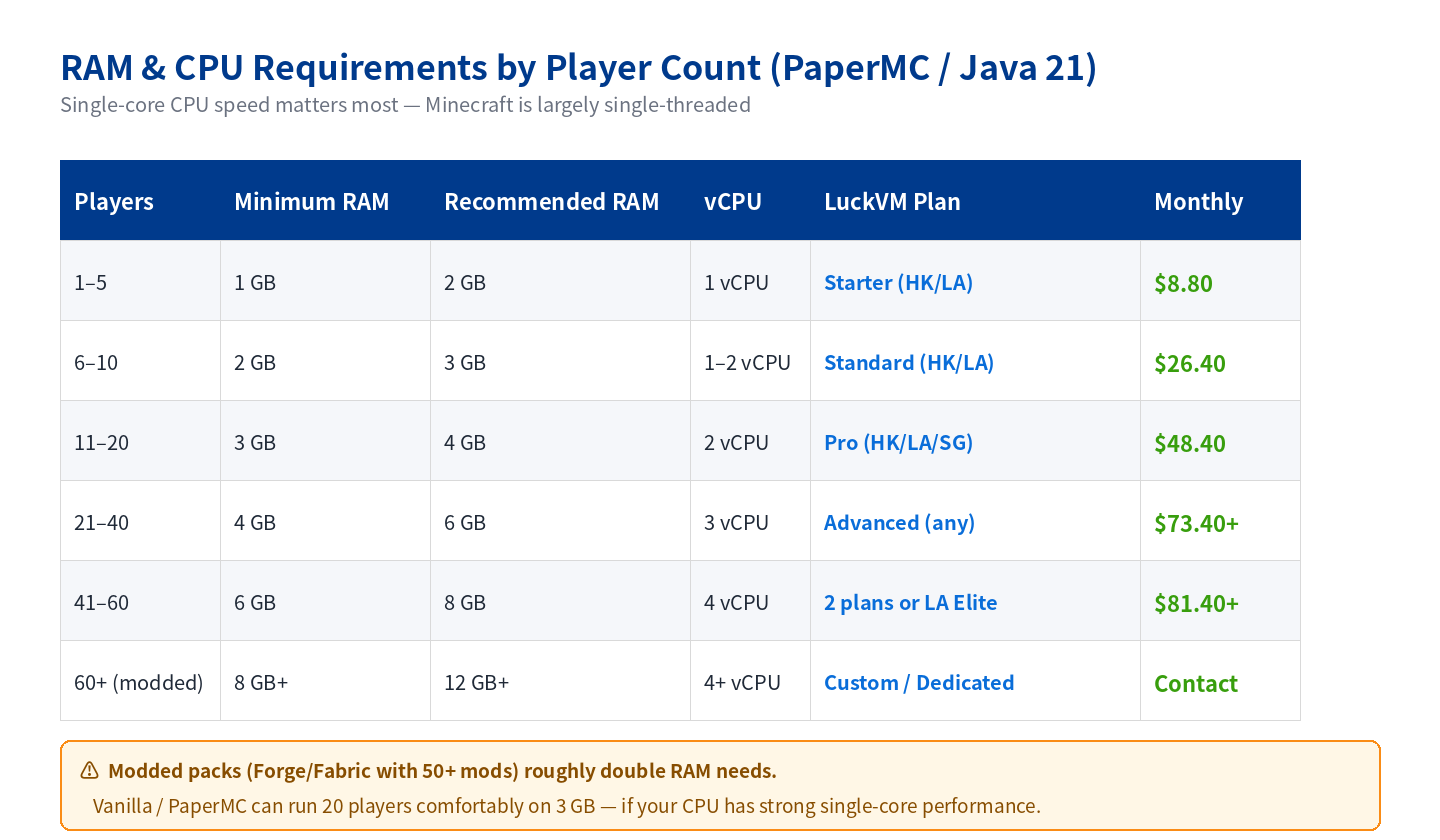
Figure 2: RAM & vCPU requirements for smooth 20 TPS play on PaperMC.
The single most important spec is CPU single-core speed, not total RAM. Minecraft's main tick loop runs on a single thread; a 3.5 GHz Xeon core will outperform a 2.0 GHz core with twice the RAM. This is why cheap "8 GB RAM" MC hosting plans feel laggy — they pair lots of RAM with slow, oversold CPUs.
⚠️ Modded servers
Forge or Fabric modpacks (like All the Mods, Create Above and Beyond, RLCraft) double or triple the RAM requirement. Plan on 6–8 GB minimum for 10 players, and you'll likely want a 4 vCPU plan.
4. Choosing the Best VPS Location
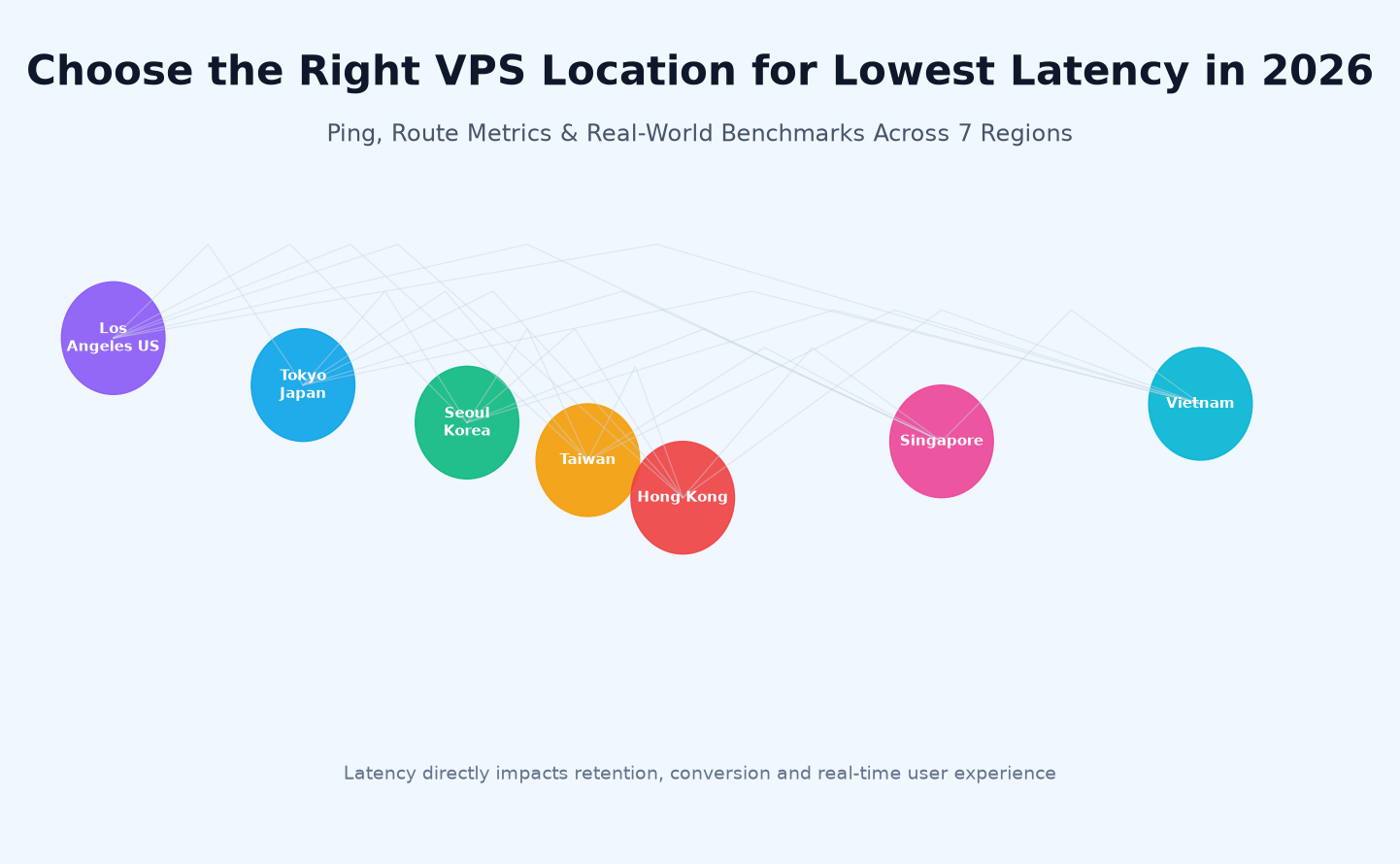
Ping is everything in Minecraft. Above ~150 ms, PvP starts to feel unresponsive; above 200 ms, even survival feels laggy because block breaks show a delay. Pick the node geographically closest to the majority of your players.
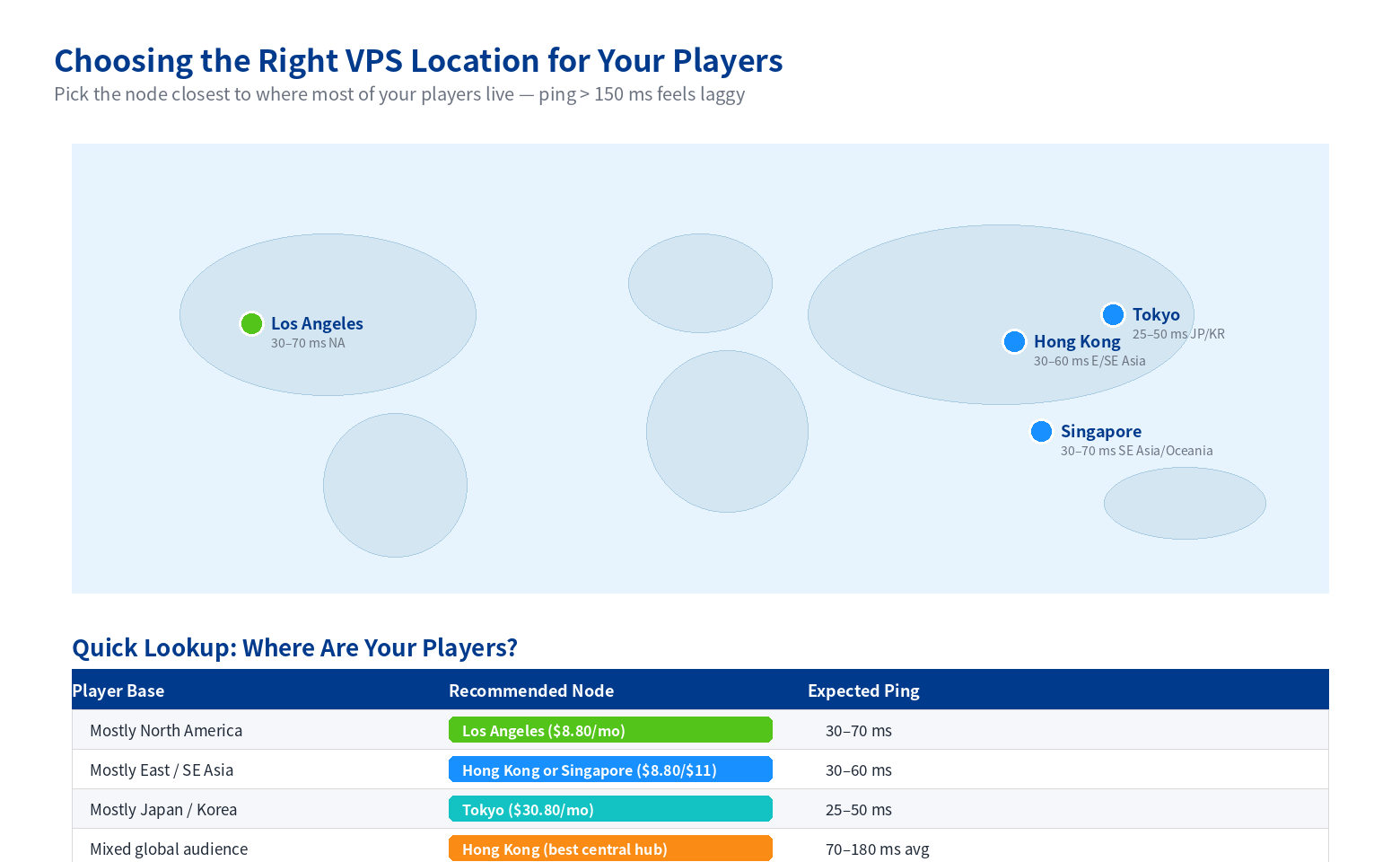
Figure 3: Recommended LuckVM node based on where your players live.
At LuckVM we cover Asia and the US west coast well. If the majority of your players are in Europe, a EU-based VPS provider will give better ping — we won't pretend otherwise. But for English-speaking audiences split between North America and East Asia (a common scenario for expats, international friend groups, or stream audiences), Hong Kong is the best central hub we've tested, with average pings of 70–180 ms across continents.
For this guide we'll use the Hong Kong $8.80/mo Starter plan (1 vCPU / 1 GB RAM / 70 GB NVMe) as the reference — it's the cheapest entry point and we'll show how to squeeze 12 players out of it.
5. Prerequisites
Before you start, make sure you have:
- A VPS running Ubuntu 22.04 LTS or Ubuntu 24.04 LTS (we recommend 22.04 for stability)
- SSH access — Terminal app on Mac/Linux, PowerShell or PuTTY on Windows
- Root or a sudo-capable user
- At least 2 GB RAM for a comfortable first experience (1 GB works, but is tight; we'll show the JVM flags to make it work)
ℹ️ About DDoS protection
All LuckVM nodes include basic network-level DDoS protection out of the box, which is sufficient for most friend-group servers. If you expect to run a public server with >50 random players, consider adding a reverse proxy like TCPShield or Velocity behind an additional VPS for layered protection.
6. Step-by-Step Server Setup (8 Steps, ≈20 Minutes)
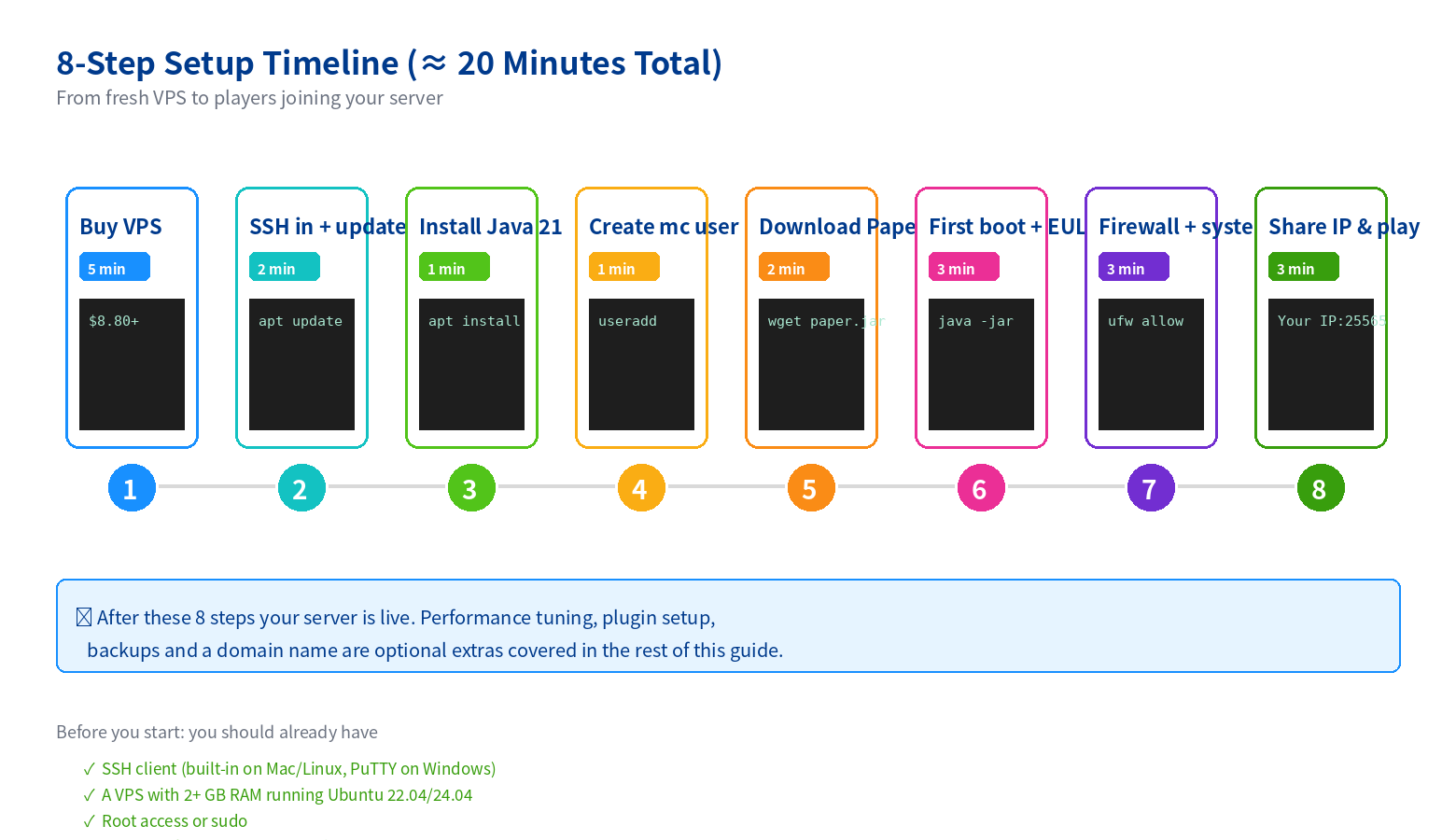
Figure 4: Eight steps from blank VPS to live Minecraft server.
Step 1 — Buy a VPS and SSH in
Purchase your plan. You'll receive an IP, root password, and SSH port in your dashboard. Connect via:
ssh root@# enter your password when prompted
Step 2 — Update packages and create a dedicated user
Never run Minecraft as root. Create a restricted user:
apt update && apt upgrade -y
adduser minecraft
usermod -aG sudo minecraft
su - minecraft
mkdir -p ~/server && cd ~/server
Step 3 — Install Java 21 (JRE headless)
Minecraft 1.21 requires Java 21. Don't use Java 17 unless you're running an older version.
sudo apt install openjdk-21-jre-headless -y
java --version
# should show openjdk 21.x.x
Step 4 — Download PaperMC (recommended over Vanilla)
PaperMC is a drop-in Vanilla replacement with hundreds of performance patches and full plugin compatibility. Get the latest build from papermc.io/downloads/paper, or copy the link and use wget:
wget -O paper.jar https://api.papermc.io/v2/projects/paper/versions/1.21.4/builds/225/downloads/paper-1.21.4-225.jar
# Check papermc.io for the latest build number
Step 5 — First boot and accept the EULA
java -Xms1G -Xmx1G -jar paper.jar nogui
# It will immediately stop and tell you to accept the EULA
sed -i 's/eula=false/eula=true/' eula.txt
⚠️ Legal note
By setting eula=true you agree to Mojang's Minecraft EULA. You cannot charge players for pay-to-win gameplay (e.g. selling creative mode, selling gear) on public servers. Small servers with friends don't have to worry about this.
Step 6 — Create a startup script with Aikar's optimized flags
This is where most MC host guides fail you — the right JVM flags make a 30–50% performance difference. Create a file start.sh:
nano start.sh
Paste the following (tuned for 1 GB VPS):
#!/bin/bash
# Aikar's flags adapted for 1 GB VPS (adjust -Xms/-Xmx to match your RAM)
java -Xms896M -Xmx896M \
  -XX:+UseG1GC -XX:+ParallelRefProcEnabled \
  -XX:MaxGCPauseMillis=200 \
  -XX:+UnlockExperimentalVMOptions \
  -XX:+DisableExplicitGC \
  -XX:+AlwaysPreTouch \
  -XX:G1NewSizePercent=30 \
  -XX:G1MaxNewSizePercent=40 \
  -XX:G1HeapRegionSize=8M \
  -XX:G1ReservePercent=20 \
  -XX:G1HeapWastePercent=5 \
  -XX:G1MixedGCCountTarget=4 \
  -XX:InitiatingHeapOccupancyPercent=15 \
  -XX:G1MixedGCLiveThresholdPercent=90 \
  -XX:G1RSetUpdatingPauseTimePercent=5 \
  -XX:SurvivorRatio=32 \
  -XX:+PerfDisableSharedMem \
  -XX:MaxTenuringThreshold=1 \
  -jar paper.jar nogui
chmod +x start.sh
./start.sh
After ~30 seconds you'll see "Done (Xs)! For help, type "help"" — your server is running locally. Type stop to shut it down for now while we configure the firewall.
Step 7 — Open port 25565 in UFW firewall
sudo ufw allow 22/tcp     # SSH — DO NOT FORGET THIS
sudo ufw allow 25565/tcp # Minecraft Java
sudo ufw enable
sudo ufw status
🔴 Critical
Never run ufw enable without allowing port 22 first — you'll lock yourself out of the server. If you do, use the VPS web console/VNC from your LuckVM dashboard to fix it.
Step 8 — Run the server as a background service (systemd)
Running Minecraft in your SSH terminal means it dies when you close the window. Create a systemd service so it starts automatically on boot:
sudo nano /etc/systemd/system/minecraft.service
[Unit]
Description=Minecraft PaperMC Server
After=network.target

[Service]
User=minecraft
WorkingDirectory=/home/minecraft/server
ExecStart=/home/minecraft/server/start.sh
Restart=on-failure
RestartSec=10

[Install]
WantedBy=multi-user.target
sudo systemctl daemon-reload
sudo systemctl enable minecraft
sudo systemctl start minecraft
sudo systemctl status minecraft
# View live logs with:
sudo journalctl -u minecraft -f
🎉 That's it! Open Minecraft, click Multiplayer → Add Server, enter
7. 10 Performance Tuning Tips (Get 20 TPS on $8.80 Plan)
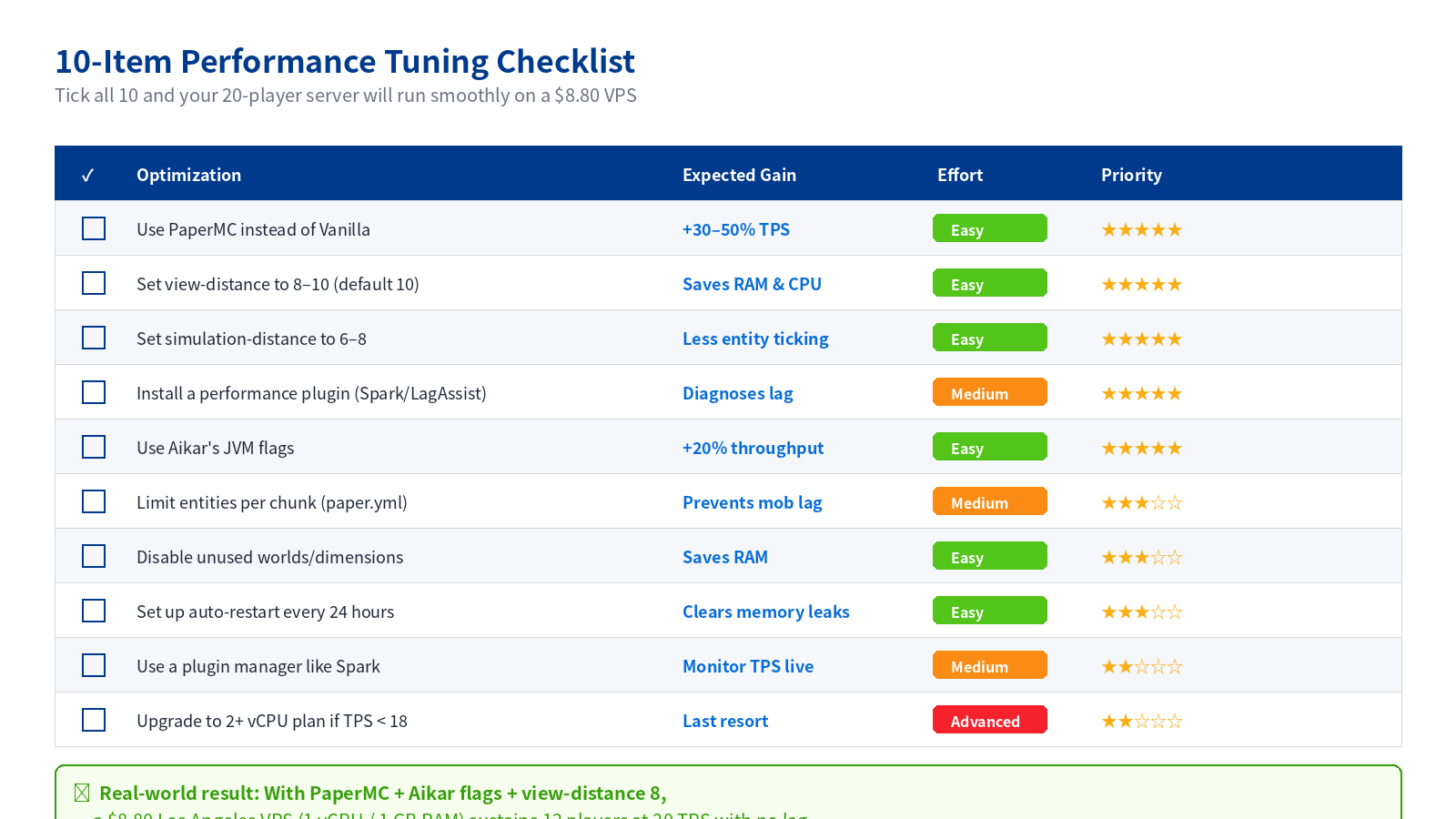
Figure 5: Ten performance tweaks that matter most, ranked by impact.
Here are the actual setting changes behind each checklist item:
- Use PaperMC. Already did this in Step 4. You should see 30–50% better TPS over Vanilla on the same hardware.
- Set
view-distance: 8inserver.properties(default 10). This reduces chunk loading dramatically. Players with render distance 12+ on their client will still see 12 — this only controls what the server simulates. - Set
simulation-distance: 6. Reduces entity ticking outside a 6-chunk radius. Biggest single CPU saver. - Install Spark for real-time TPS/CPU monitoring:
/spark tpstells you exactly what's causing lag. - Use Aikar's flags (already done in Step 6). These are the industry-standard JVM args; don't try to tune GC yourself.
- Limit entities in
paper.yml: setmax-entities-per-chunkfor monsters to 20 and animals to 10. Prevents mob farms from tanking the server. - Disable the Nether/End if you don't use them: set
allow-nether=falseinserver.propertiesand remove/unload the end worlds. - Add a daily auto-restart cron job (memory leaks in plugins are real).
sudo crontab -ethen add0 4 * * * /usr/bin/systemctl restart minecraftto restart at 4 AM daily. - Pre-generate chunks with Chunky plugin.
/chunky world 3000then/chunky start. Prevents lag from new chunks being generated as players explore. - Upgrade as a last resort. If after all of the above you can't hold 20 TPS during peak play, upgrade to the 2 vCPU / 2 GB plan at $26.40/month — before buying more RAM, because CPU is almost always the bottleneck.
8. Essential Plugins (Quality of Life, Not Bloat)
We recommend starting with fewer than 10 plugins — more plugins = more potential lag and exploit surface. Our starter pack:
- EssentialsX — /home, /spawn, /tpa, basic economy commands
- LuckPerms — Permission groups (admin / member / visitor)
- CoreProtect — Block logging so you can roll back griefers
- Spark — Performance profiling
- Chunky — Chunk pre-generation
- Vault — Dependency for chat/economy plugins
Install plugins by dropping .jar files into the plugins/ folder and running sudo systemctl restart minecraft.
9. Security, Backups & DDoS Protection
Basic security
- Disable root SSH login after you confirm your
minecraftsudo user works. Edit/etc/ssh/sshd_config, setPermitRootLogin no, thensudo systemctl restart sshd. - Use SSH keys instead of passwords:
ssh-copy-id minecraft@from your local machine, then setPasswordAuthentication no. - Install fail2ban to block brute-force SSH attempts:
sudo apt install fail2ban -y && sudo systemctl enable --now fail2ban. - Never run Minecraft as root (we created the
minecraftuser in Step 2 for exactly this reason).
Backups
The simplest reliable backup strategy is a cron job that tars the world folder and uploads it somewhere else. At minimum, stop the server weekly (so world files aren't mid-write) and copy world/, world_nether/, world_the_end/ to a separate location. For friend servers, even a manual weekly download via SFTP is fine.
DDoS protection
Public Minecraft servers are heavily targeted. Options from easiest to most robust:
- LuckVM built-in protection — included with all plans, good for friend servers and small public servers (sub-50 players).
- TCPShield — free reverse proxy that absorbs DDoS traffic before it hits your IP. Requires setting a BungeeCord/Velocity proxy.
- Cloudflare Spectrum — enterprise-grade, $5/month+ — overkill except for large public networks.
10. Upgrading & Scaling
When your server outgrows the $8.80 plan, here's how to upgrade in order:
| Symptom | Upgrade | Cost |
|---|---|---|
| TPS dips during peak but RAM not full | Add 1 vCPU → 2 vCPU plan | $8.80 → $26.40 |
| Out of memory errors in logs | Upgrade to 4 GB RAM plan | $26.40 → $48.40 |
| 60+ players / heavy modpack | 4 vCPU / 8 GB plan | $48.40 → $81.40 |
| Multiple servers / cross-world network | 2 VPS plans + Velocity proxy | $160+ /mo |
LuckVM allows plan upgrades with a single click in the dashboard — no migration required, just reboot.
FAQ
mc.yourdomain.com) pointing to your VPS IP in your DNS panel. Optionally set an SRV record on _minecraft._tcp.mc.yourdomain.com to use a custom port without players having to type it.world/, world_nether/, and world_the_end/ folders. CoreProtect or cron-based tar.gz uploads work for automated backups.Ready to launch your Minecraft server?
Grab a $8.80/month VPS, pick a location closest to your players, and you'll be playing in 20 minutes. All plans include DDoS protection, NVMe SSD, and a dedicated IPv4.
See VPS Plans →