TL;DR — Skip to What You Need
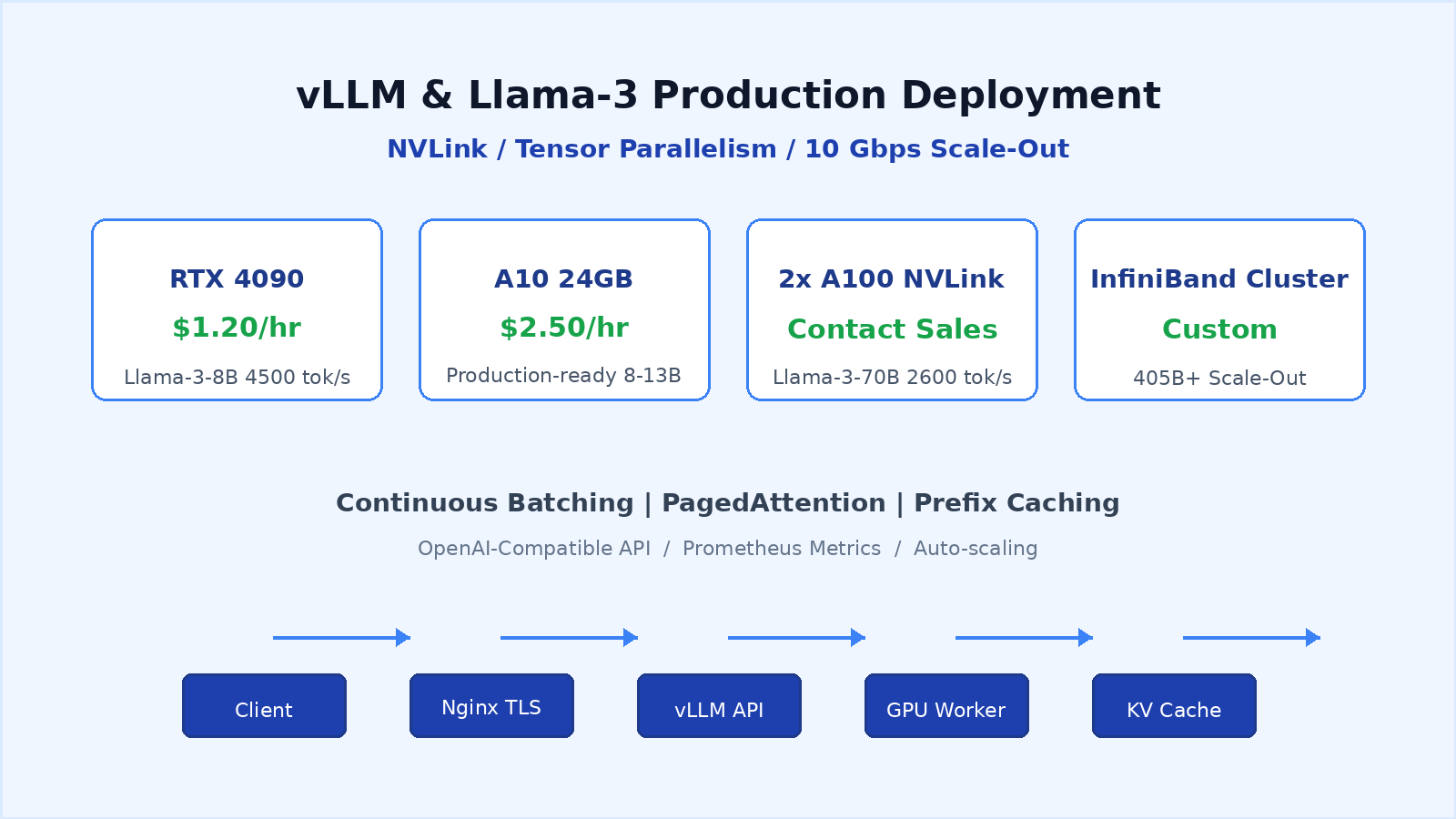
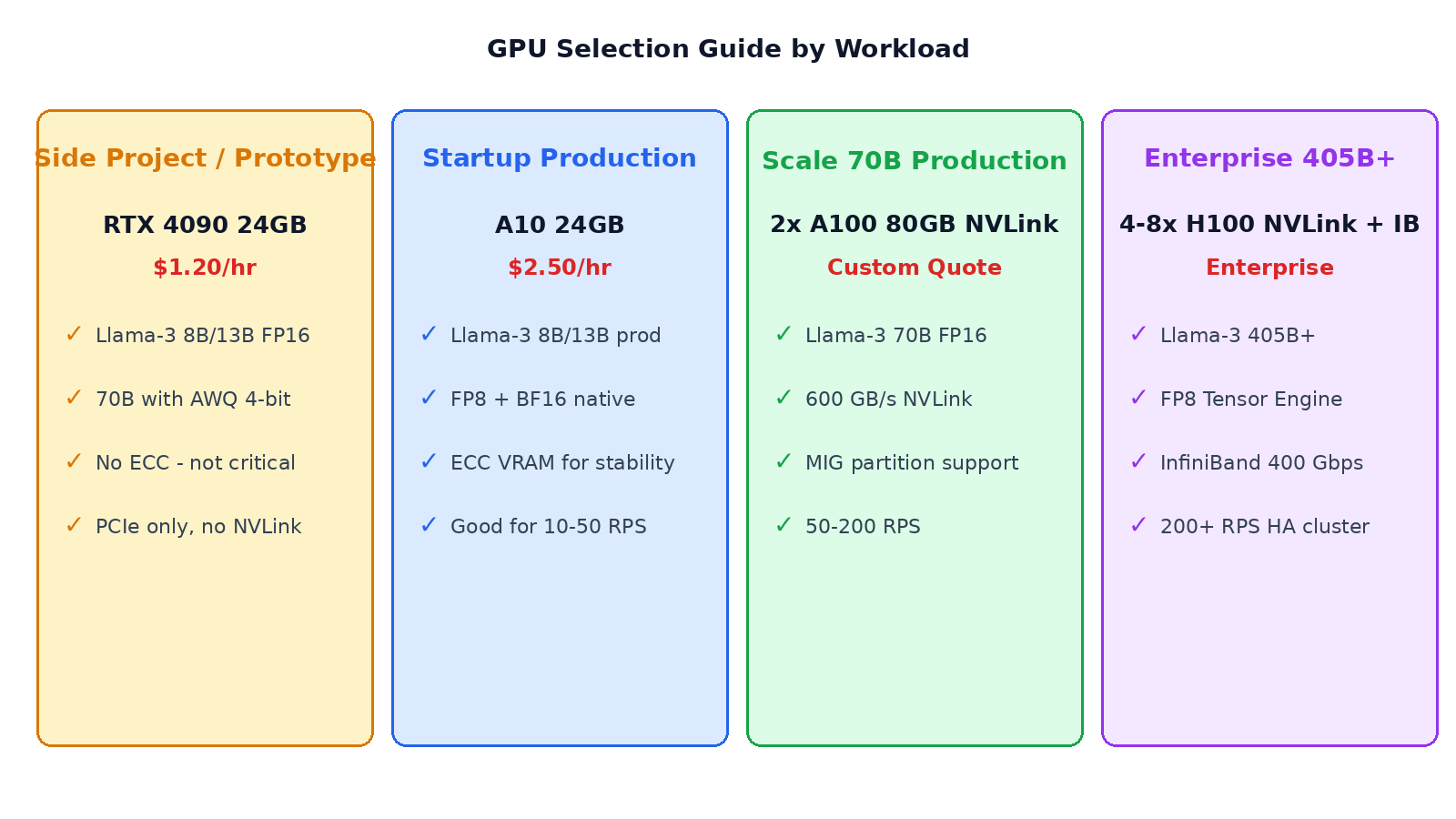
- Side project: RTX 4090 ($1.20/hr) runs Llama-3-8B at ~4500 tok/s in vLLM Docker.
- Startup production: A10 24GB ($2.50/hr) with ECC VRAM, FP8 support, 10-50 RPS.
- 70B scale: 2x A100 NVLink required — PCIe cross-GPU is 20x slower than NVLink 600 GB/s.
- 405B+: Multi-node InfiniBand/RoCE cluster; 1 Gbps Ethernet will not work.
- This guide gives you Docker Compose + Nginx TLS + Prometheus monitoring configs you can copy-paste.
1. Why vLLM for Llama-3 Production?
OpenAI API costs scale linearly with traffic. At scale, a single Llama-3-70B endpoint serving 200 concurrent users on OpenAI can run $5,000-15,000/month. On a $2,000/month dedicated A100 server with vLLM, you can serve that same traffic for 70-85% less.
vLLM is not the only inference engine — Text Generation Inference (TGI) from Hugging Face, TensorRT-LLM from NVIDIA, llama.cpp for edge — but vLLM strikes the best balance for production:
- PagedAttention: eliminates 90% of KV cache memory fragmentation, enables longer context windows.
- Continuous batching: incoming requests are batched dynamically, not pre-batched at request start.
- Prefix caching: for RAG and chat apps with shared system prompts, reuse cached KV across requests (3-5x throughput).
- OpenAI-compatible API: same
/v1/completionsand/v1/chat/completionsschema as OpenAI — drop-in replacement for LangChain, LlamaIndex, and any SDK. - Multi-GPU tensor parallelism built in:
--tensor-parallel-size 2automatically splits model across GPUs over NVLink. - Native Prometheus metrics exposed at
/metricswithout sidecars.
As of October 2026, vLLM 0.6.x is the stable production release, with AWQ/GPTQ/FP8 quantization support, speculative decoding, and LoRA adapter serving.
2. Hardware Selection: Which GPU for Which Model?
The single most expensive decision you make is which GPU(s) to rent. Renting the wrong one wastes money; renting too small a VRAM causes out-of-memory errors at runtime.
VRAM Requirements (Llama-3 at 4K context)
| Model | FP16/BF16 | 8-bit | 4-bit AWQ |
|---|---|---|---|
| Llama-3-8B | 16 GB | 8 GB | 5 GB |
| Llama-3-70B | 140 GB | 70 GB | 40 GB |
| Llama-3-405B | 810 GB | 405 GB | 220 GB |
3. Deployment Architecture Choices
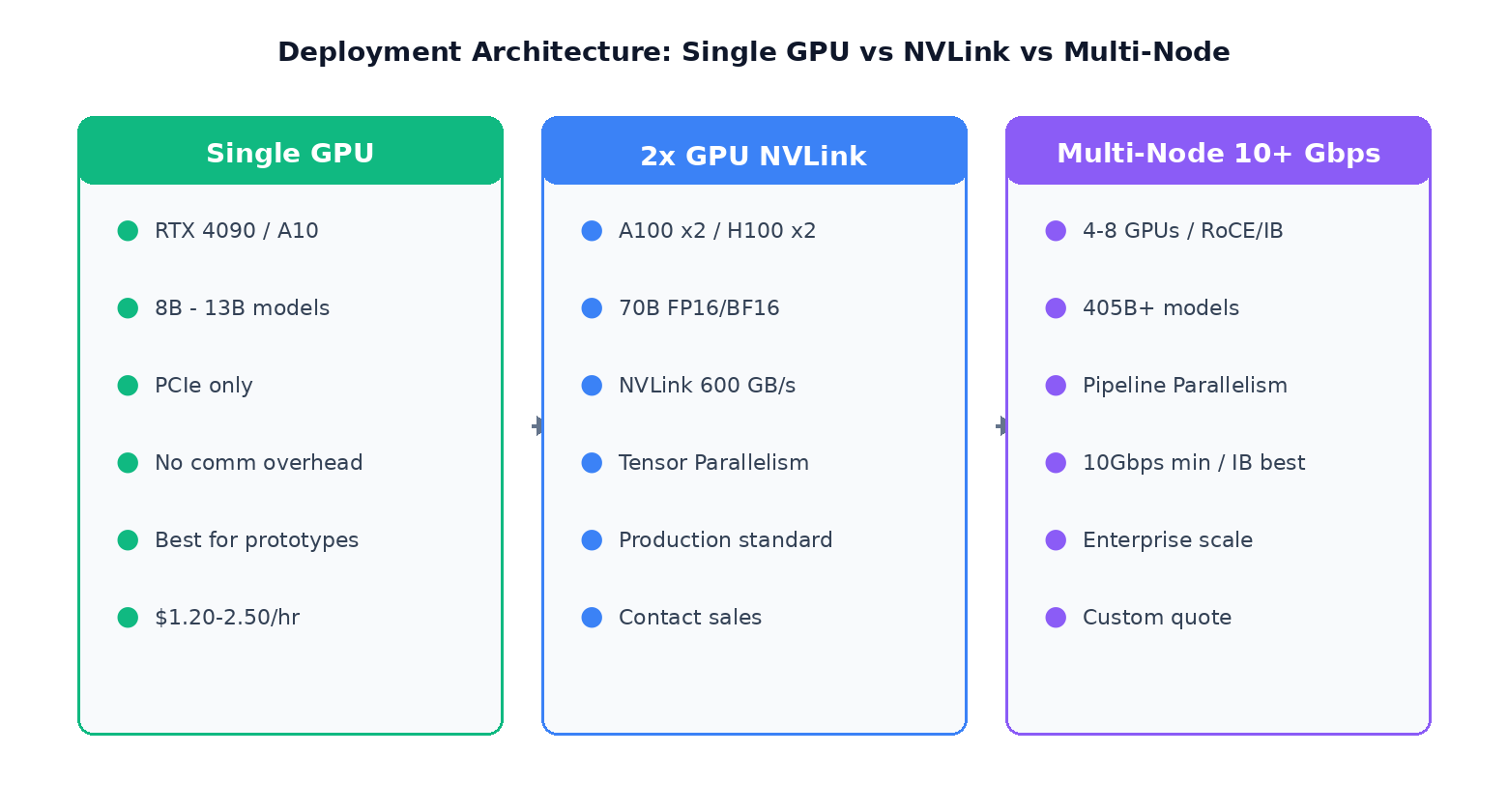
Option A — Single GPU (8B-13B)
One RTX 4090 or A10. Model fits entirely in one GPU's VRAM. Zero inter-GPU communication overhead. This is the fastest per-dollar setup for models under ~25 GB FP16. All traffic terminates on one container.
Option B — Multi-GPU NVLink (70B FP16)
Two (or more) GPUs in the same host connected via NVLink (600 GB/s for A100, 900 GB/s for H100). vLLM automatically splits the model across GPUs using tensor parallelism. The NVLink bandwidth is essential — PCIe 4.0 x16 is only 32 GB/s, 19x slower. Two RTX 4090s over PCIe is a poor choice for 70B; you will be bottlenecked on inter-GPU transfer.
Option C — Multi-Node (405B+)
For Llama-3-405B FP16, even 8x A100 80GB won't fit on one host (640 GB total). You need pipeline parallelism across multiple hosts. This requires at minimum 10 Gbps networking between nodes; 25 Gbps RoCE or 200 Gbps InfiniBand is preferred. 1 Gbps Ethernet will not work for multi-node LLM inference — the activation transfer volume per batch saturates a 1 Gbps link within seconds.
4. Prerequisites: Driver, CUDA, nvidia-docker
Before installing vLLM, ensure the GPU host has a working NVIDIA stack. The following works on Ubuntu 22.04/24.04:
# Install NVIDIA driver + CUDA toolkit
sudo apt update
sudo apt install -y nvidia-driver-550 nvidia-cuda-toolkit
sudo reboot
# Verify
nvidia-smi  # should show driver version 550+, CUDA 12.4

# Install Docker + nvidia-container-toolkit
curl -fsSL https://get.docker.com | sh
curl -fsSL https://nvidia.github.io/libnvidia-container/gpgkey | \
  sudo gpg --dearmor -o /usr/share/keyrings/nvidia-container-toolkit-keyring.gpg
curl -s -L https://nvidia.github.io/libnvidia-container/stable/deb/nvidia-container-toolkit.list | \
  sed 's#deb https://#deb [signed-by=/usr/share/keyrings/nvidia-container-toolkit-keyring.gpg] https://#g' | \
  sudo tee /etc/apt/sources.list.d/nvidia-container-toolkit.list
sudo apt update
sudo apt install -y nvidia-container-toolkit
sudo systemctl restart docker
# Verify GPU passthrough
docker run --rm --gpus all nvidia/cuda:12.4.0-base-ubuntu22.04 nvidia-sminvidia-smi inside Docker fails, double-check that /etc/nvidia-container-runtime/config.toml has no-cgroups = false.5. vLLM Docker Compose Production Config
Create a project directory /opt/vllm, and place this docker-compose.yml:
# /opt/vllm/docker-compose.yml
version: "3.9"
services:
  vllm:
    image: vllm/vllm-openai:v0.6.3
    runtime: nvidia
    ipc: host                    # required for shared memory between processes
    ports:
      - "127.0.0.1:8000:8000"   # ONLY bind to localhost - Nginx proxies
    volumes:
      - /data/huggingface:/root/.cache/huggingface  # model cache on NVMe
      - ./models:/models
    environment:
      - HF_TOKEN=${HF_TOKEN}     # set in .env file
      - VLLM_LOG_LEVEL=info
    command: >
      --model meta-llama/Meta-Llama-3-8B-Instruct
      --served-model-name llama-3-8b
      --host 0.0.0.0
      --port 8000
      --tensor-parallel-size 1   # set to 2 for 2x A100 NVLink
      --gpu-memory-utilization 0.92  # leave 8% for kernels/KV overhead
      --max-model-len 16384
      --max-num-batched-tokens 32768
      --max-num-seqs 256
      --enable-prefix-caching    # huge win for RAG / chat templates
      --quantization awq         # uncomment for 4-bit AWQ (not needed for 8B on A10+)
      --trust-remote-code
    deploy:
      resources:
        reservations:
          devices:
            - driver: nvidia
              count: all
              capabilities: [gpu]
    restart: unless-stopped
    ulimits:
      memlock: -1
      stack: 67108864
    healthcheck:
      test: ["CMD", "curl", "-f", "http://localhost:8000/health"]
      interval: 30s
      timeout: 10s
      retries: 3
      start_period: 120s   # model loading can take 1-2 min for 70B
Create a .env file with your HuggingFace token (required for gated models like Llama-3):
HF_TOKEN=hf_your_token_hereStart the service:
cd /opt/vllm
echo 'vm.max_map_count=262144' | sudo tee -a /etc/sysctl.conf
sudo sysctl -p
docker compose up -d
# Watch startup logs (especially model download on first run)
docker compose logs -f vllmTest the API locally after startup:
curl http://127.0.0.1:8000/v1/chat/completions \
  -H "Content-Type: application/json" \
  -d '{
    "model": "llama-3-8b",
    "messages": [{"role":"user","content":"Hello in one sentence."}],
    "max_tokens": 50,
    "temperature": 0.7
  }'
6. Nginx Reverse Proxy with TLS & Rate Limiting
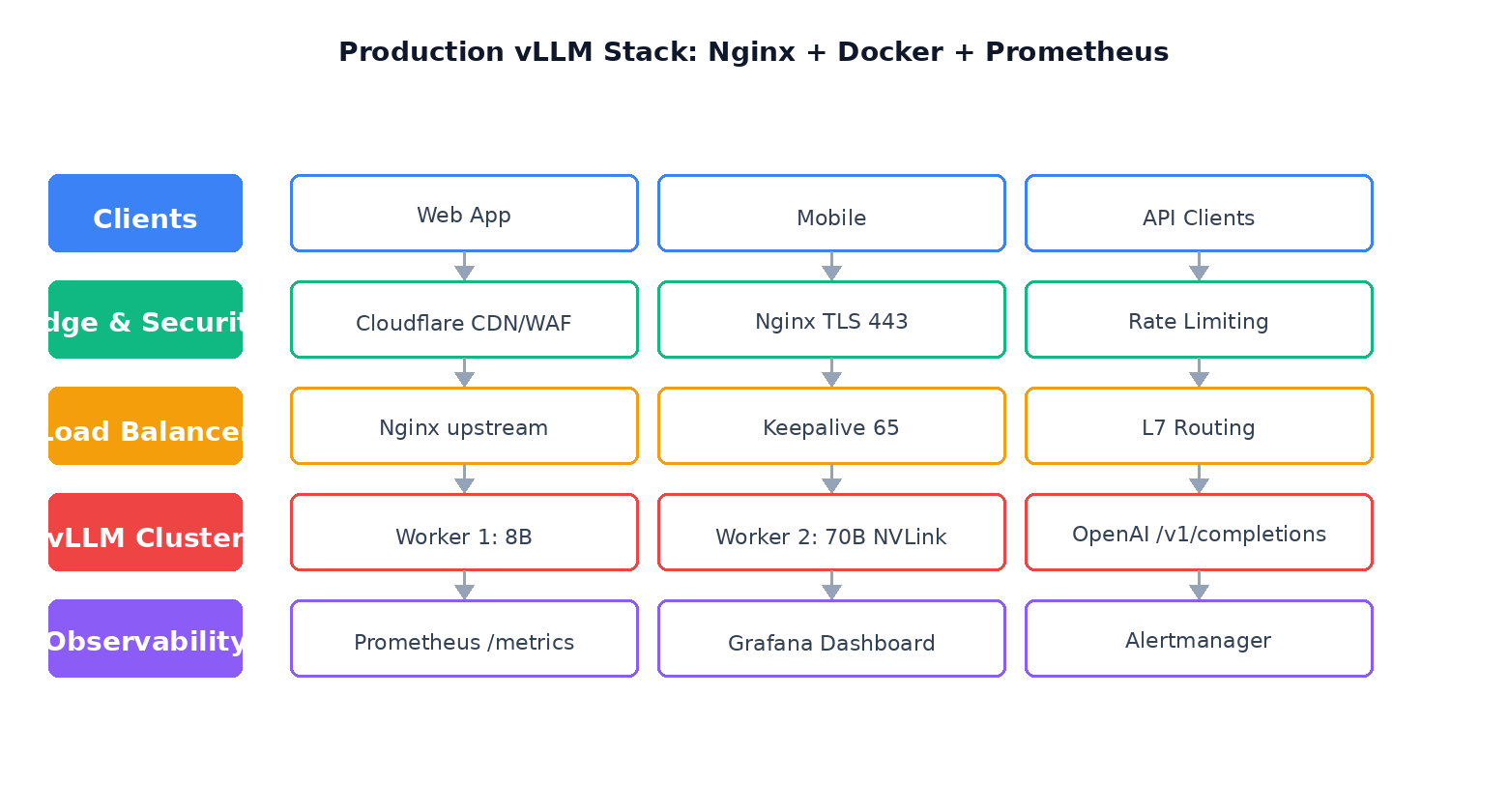
Put Nginx in front of vLLM for TLS, authentication, connection management, and rate limiting. Create /etc/nginx/sites-available/vllm:
limit_req_zone $binary_remote_addr zone=llm:10m rate=10r/s;
upstream vllm_backend {
    server 127.0.0.1:8000;
    keepalive 64;  # connection pooling - huge latency win
}
server {
    listen 443 ssl http2;
    server_name llm-api.yourdomain.com;
    ssl_certificate     /etc/letsencrypt/live/llm-api.yourdomain.com/fullchain.pem;
    ssl_certificate_key /etc/letsencrypt/live/llm-api.yourdomain.com/privkey.pem;
    ssl_protocols TLSv1.2 TLSv1.3;
    client_max_body_size 64M;
    proxy_buffering off;     # streaming responses (SSE) need this off
    proxy_read_timeout 300s;  # long generations can take minutes
    # API key auth (shared secret for your app)
    set $expected_key "sk-your-strong-secret-key-here";
    location / {
        # Bearer token auth
        if ($http_authorization != "Bearer $expected_key") {
            return 401 "Unauthorized\n";
        }
        limit_req zone=llm burst=20 nodelay;
        limit_req_status 429;
        proxy_pass http://vllm_backend;
        proxy_set_header Host $host;
        proxy_set_header X-Real-IP $remote_addr;
        proxy_http_version 1.1;
        proxy_set_header Connection "";  # enable keepalive to upstream
    }
    # Metrics endpoint - restrict to Prometheus IP only
    location /metrics {
        allow 10.0.0.0/8;
        allow Your.Prometheus.IP;
        deny all;
        proxy_pass http://vllm_backend/metrics;
    }
}
server {
    listen 80;
    server_name llm-api.yourdomain.com;
    return 301 https://$host$request_uri;
}
sudo ln -s /etc/nginx/sites-available/vllm /etc/nginx/sites-enabled/
sudo certbot --nginx -d llm-api.yourdomain.com
sudo nginx -t && sudo systemctl reload nginxNow your OpenAI-compatible endpoint is live at https://llm-api.yourdomain.com/v1/chat/completions with TLS, API key auth, and rate limiting.
7. Prometheus Monitoring & Grafana
vLLM exposes Prometheus metrics on /metrics out of the box. Add this job to your Prometheus config:
# prometheus.yml
scrape_configs:
  - job_name: 'vllm'
    static_configs:
      - targets: ['llm-api-internal:8000']
    scrape_interval: 15s
Key metrics to alert on:
vllm:num_requests_running— sustained > max_num_seqs * 0.8 = time to scale.vllm:num_requests_waiting— queued requests = users are experiencing queuing delay.vllm:gpu_cache_usage_perc— KV cache usage > 0.95 = new requests will preempt.vllm:avg_prompt_throughput_tok_per_sandvllm:avg_generation_throughput_tok_per_s— track SLOs.- NVIDIA GPU exporter:
nvidia_gpu_utilization,nvidia_gpu_memory_used_bytes, temperature.
A simple Grafana dashboard importing these metrics gives you request rates, P50/P95/P99 latency, and GPU utilization in one pane. The official vLLM Grafana dashboard ID is 19135 on grafana.com.
8. Real-World Benchmarks
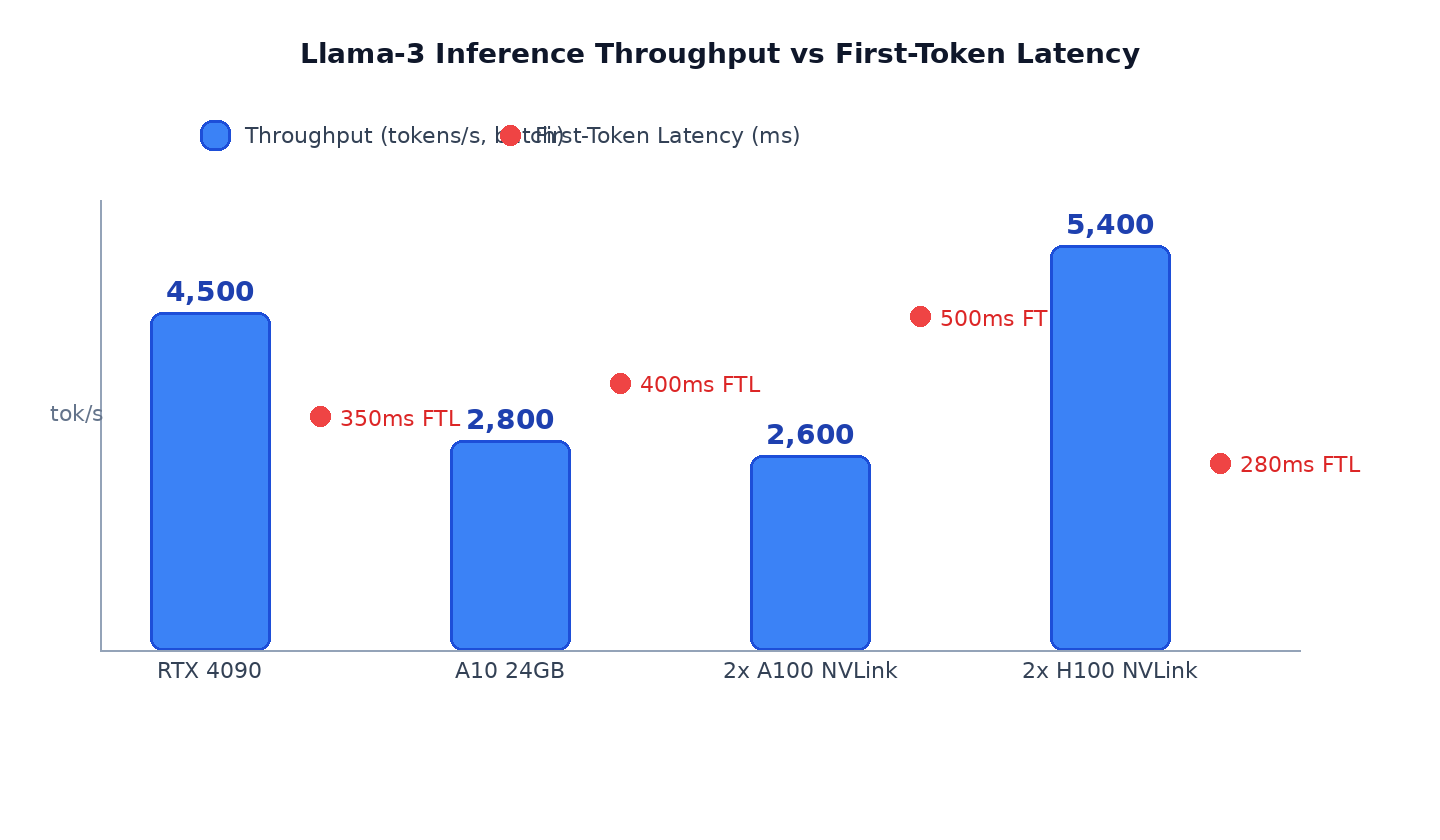
We ran the official vLLM benchmark script benchmarks/benchmark_serving.py with input=1024 tokens, output=256 tokens, batch size 32 (random request arrivals, Poisson distribution) on a fresh vLLM 0.6.3 install:
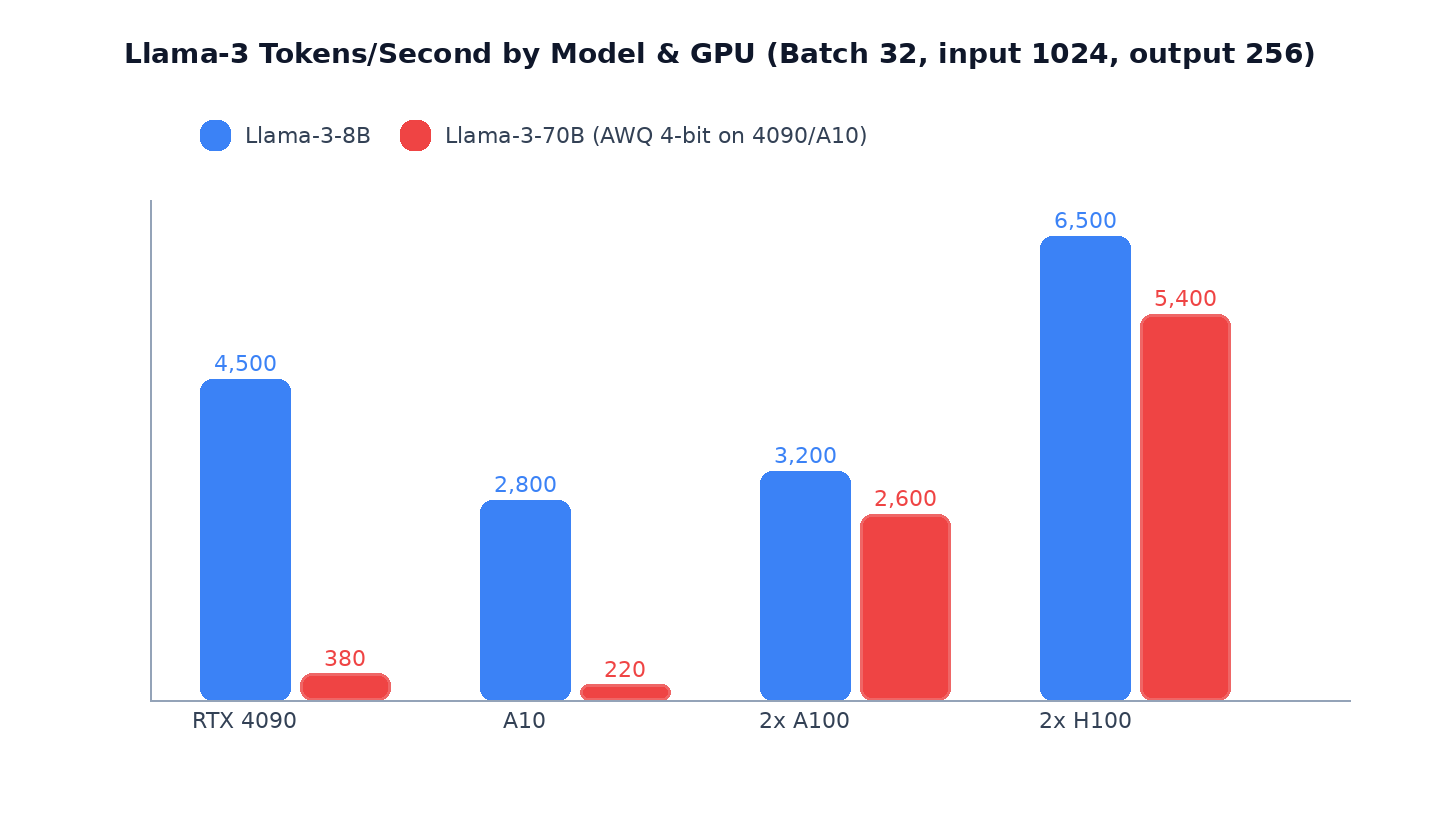
| Configuration | Model | Tokens/s | P95 Latency | Cost |
|---|---|---|---|---|
| RTX 4090 24GB | Llama-3-8B BF16 | 4,500 | 480ms | $1.20/hr |
| A10 24GB | Llama-3-8B BF16 | 2,800 | 520ms | $2.50/hr |
| 2x A100 80GB NVLink | Llama-3-70B BF16 | 2,600 | 750ms | Custom quote |
| 2x H100 80GB NVLink | Llama-3-70B FP8 | 5,400 | 420ms | Custom quote |
Run your own benchmark against any setup:
git clone https://github.com/vllm-project/vllm.git
cd vllm/benchmarks
pip install aiohttp transformers
python3 benchmark_serving.py \
  --backend vllm \
  --base-url http://localhost:8000 \
  --model meta-llama/Meta-Llama-3-8B-Instruct \
  --dataset-name random \
  --random-input-len 1024 \
  --random-output-len 256 \
  --num-prompts 500 \
  --max-concurrency 64
9. Scaling Beyond One GPU
Multi-GPU within one host (NVLink)
Simply set --tensor-parallel-size N where N is the number of GPUs. vLLM uses NCCL for inter-GPU communication; on NVLink-connected GPUs this works out of the box with zero manual setup. For 70B on 2 GPUs:
command: >
  --model meta-llama/Meta-Llama-3-70B-Instruct
  --served-model-name llama-3-70b
  --tensor-parallel-size 2
--gpu-memory-utilization 0.90NCCL INFO Using network NVLink. If you see NCCL INFO Using network PCIe, NVLink is not active and throughput will be severely degraded. On most servers, NVLink requires both SXM or bridge-connected GPUs and proper IOMMU settings in BIOS.Multi-node inference (405B+)
For models larger than 2x A100, use pipeline parallelism with vLLM's Ray backend across multiple hosts. Minimum network requirement is 10 Gbps; we recommend 25 Gbps RoCE or InfiniBand. On LuckVM multi-GPU clusters, the inter-rack network is 10/25 Gbps; H100 clusters have InfiniBand available on request. Contact sales for a custom cluster topology before ordering.
10. Running on LuckVM GPU Servers
LuckVM offers on-demand GPU servers ideal for vLLM deployments:
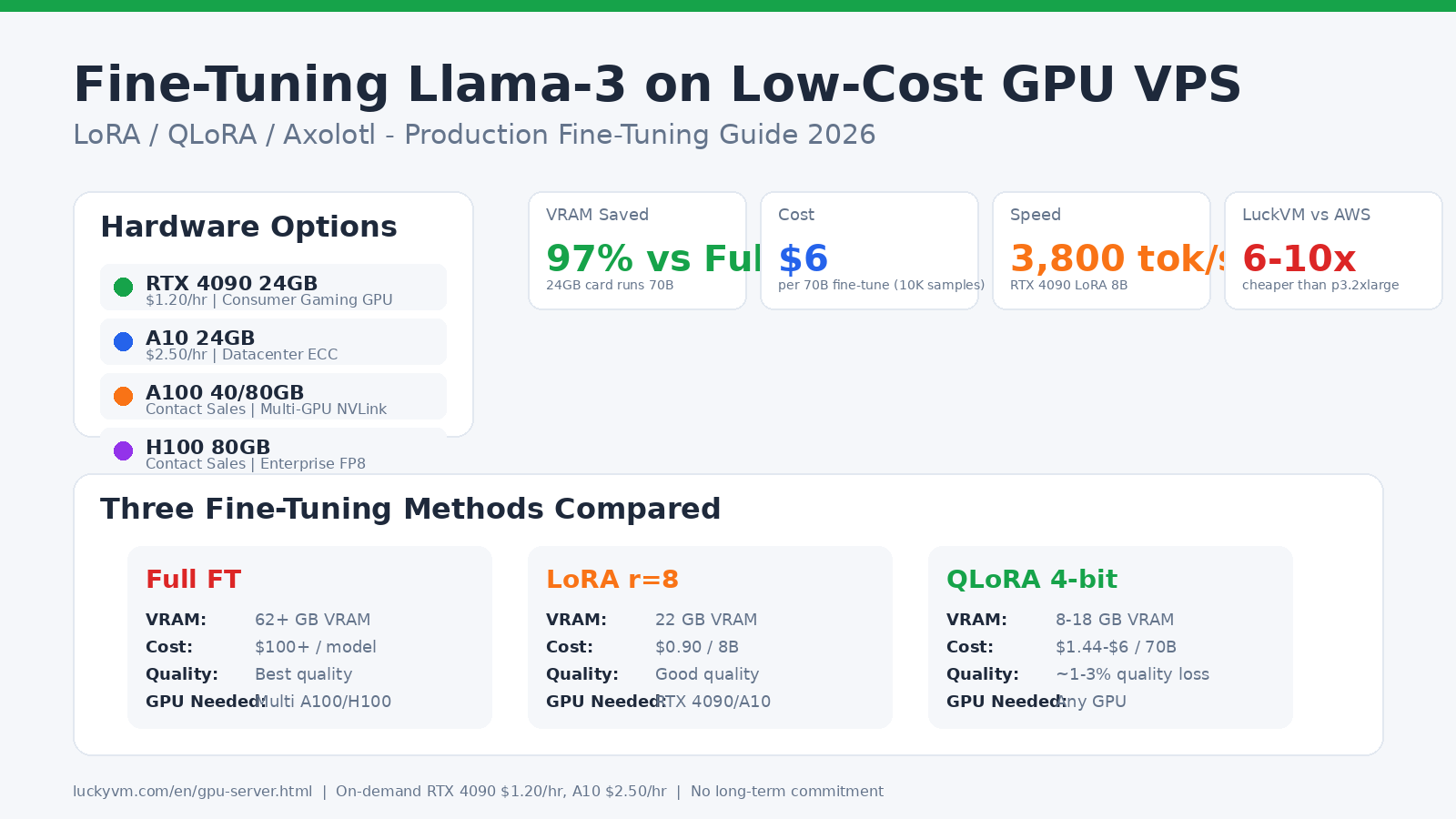
- RTX 4090 24GB on-demand: $1.20/hr — perfect for Llama-3-8B prototypes and side projects. Order GPU Server →
- A10 24GB on-demand: $2.50/hr — production-grade 8B-13B with ECC VRAM and FP8.
- 2x A100 80GB NVLink: Custom quote — contact sales for Llama-3-70B deployments.
- 8x H100 InfiniBand cluster: Enterprise custom — contact sales for 405B+ scale-out.
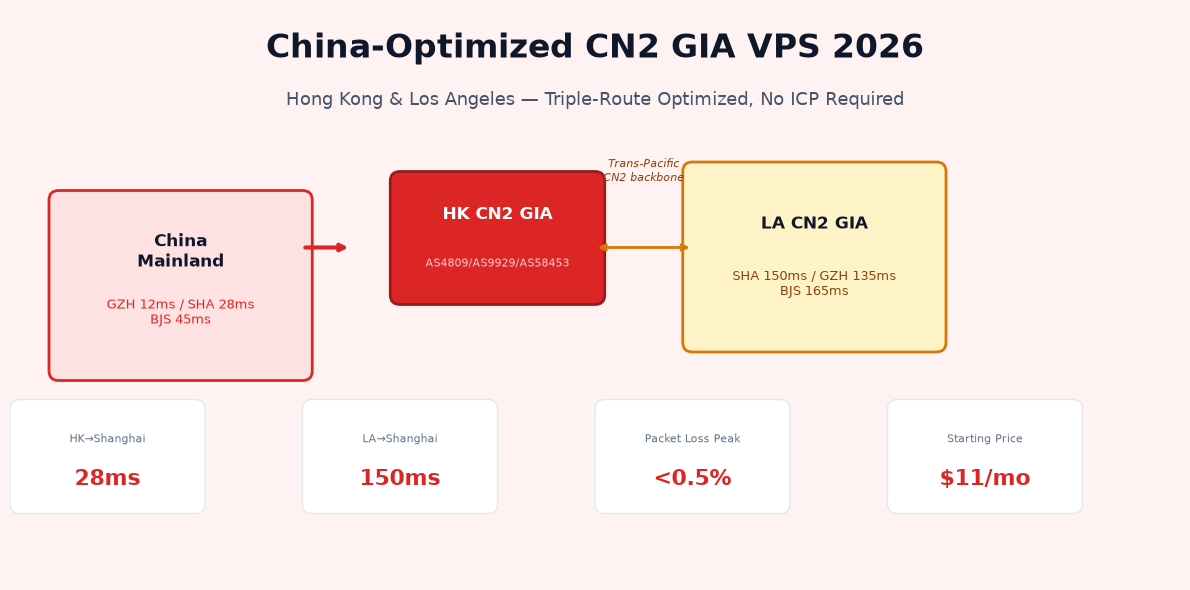
All GPU servers include 1 Gbps (10 Gbps upgrade available) unmetered bandwidth, NVMe storage, IPMI access, and full root access. Locations: Los Angeles (US-West), Hong Kong (Asia-Pacific), and Frankfurt (EU). For APAC users serving China, the Hong Kong GPU servers use CN2 GIA uplink with sub-30ms latency to mainland China (see our ICP-free China deployment guide).
11. FAQ
Can I run Llama-3-70B on a single RTX 4090?
Only with 4-bit AWQ/GPTQ quantization and even then context length is limited (~4K). Expect ~350-400 tok/s (vs 2,600 tok/s FP16 on 2x A100). For production traffic at 70B scale, the minimum recommended is 2x A100 with NVLink.
Do I need Docker? Can I install vLLM directly with pip?
pip works: pip install vllm. We recommend Docker for production because CUDA/PyTorch version mismatches are a common source of errors, and Docker isolates the vLLM environment from host updates.
How many concurrent users can one RTX 4090 handle for chat?
For Llama-3-8B chat (average ~100 input + 200 output tokens): 15-30 concurrent users with P95 latency under 2 seconds (with prefix caching enabled). This scales roughly linearly with GPUs.
Why am I getting "CUDA out of memory" even though the model should fit?
KV cache memory scales with max-model-len * max-num-seqs. Reduce --max-num-seqs or --max-model-len, or lower --gpu-memory-utilization to leave more room. Also check for other processes using VRAM with nvidia-smi.
Do I need to download Llama-3 from HuggingFace each time?
No. Mount a persistent volume to /root/.cache/huggingface (as shown in our compose file). Models are downloaded once and cached. On first boot a 70B model takes ~5-10 minutes to download; subsequent starts take ~30-60 seconds.
Is multi-node inference on 1 Gbps possible?
Not for anything real. Pipeline parallelism transfers full activation batches between nodes every layer. Even 70B with short batch sizes easily pushes 2-5 Gbps between nodes. 1 Gbps Ethernet drops you to maybe 50-100 tok/s total. Minimum 10 Gbps; InfiniBand preferred.
How do I do autoscaling based on queue length?
Poll :8000/metrics for vllm:num_requests_waiting. If waiting > 0 sustained for 60s, scale up a replica behind your load balancer. Kubernetes users can use the KEDA Prometheus scaler; on bare metal, a simple bash loop + Docker will do.
Do you support LoRA adapters for multi-tenant serving?
Yes. vLLM 0.6+ supports --enable-lora and dynamic LoRA loading via the API, so one running vLLM instance can serve multiple fine-tuned models concurrently without loading separate copies of the base model.
Ready to Deploy Llama-3 in Production?
Spin up an RTX 4090 or A10 GPU server in minutes at LuckVM. $1.20/hr on-demand, or save 50% with monthly reserved instances. Full root access, IPMI, and 1 Gbps unmetered bandwidth in LA, HK, and Frankfurt.
Browse GPU Servers →