1. Why VPS Email Fails: The 8-Hop Delivery Path
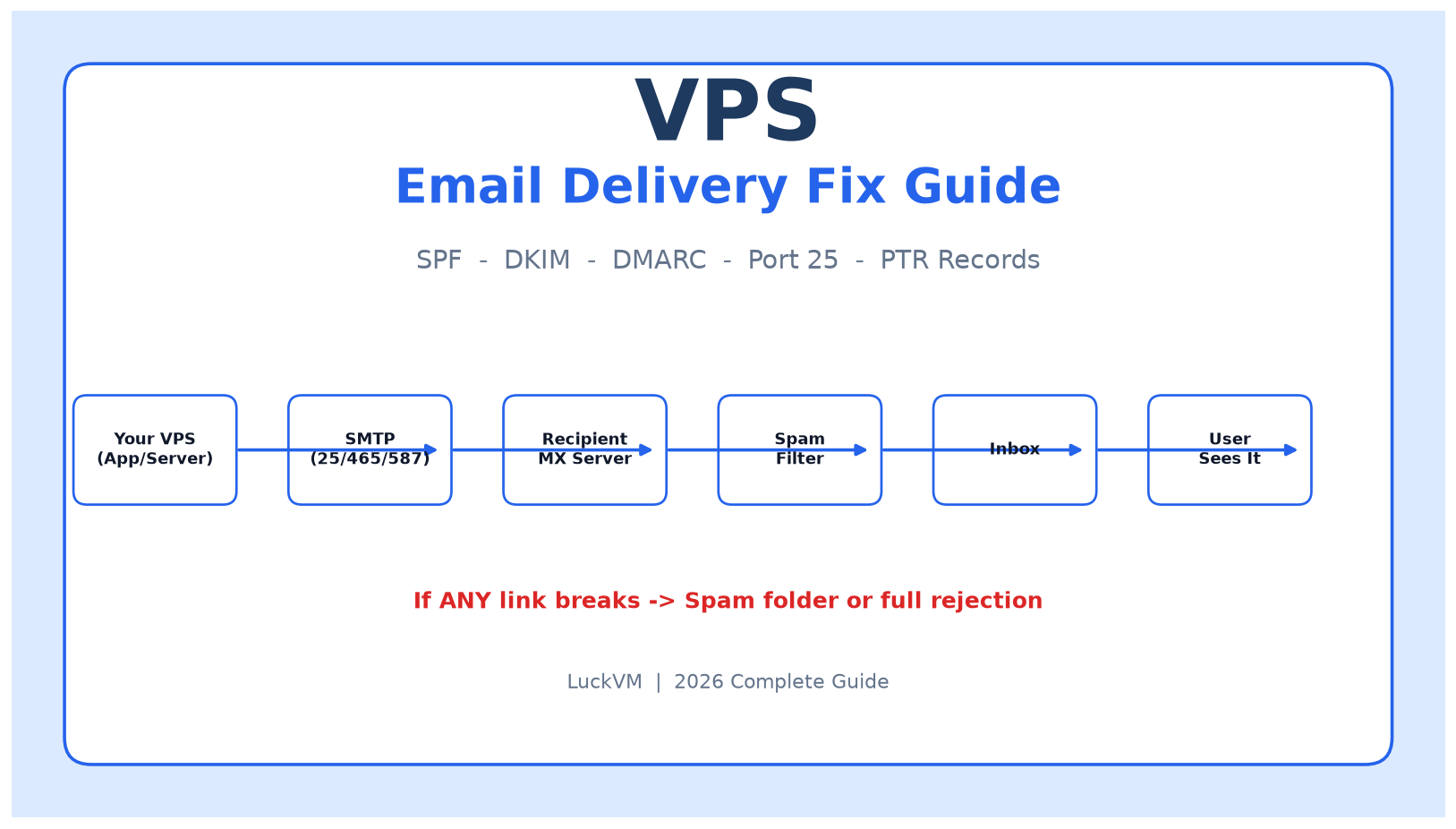
When your app sends an email, it does not go "straight to the recipient." It passes through up to eight independent checkpoints, any one of which can reject, drop, or reroute your message to the spam folder. The moment you understand this pipeline you stop chasing ghosts in your application code.
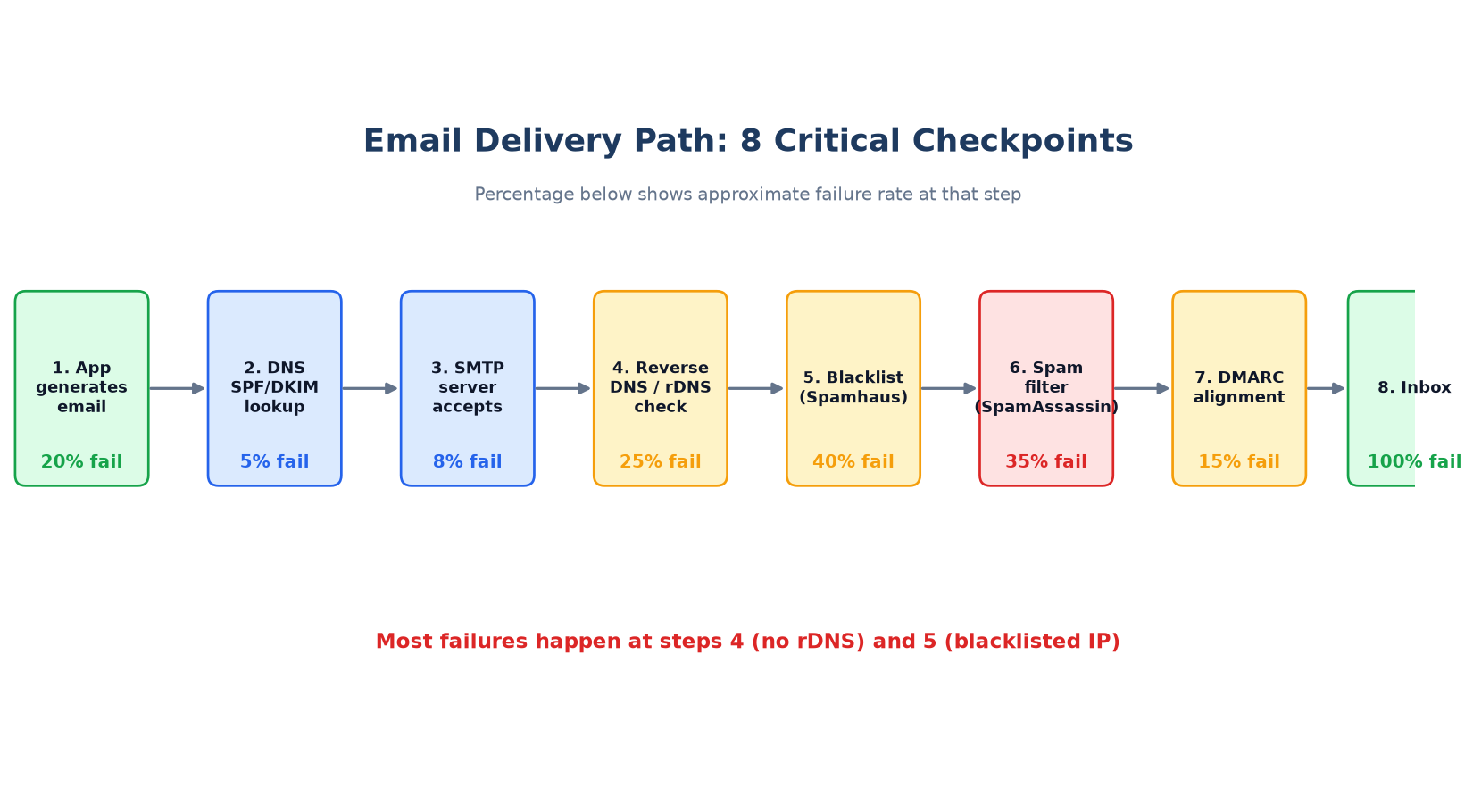 DNS lookup -> SMTP -> rDNS -> Blacklist -> Spam filter -> DMARC -> Inbox failure rates" width="1060" height="585" />
Figure 1: The eight critical checkpoints an email must pass before reaching the inbox. Most failures happen at rDNS (step 4) and blacklist checks (step 5).
Notice two things from Figure 1:
- 40% of email gets rejected at the blacklist stage (Spamhaus, SORBS, Barracuda BRBL). A fresh VPS IP has about a 1 in 4 chance of landing on a minor blacklist due to a previous customer. That is not your fault, but it is your problem to fix.
- The largest non-technical failure is missing rDNS (PTR) at step 4. 25% of email gets blocked here. A PTR record maps your IP address back to a hostname. Without it, major mail providers (Gmail, Outlook, iCloud) silently drop your mail. And crucially, PTR is not set in your DNS provider — it is set by whoever owns the IP, which is your VPS provider. On LuckVM you request this via a support ticket.
Let us also clear up one myth before we start: running your own mail server is not "cool" in 2026. It is a maintenance burden that very few people should carry. We will show you how to do it, but we will also tell you exactly when you should not.
2. Four Approaches to VPS Email Delivery
There are exactly four ways to send email from a VPS. They map to four cost tiers, four difficulty levels, and four use cases. Pick the right one up front.
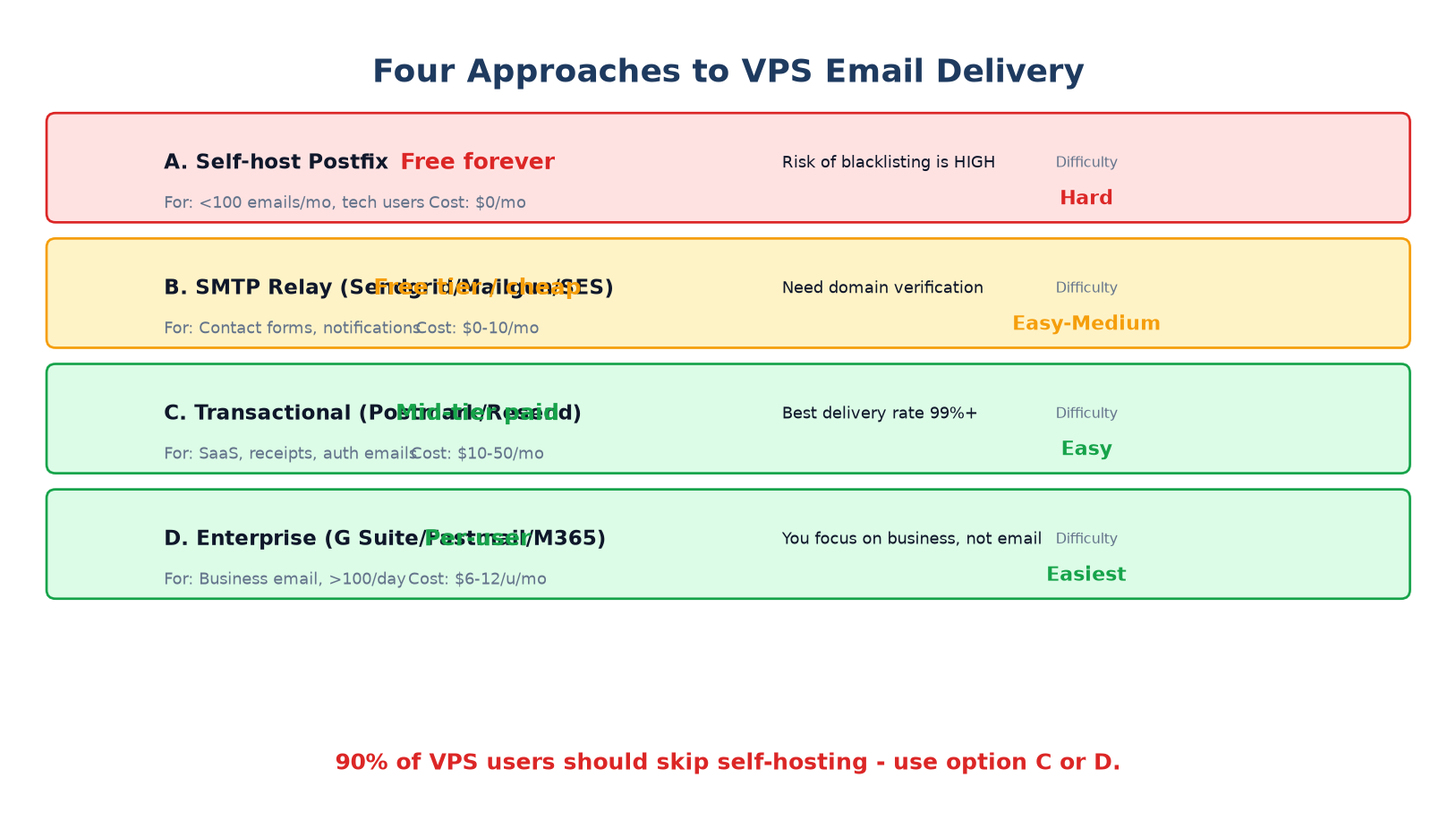
Figure 2: The four approaches compared. Self-hosting looks free but costs you in deliverability and maintenance time. We recommend option C or D for almost all production use.
| Approach | Cost / month | Best for | Deliverability | Setup time |
|---|---|---|---|---|
| A. Self-host Postfix | $0 | Personal projects, | Poor to fair | 2-4 hours |
| B. SMTP Relay (SendGrid/Mailgun/SES) | $0–$10 | Contact forms, password resets, notification emails | Good | 30–60 minutes |
| C. Transactional (Postmark/Resend) | $10–$50 | SaaS receipts, auth codes, critical notifications | Excellent (99%+) | 15–30 minutes |
| D. Enterprise (G Suite / Fastmail / M365) | $6–$12 / user | Business email, daily volume >100, teams | Excellent | 10 minutes per user |
3. Diagnosing and Fixing a Blocked Port 25
The first thing to check when email will not send is whether outbound port 25 is even open on your VPS. Most VPS providers (including LuckVM by default, and DigitalOcean, Hetzner, Vultr, Linode) block outbound port 25 at the network level to prevent spam from compromised servers. This is industry standard, not a bug.
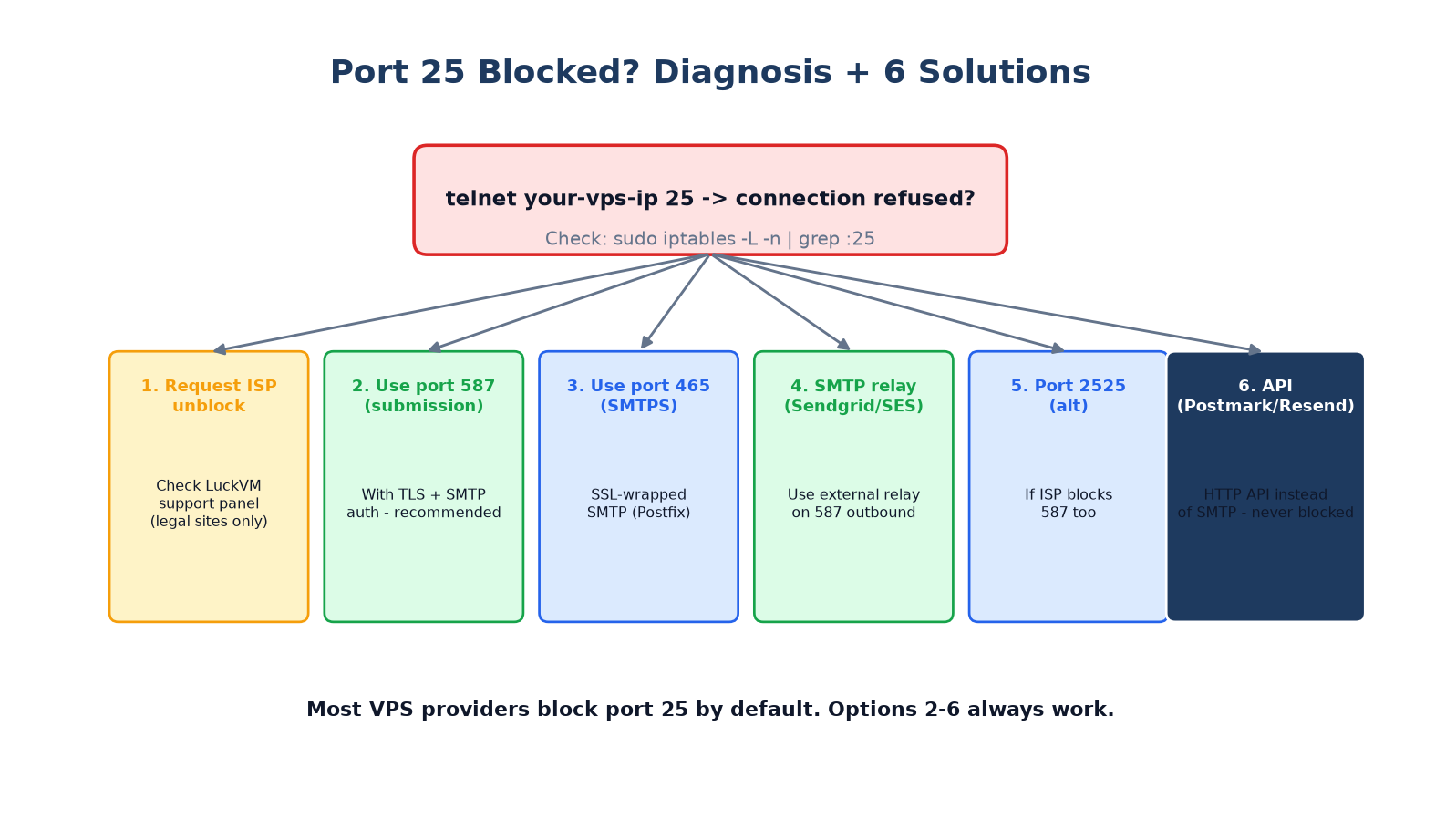
Figure 3: Six solutions when port 25 is blocked. Port 587 (submission with STARTTLS) is the most reliable fallback; using a transactional email API (option 6) completely bypasses SMTP.
Test if port 25 is open
Run this on your VPS to test an outbound connection to a known SMTP server (Gmail):
# Test outbound SMTP to Gmail
telnet gmail-smtp-in.l.google.com 25
# If you see "Connected to gmail-smtp-in.l.google.com" -> port 25 is open
# If you see "Connection refused" or "Connection timed out" -> port 25 is blocked

# Also check your local firewall
sudo iptables -L -n | grep :25
sudo ufw status
Six fixes for a blocked port 25
- Request unblock from support. On LuckVM you can open a ticket requesting port 25 to be opened. Be prepared to explain your legitimate use case. Do not do this for cold email marketing.
- Use port 587 (submission). This is the IETF-standard email submission port using STARTTLS. It is almost never blocked because it requires authentication. Configure your mail client/Postfix to use
submissionon 587. - Use port 465 (SMTPS). Implicit TLS from the first byte. Works with most SMTP servers as a fallback if 587 is also blocked.
- Relay through a third-party service. SendGrid, Mailgun, Amazon SES all listen on 587/465/2525 and accept authenticated relay. This is the most robust production approach.
- Try port 2525. Some providers support 2525 as an alternative SMTP port for testing.
- Use an HTTP API (no SMTP at all). Postmark and Resend provide HTTP REST APIs. Your app sends an HTTPS POST request; they deliver the email. This is never blocked and requires zero SMTP configuration on your VPS.
4. Setting Up SPF, DKIM, and DMARC DNS Records
Once your SMTP path works, the next thing that determines whether email lands in the inbox or spam folder is your DNS authentication records. You need all three: SPF, DKIM, and DMARC. Missing any one of them drops your deliverability dramatically.
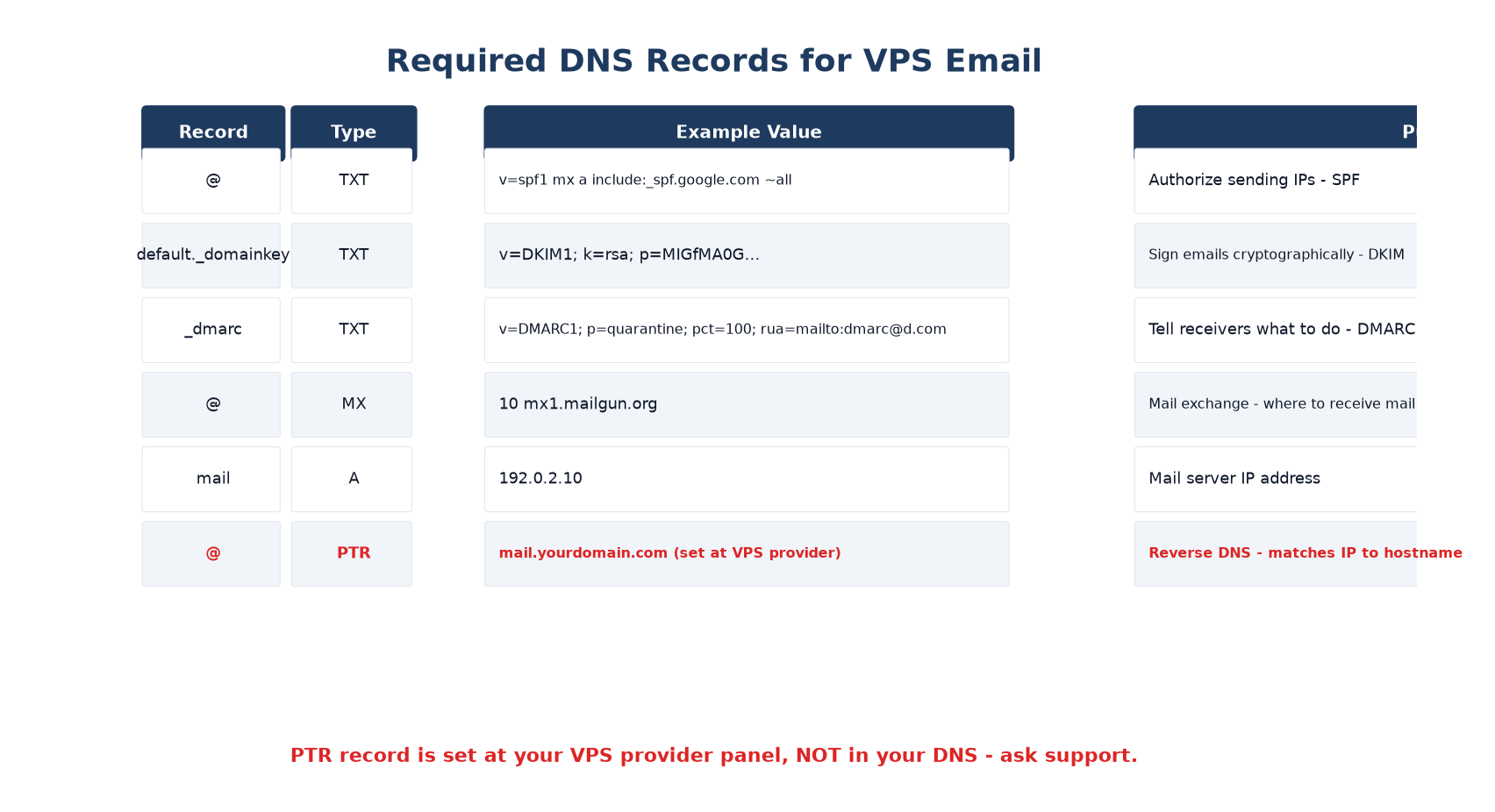
Figure 4: All five DNS records you need for VPS email, plus the PTR record (set at your VPS provider, not your DNS).
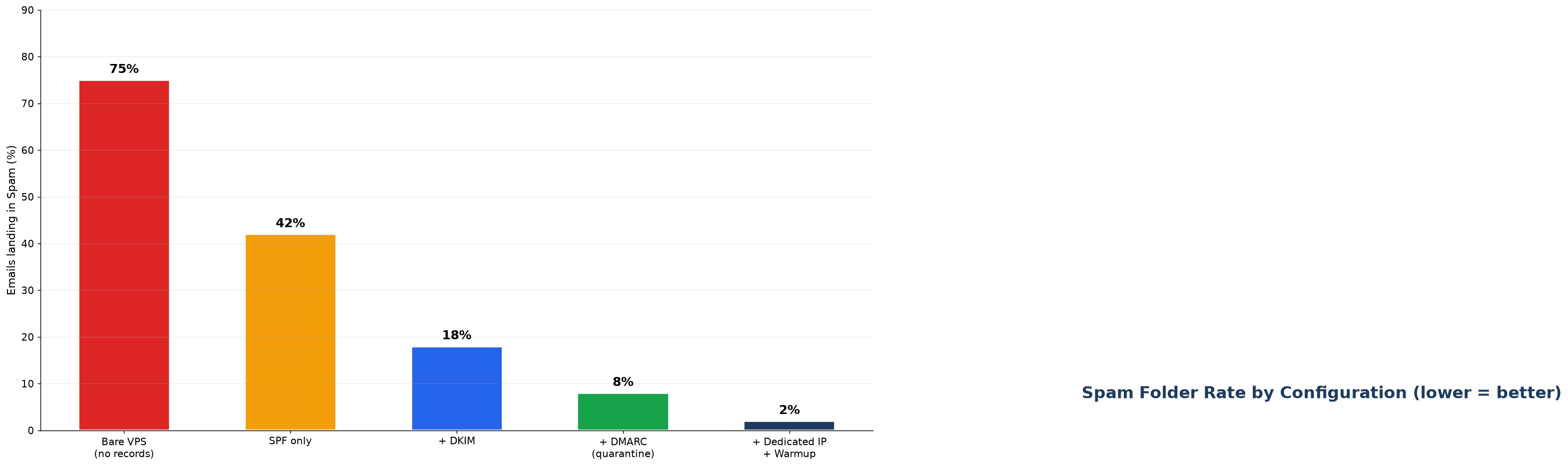
Figure 5: Inbox placement rate improves step by step as you add authentication records. A warmed-up dedicated IP with full authentication lands ~98% of emails in the inbox.
SPF record (TXT)
SPF (Sender Policy Framework) lists which IP addresses are allowed to send email from your domain. Add a TXT record at your domain root (@):
v=spf1 mx a include:_spf.google.com ~allUse ~all (softfail) while testing; switch to -all (hardfail) once confirmed working.
DKIM record (TXT)
DKIM (DomainKeys Identified Mail) cryptographically signs each message so receivers can verify it was not modified in transit. Your mail server (Postfix, SendGrid, Postmark) generates a public/private key pair. You publish the public key as a TXT record at a selector subdomain, for example:
default._domainkey.yourdomain.com  TXT
"v=DKIM1; k=rsa; p=MIGfMA0GCSqGSIb3DQEBAQUAA4GNADCBiQKBgQD..."
DMARC record (TXT)
DMARC tells receiving servers what to do with messages that fail SPF or DKIM. Start with quarantine, move to reject once you are confident:
_dmarc.yourdomain.com  TXT
"v=DMARC1; p=quarantine; pct=100; rua=mailto:dmarc@yourdomain.com"
The rua address receives aggregate reports so you can monitor what is happening.
PTR / reverse DNS record
Contact LuckVM support and ask them to set a PTR record for your VPS IP pointing to mail.yourdomain.com. This is the single most commonly missed record and it causes ~25% of all deliverability failures.
5. Option A: Self-Hosting Postfix (With Honest Caveats)
We will show you how because you asked, but first: we do not recommend self-hosting email for production business use in 2026. You will spend 4+ hours setting it up and then weeks or months fighting blacklists, Gmail filtering, and deliverability issues. That said, for a personal project or learning, here is a minimal working setup on Debian/Ubuntu.
# Step 1: Install Postfix and supporting packages
sudo apt update && sudo apt install -y postfix postfix-pcre opendkim opendkim-tools certbot

# During install select "Internet Site" and enter your mail hostname (mail.yourdomain.com)

# Step 2: Configure Postfix main.cf
sudo postconf -e "myhostname = mail.yourdomain.com"
sudo postconf -e "mydomain = yourdomain.com"
sudo postconf -e "mydestination = \$myhostname, \$mydomain, localhost"
sudo postconf -e "inet_interfaces = all"
sudo postconf -e "inet_protocols = ipv4"
sudo postconf -e "smtpd_tls_cert_file = /etc/letsencrypt/live/mail.yourdomain.com/fullchain.pem"
sudo postconf -e "smtpd_tls_key_file = /etc/letsencrypt/live/mail.yourdomain.com/privkey.pem"
sudo postconf -e "smtpd_tls_security_level = may"
sudo postconf -e "smtp_tls_security_level = may"

# Step 3: Enable submission port 587 with STARTTLS
sudo postconf -M "submission/inet = submission inet n - y - - smtpd"
sudo postconf -P "submission/inet/syslog_name=postfix/submission"
sudo postconf -P "submission/inet/smtpd_tls_security_level=encrypt"
sudo postconf -P "submission/inet/smtpd_sasl_auth_enable=yes"

# Step 4: Obtain SSL certificate
sudo certbot certonly --standalone -d mail.yourdomain.com

# Step 5: Restart Postfix
sudo systemctl restart postfix
sudo systemctl enable postfixsmtpd_tls_security_level=encrypt) or your passwords will be sent in plaintext over the network. Also set up fail2ban for Postfix to block brute-force password attacks.6. Option B: SMTP Relay with SendGrid / Mailgun / SES
A much saner approach is to run Postfix locally (so your apps have a local SMTP server on localhost:25) but relay all outbound mail through a trusted service on port 587. This avoids the deliverability war while keeping a simple local interface.
All three services provide a free tier:
- SendGrid (Twilio): 100 emails/day free forever
- Mailgun: 5,000 emails/month free for 3 months, then pay-as-you-go
- Amazon SES: 62,000 emails/month free if you send from EC2; $0.10/1000 otherwise — cheapest at scale
Configure Postfix to relay through SendGrid (example):
# /etc/postfix/main.cf
relayhost = [smtp.sendgrid.net]:587
smtp_sasl_auth_enable = yes
smtp_sasl_password_maps = hash:/etc/postfix/sasl_passwd
smtp_sasl_security_options = noanonymous
smtp_tls_security_level = encrypt
header_size_limit = 4096000

# /etc/postfix/sasl_passwd
[smtp.sendgrid.net]:587 apikey:your-sendgrid-api-key-here

sudo postmap /etc/postfix/sasl_passwd
sudo chmod 600 /etc/postfix/sasl_passwd /etc/postfix/sasl_passwd.db
sudo systemctl restart postfix
Then verify your domain in SendGrid's dashboard by adding the CNAME records they provide. This automatically handles DKIM signing for you.
7. Option C: Transactional Email with Postmark or Resend
For serious SaaS applications, e-commerce receipts, password reset emails, and other "you must receive this" messages, transactional email services are the gold standard. They do nothing but send transactional email — no bulk marketing, no cold outreach — so their IP reputations are pristine.
Two services dominate this space in 2026:
- Postmark ($15/month for 10,000 emails, outstanding deliverability, 10+ years of reputation)
- Resend ($0 for 3,000/month, developer-friendly API, modern DX, built for React Email)
Using Resend (the simplest for new projects) takes two lines of code in your app, no SMTP configuration at all:
# Install
pip install resend # Python
# npm install resend # Node.js
import resend
resend.api_key = "re_your_api_key"
resend.Emails.send({
"from": "you@yourdomain.com",
"to": "user@example.com",
"subject": "Your order confirmation",
"html": "Thanks for your order!
"
})You add DNS records (they give you DKIM/SPF/DMARC/return-path CNAMEs), you send an HTTP POST, and they deliver. No open relays, no blacklist drama, no mail server to maintain. This is what we use ourselves for automated emails.
8. Option D: When to Use Google Workspace / Fastmail / Microsoft 365
For human-to-human business email (you@yourdomain.com sending emails to clients, partners, etc.), do not self-host. Do not even run your own SMTP server. Just pay for a proper mailbox provider:
- Google Workspace: $7.20/user/month, best Gmail integration, most widely used
- Fastmail: $3-$9/user/month, privacy-focused, excellent deliverability
- Microsoft 365 Business Basic: $6/user/month, best Outlook/Teams integration
- Zoho Mail: Free for up to 5 users (limited), $1/user/month paid tier
For less than the cost of one coffee per user per month, you get enterprise deliverability, spam filtering, mobile sync, calendars, contacts, and 99.9% uptime. The math is not even close to worth self-hosting.
9. Checking Blacklists and Warming Up Your IP
If your email still goes to spam after setting up SPF/DKIM/DMARC/PTR, the next thing to check is whether your IP is on a blacklist. Use these free tools:
- MXToolBox Blacklist Check (mxtoolbox.com/blacklists.aspx) — checks 100+ blacklists at once
- Spamhaus Lookup (check.spamhaus.org) — the most impactful blacklist
- Barracuda Reputation (barracudacentral.org/lookups) — widely used by corporate mail servers
- SORBS (sorbs.net) — lists dynamically assigned IP ranges (common on VPSs)
- Mail-Tester.com — send a test email and get a 0-10 score with specific fixes
IP warm-up schedule (if you use a dedicated IP)
A fresh dedicated IP has no reputation. Sending thousands of emails on day one will get you throttled or blocked. Warm up gradually:
| Week | Max emails/day | Notes |
|---|---|---|
| Week 1 | 50–100 | Send to addresses you know will open (your own, friends') |
| Week 2 | 200–500 | Expand to a small segment of your list |
| Week 3 | 1,000–2,000 | Monitor open/click/reply rates closely |
| Week 4 | 5,000+ | Full send, but keep bounces below 2% and complaints below 0.1% |
This applies primarily if you are doing email marketing or sending bulk transactional email from a dedicated IP. If you are sending 50-100 emails per day through Postmark/Resend on their shared pools, no warm-up is needed — their IPs are already warmed.
10. Frequently Asked Questions
Why are my VPS emails going to spam?
The most common reasons in order: (1) missing SPF, DKIM, or DMARC records, (2) missing PTR/reverse DNS record, (3) the IP is on a spam blacklist from a previous owner, (4) your email content triggers spam filter heuristics (too many caps, spammy words, bad HTML), (5) low engagement (recipients not opening your emails). Fix all three authentication records, request a PTR from LuckVM support, check blacklists, and send test emails through mail-tester.com for a specific diagnosis.
Why is port 25 blocked on my VPS?
Most VPS providers block outbound port 25 by default to prevent spam from compromised servers and open relays. This is an industry-wide standard (DigitalOcean, Hetzner, Vultr, Linode all do this). You can request unblocking through LuckVM support for legitimate use cases, or more reliably, use port 587 (STARTTLS), port 465 (SMTPS), or route email through an SMTP relay service on an authenticated port.
Can I run a mail server on a VPS in 2026?
Technically yes, but for 90% of users we strongly recommend against it. Self-hosting email requires maintaining SPF/DKIM/DMARC/DANE/MTA-STS/TLS, monitoring blacklists, managing spam filtering, dealing with IP reputation, and being on call 24/7 for deliverability issues. A $10/month Postmark or Resend account will deliver more reliably than anything you self-host, and it saves you dozens of hours. Self-host only if you are doing it to learn, or have very specific privacy requirements.
Do I need a dedicated IP for sending email?
For transactional volumes under 10,000 emails/month, a shared IP pool from SendGrid/Mailgun/Resend works fine — they actively manage reputation across thousands of senders. For higher volumes (50k+/month) or bulk/cold email, you need a dedicated IP and a proper warm-up schedule (4 weeks of gradual volume increase as outlined in section 9).
What is a PTR record and where do I set it?
A PTR (Pointer) record provides reverse DNS lookup: it maps an IP address (e.g. 192.0.2.10) back to a hostname (e.g. mail.yourdomain.com). Major email providers (Gmail, Outlook) require a matching PTR and A record or they silently reject your mail. PTR records are set by the owner of the IP address block, which is your VPS provider — not your domain registrar. Contact LuckVM support to request a PTR record for your server IP.
How do I check if my IP is blacklisted?
Use MXToolBox Blacklist Check (checks 100+ lists), Spamhaus Lookup, Barracuda BRBL, and SORBS. Send a test email to mail-tester.com for a 0-10 deliverability score with specific fixes. If blacklisted, each blacklist has its own delisting process — Spamhaus typically delists within 24 hours if you are not an ongoing spam source; other lists may take longer.
SPF, DKIM or DMARC — which is most important?
All three are complementary and you need all three. SPF authorizes which servers can send from your domain. DKIM cryptographically signs each message so tampering can be detected. DMARC ties them together and tells receivers what policy to apply (none, quarantine, reject) when authentication fails. Start with p=none to monitor, move to p=quarantine after a week, then p=reject once everything passes. With all three and a PTR record, you can expect 90%+ inbox placement.
Should I use port 465 or 587?
Port 587 with STARTTLS is the IETF-standard submission port and is the recommended choice for new setups. The client connects in plaintext, issues STARTTLS, and upgrades to an encrypted connection before authenticating. Port 465 uses implicit TLS from the first byte (SMTPS); it was technically deprecated by the IETF but remains widely supported by most providers as a compatibility option. If your ISP blocks 587, try 465; if both are blocked, use 2525 or switch to an HTTP API (Resend/Postmark).
Launch your VPS with deliverable email today
LuckVM VPS starts at $8.80/month with NVMe SSD, 1 Gbps network, native IPv4+IPv6, and instant provisioning across Hong Kong, Tokyo, Singapore, Seoul, Frankfurt and Los Angeles. Open a support ticket to request a PTR record or port 25 unblock for legitimate use.
Browse LuckVM VPS Plans →Related guides
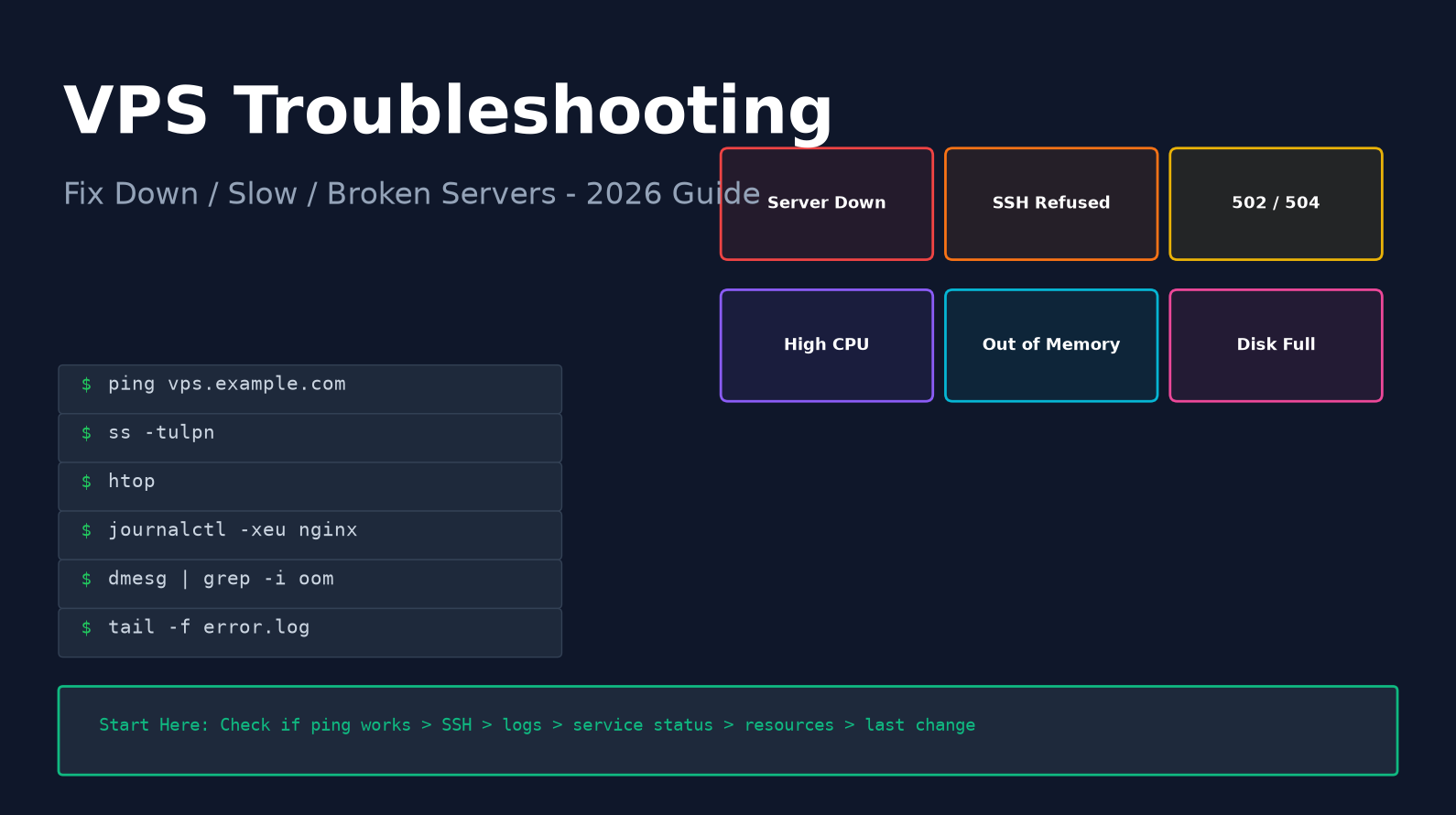
- VPS Troubleshooting Guide: Fix Down, Slow, or Broken Servers
- VPS Security Hardening Checklist: 15 Steps to Lock Down a New Server
- Docker on VPS: Complete Beginner's Guide
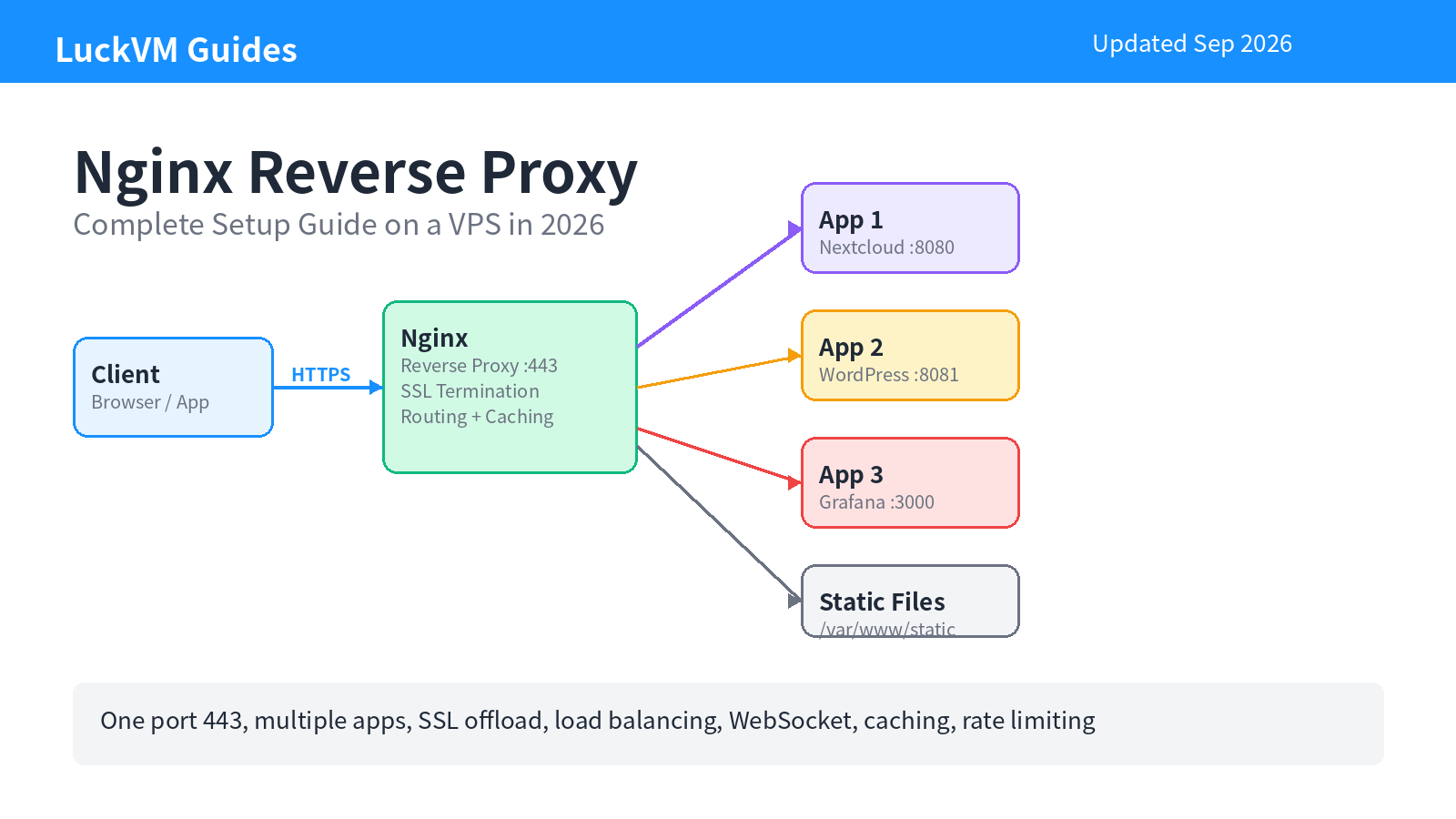
- How to Set Up an Nginx Reverse Proxy on a VPS
- VPS Monitoring: Netdata, Uptime Kuma & Prometheus Setup Guide
- VPS Backup Strategy: The 3-2-1 Rule for Never Losing Data
- How to Move from Shared Hosting to a VPS Without Downtime