TL;DR - Start Here
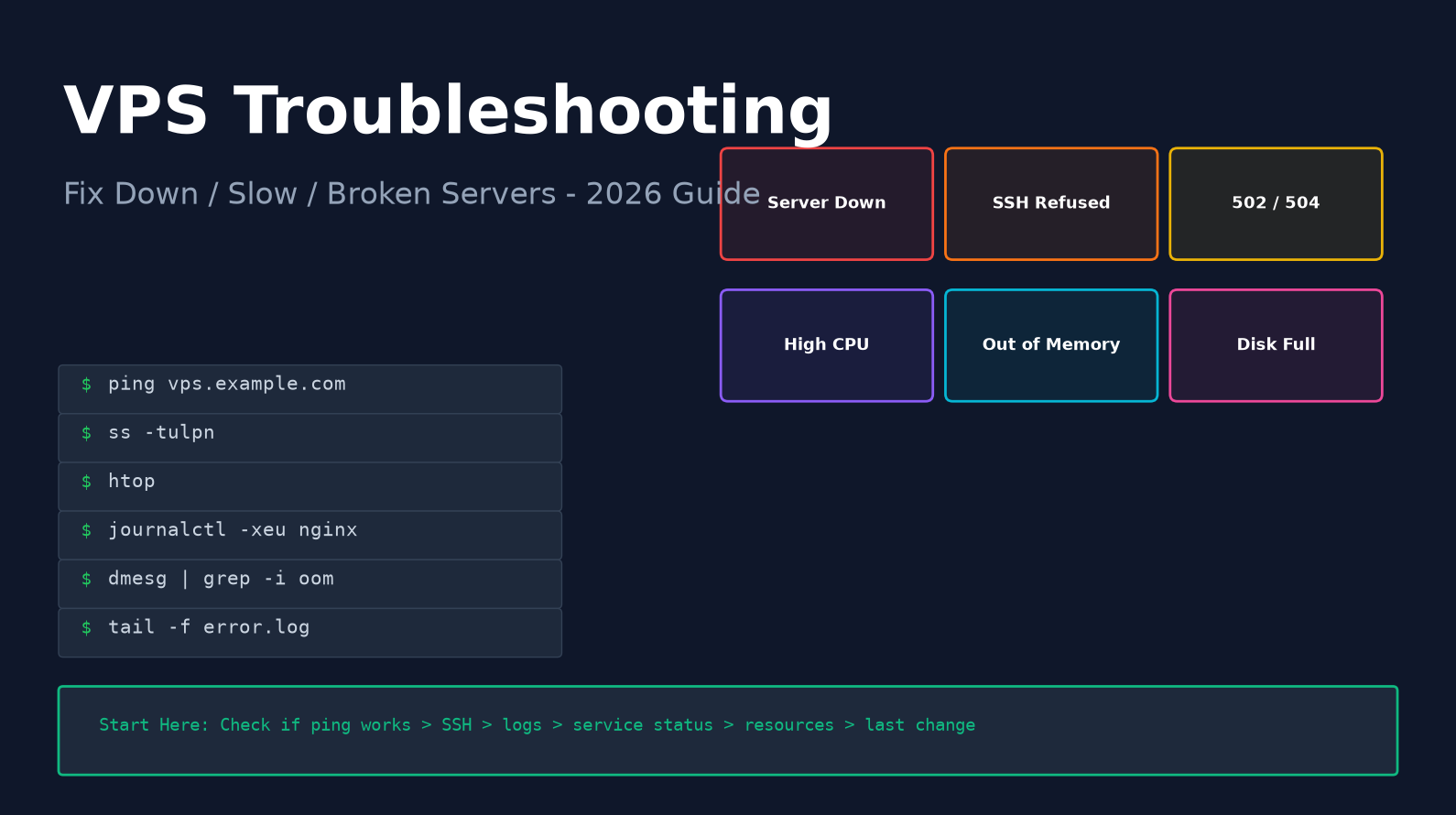
When your VPS breaks, follow this order: 1) Ping the IP 2) Try SSH 3) Use VNC console if SSH fails 4) Check service status with systemctl 5) Read logs with journalctl and tail 6) Check resources (htop, df, free) 7) Recall what you last changed. This article covers 10 common failure modes with exact commands to diagnose and fix each one.
1. The Troubleshooting Mindset
Before you type a single command, remember three rules that separate fast fixes from hours of panic:
- Don't change multiple things at once. One edit, one test, one observation. Changing Nginx config and restarting php-fpm and rebooting all at once means you will never know which thing fixed it - or broke it further.
- Read logs before restarting services. Restarting clears the evidence. Grab the tail of the error log first: the last 50 lines almost always tell you exactly what is wrong.
- Recall your last change. 80% of outages are self-inflicted. What did you deploy/edit/restart in the last hour? That is where to look first. Check
history | tail -50if you forgot.
Keep a runbook file (even a simple text note) with your own common commands. When something breaks at 3 AM, you will not remember syntax.
2. The Diagnosis Decision Tree
Start with this binary tree. It eliminates 80% of possibilities in under two minutes.
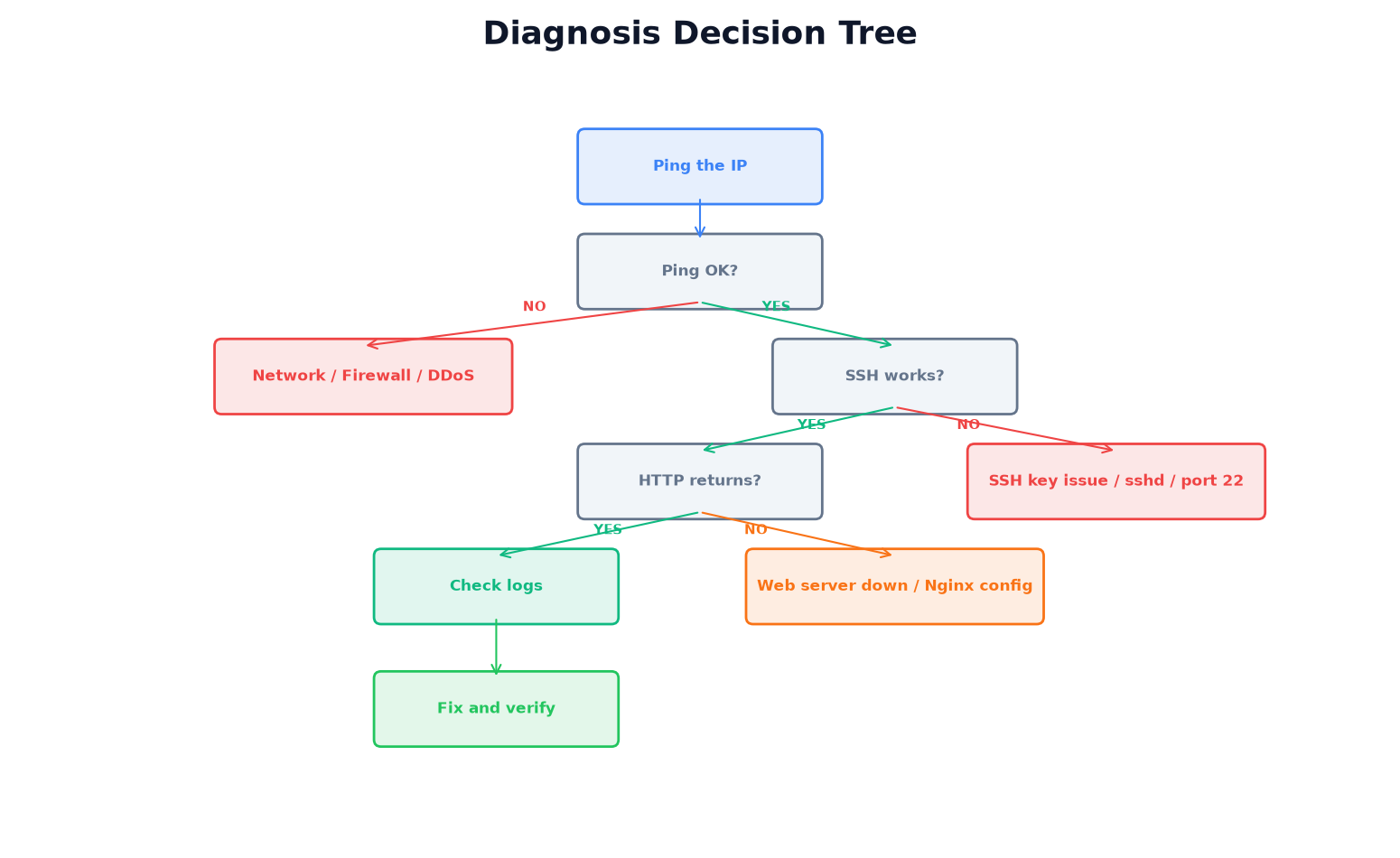 Figure 1: Binary decision tree - follow it top to bottom on any outage
Run these four commands in order, and you will know which section of this article to jump to:
# Step 1: Is the server reachable at all?
ping -c 4 YOUR_SERVER_IP
mtr -rw YOUR_SERVER_IP

# Step 2: Can you SSH in?
ssh root@YOUR_SERVER_IP

# Step 3: Does the web respond?
curl -I https://yoursite.com

# Step 4: What do the logs say?
journalctl -xeu nginx --since "10 min ago"
Pro tip: If SSH fails entirely, use your provider's web VNC/noVNC console. It connects through the hypervisor directly and bypasses the network - it works even when firewall rules have locked you out. Always test that the VNC console works before you need it.
3. Issue 1: Server Completely Unreachable
When ping doesn't respond and SSH times out, the problem is at the network or hypervisor level.
Check in order:
- Is the VPS powered on? Check your provider panel. Accidental shutdowns and suspended billing are common.
- Did you enable UFW and forget to allow SSH? This is the #1 self-inflicted outage. Fix via VNC console:
ufw allow 22/tcpthenufw reload. - Is there a DDoS attack? Check provider's network status page. If your IP is being targeted, ask for a new IP or enable DDoS protection. US-based VPS with DDoS protection is worth considering if this happens regularly.
- Did you change network config? A wrong
/etc/network/interfacesor Netplan config will disconnect you. Fix via VNC console. - Has the kernel panicked? Check via VNC - if you see a frozen console with kernel messages, the only fix is a reboot (and then check
/var/crashordmesgafter boot for clues).
4. Issue 2: SSH Connection Refused
"Connection refused" means the IP is reachable but nothing is listening on port 22 (or your SSH port). "Connection timed out" is a firewall/network issue - different problem.
# Log in via VNC console, then:
systemctl status sshd
ss -tulpn | grep :22
ufw status
# If sshd is stopped:
systemctl start sshd
systemctl enable sshd
# If port 22 is blocked by firewall:
ufw allow 22/tcp
ufw reload
# If you changed SSH port in sshd_config, check:
grep Port /etc/ssh/sshd_config
Critical: Before you ever run ufw enable, open a SECOND SSH terminal and verify you can still connect. If you lock yourself out, you lose remote access and must use VNC. This is the single most common new-user mistake.
5. Issue 3: 502 / 503 / 504 Bad Gateway
HTTP errors tell you where the problem is. Different codes mean different layers.
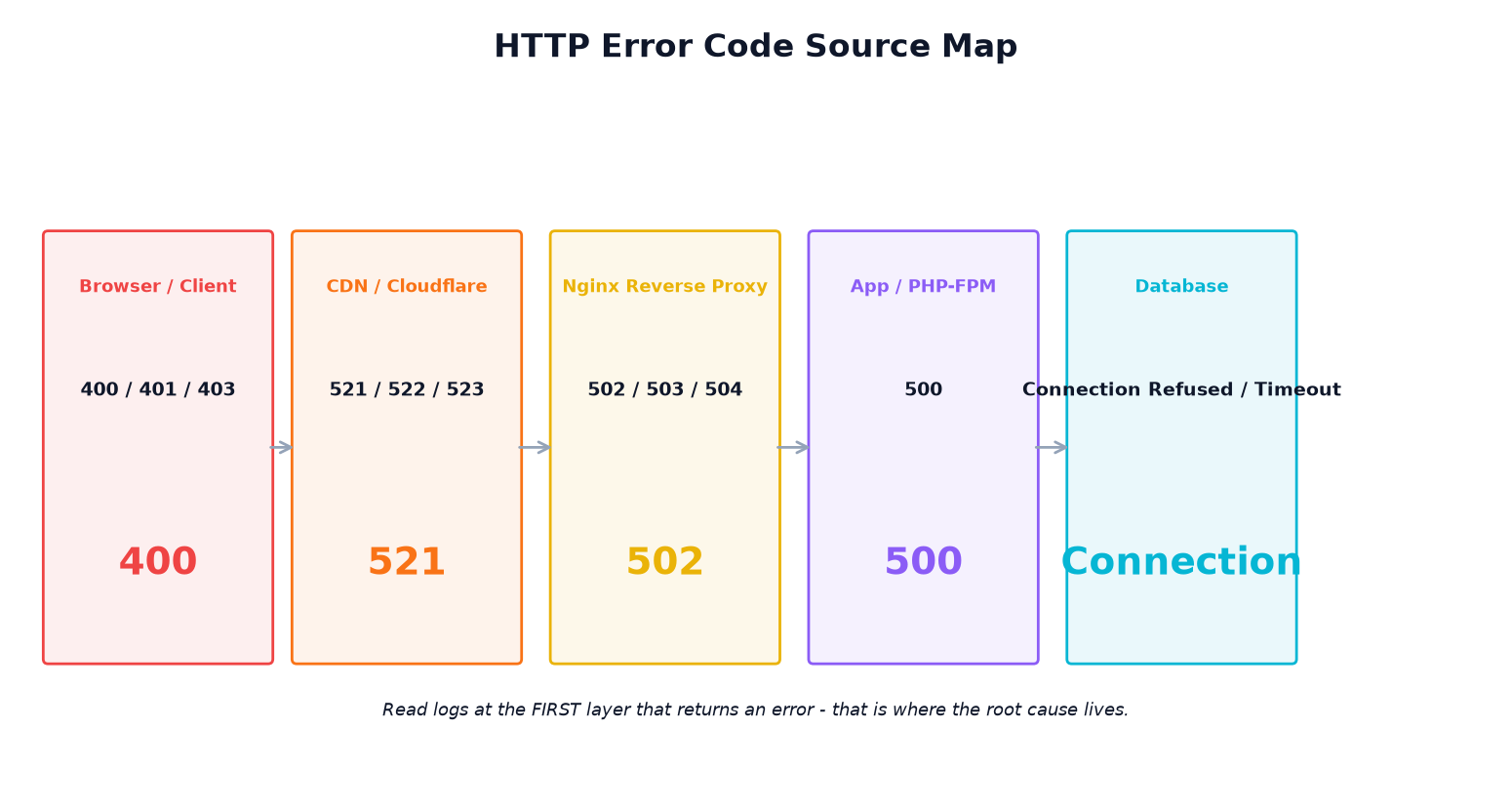 Figure 2: Each error code points to a specific layer - read the log at that layer
| Error Code | Meaning | Where to Look |
|---|---|---|
| 502 Bad Gateway | Nginx can't connect to upstream (php-fpm/app crashed) | systemctl status php8.2-fpm |
| 503 Service Unavailable | Upstream overloaded or in maintenance | Nginx limit_req / app health |
| 504 Gateway Timeout | Upstream took too long to respond | Slow queries, app deadlock, proxy_read_timeout |
| 521/522/523 (Cloudflare) | Cloudflare can't reach your origin server | Origin Nginx down / Cloudflare IPs blocked |
| 403 Forbidden | Permission denied or .htaccess rule | File permissions, Nginx deny rules |
| 404 Not Found | Wrong root path or file missing | Nginx root directive matches actual path |
# The fastest 502/504 diagnosis:
systemctl status php8.2-fpm    # or whatever PHP version you run
tail -50 /var/log/nginx/error.log
tail -50 /var/log/php8.2-fpm.log
# Common fix - restart php-fpm:
systemctl restart php8.2-fpm
# Check if socket path matches Nginx config:
grep fastcgi_pass /etc/nginx/sites-available/*
ls /run/php/
Common pitfall: After upgrading PHP (e.g., 8.1 to 8.2), the socket path changes from /run/php/php8.1-fpm.sock to /run/php/php8.2-fpm.sock. Your Nginx config still points at the old path - hence 502. Always verify the socket filename matches after PHP upgrades.
6. Issue 4: High CPU / Server Slow
A slow site is often a runaway process. Identify it first, then kill or optimize.
# See what's using CPU - press F6 to sort by CPU%:
htop
# If htop isn't installed:
apt install htop -y
# Quick top-5 CPU hogs (non-interactive):
ps aux --sort=-%cpu | head -6
# Check system load averages:
uptime
# Check for suspicious processes (cryptominer malware):
ps aux | grep -E 'minerd|kworkerds|xmrig'
chkrootkit    # install if needed: apt install chkrootkit
Load averages above your vCPU count for sustained periods mean the server is overloaded. A 2-vCPU VPS with load of 6.0 means three tasks are waiting for CPU at any given moment - that's when you see timeouts.
CPU steal time is the hidden killer on VPS. Run top and look for the %st value. If steal is consistently above 10-15%, the host node is oversold and your VPS is fighting for CPU - that's not your fault, it's a bad host. Time to pick a better VPS provider.
7. Issue 5: Out of Memory (OOM) Kills
When RAM is exhausted, Linux's OOM Killer shoots processes to keep the kernel alive. You'll see random services die - usually MySQL or php-fpm because they use the most memory.
# Check if OOM killer struck recently:
dmesg | grep -i "killed process"
# Shows last 24 hours of OOM events:
journalctl -k --since "24 hours ago" | grep -i oom
# Current memory usage:
free -h
# Find memory hogs:
ps aux --sort=-%mem | head -8
Fixes in order of effectiveness:
- Add swap space (prevents sudden OOM kills, even if slow):
fallocate -l 2G /swapfile && chmod 600 /swapfile && mkswap /swapfile && swapon /swapfile - Tune php-fpm: Reduce
pm.max_children- too many children = memory exhaustion. Calculate: total RAM / average process size = max children. - Install earlyoom:
apt install earlyoom- it kills memory hogs before the kernel panics and hangs. - Tune MySQL/MariaDB: Large
innodb_buffer_pool_sizeon small VPS causes OOM. Set it to 40-50% of available RAM on 1-2GB servers. - Upgrade RAM - if all else fails, move to a higher-tier VPS.
Do not treat swap as free RAM. Swap prevents OOM crashes but causes massive slowdowns when used heavily. It's a safety net, not a solution. If you're consistently using more than 50% of swap, you need more RAM.
8. Issue 6: Disk Full
A full disk causes silent failures everywhere: MySQL can't write, Nginx can't cache, SSL renewal fails, logs stop recording - making the problem harder to diagnose (no logs!).
# See which partition is full:
df -h
# Find which directories are using the space:
du -sh /* | sort -hr | head -10
# Common culprit 1: Systemd journals
journalctl --vacuum-size=200M
# Common culprit 2: Docker images and volumes
docker system df
docker system prune -a
# Common culprit 3: Old logs in /var/log
du -sh /var/log/*
find /var/log -name "*.gz" -delete    # delete rotated compressed logs
# Common culprit 4: Old backups in /tmp or /root
ls -lhS /tmp /root | head
Prevent this: Set up monitoring alerts at 80% disk usage (don't wait for 100% to discover the problem). See our VPS monitoring guide for how to set this up with Netdata.
9. Issue 7: SSL Certificate Errors
Browser warnings like "Your connection is not private" usually mean an expired or wrong certificate.
# Check certificate expiration on your server:
certbot certificates
# Renew manually:
certbot renew
# If renewal fails, check:
# 1) Port 80 is open (http-01 challenge needs it)
ufw status
# 2) Nginx serves .well-known directory correctly
# 3) DNS points to THIS server (not old IP after migration)
dig +short yoursite.com
# Check if renewal timer is active:
systemctl list-timers | grep certbot
10. Issue 8: Emails Not Sending
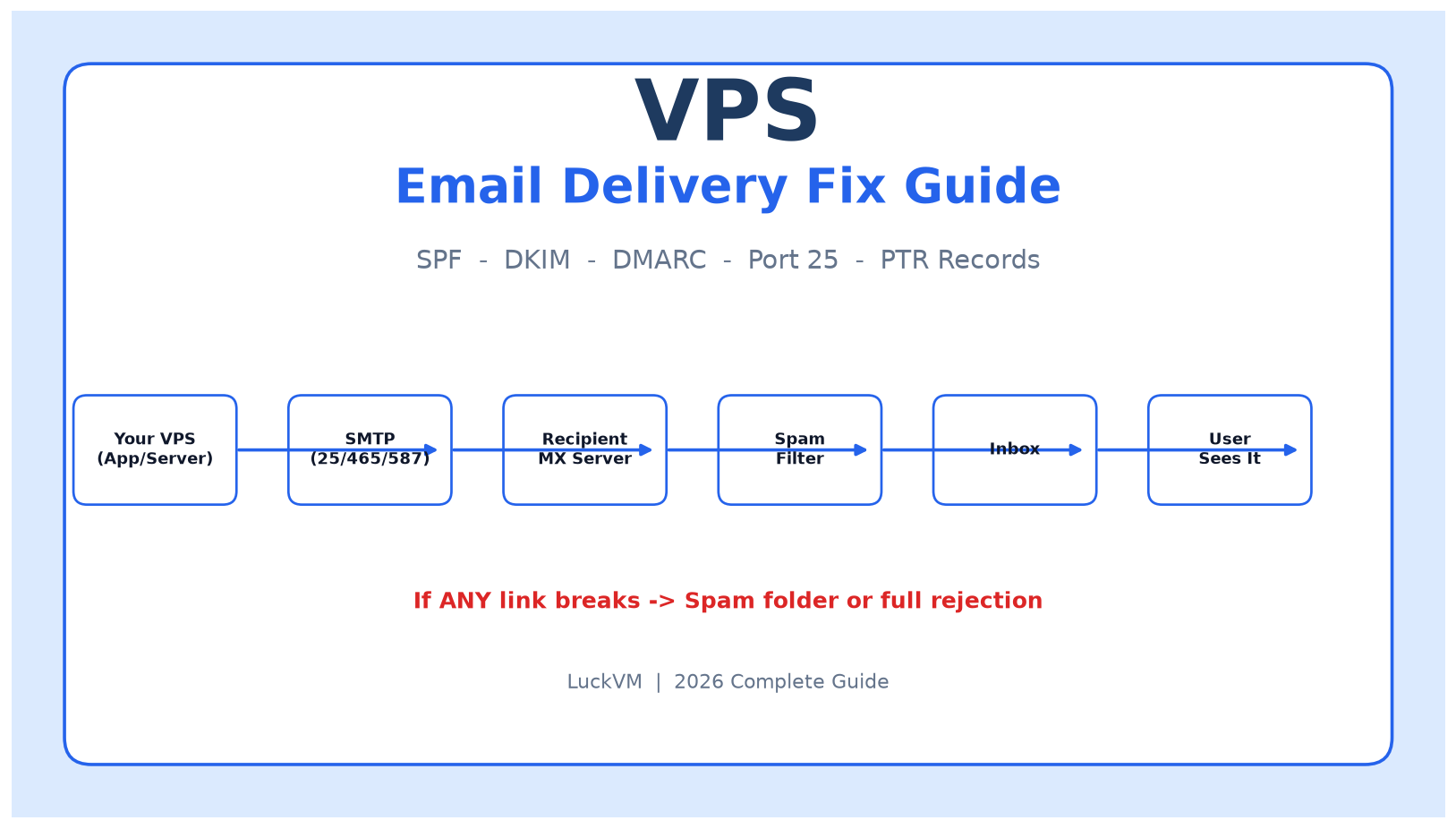
This is the single issue that catches new VPS users by surprise. Most VPS providers block outbound port 25 by default to prevent spam. You will spend hours debugging Postfix and it will never work - it's blocked at the ISP level.
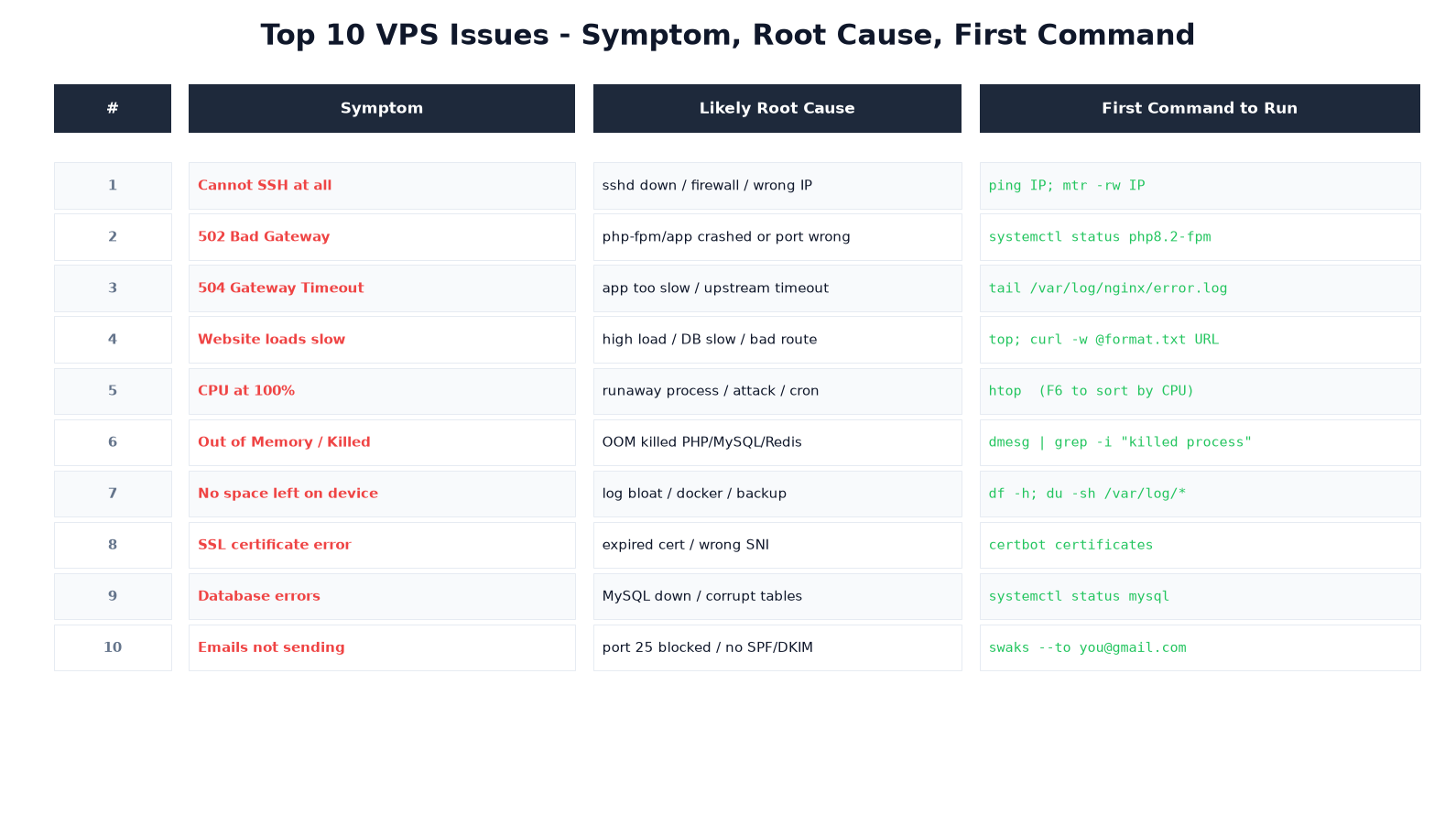 Figure 3: Quick reference - match your symptom, run the first command
The solution is not to fight port 25. Use a transactional email service:
- Resend - 3,000 emails/month free, developer-friendly API
- Postmark - Great deliverability, $10/month for 10,000 emails
- Mailgun / SendGrid - Generous free tiers
- SMTP.com / Mailpit for testing
You also need SPF, DKIM, and DMARC records in DNS for email to reach inboxes (not spam folder). A transactional service handles all of this for you.
11. Incident Response Timeline
When something is on fire, you need a procedure, not panic. Follow this order:
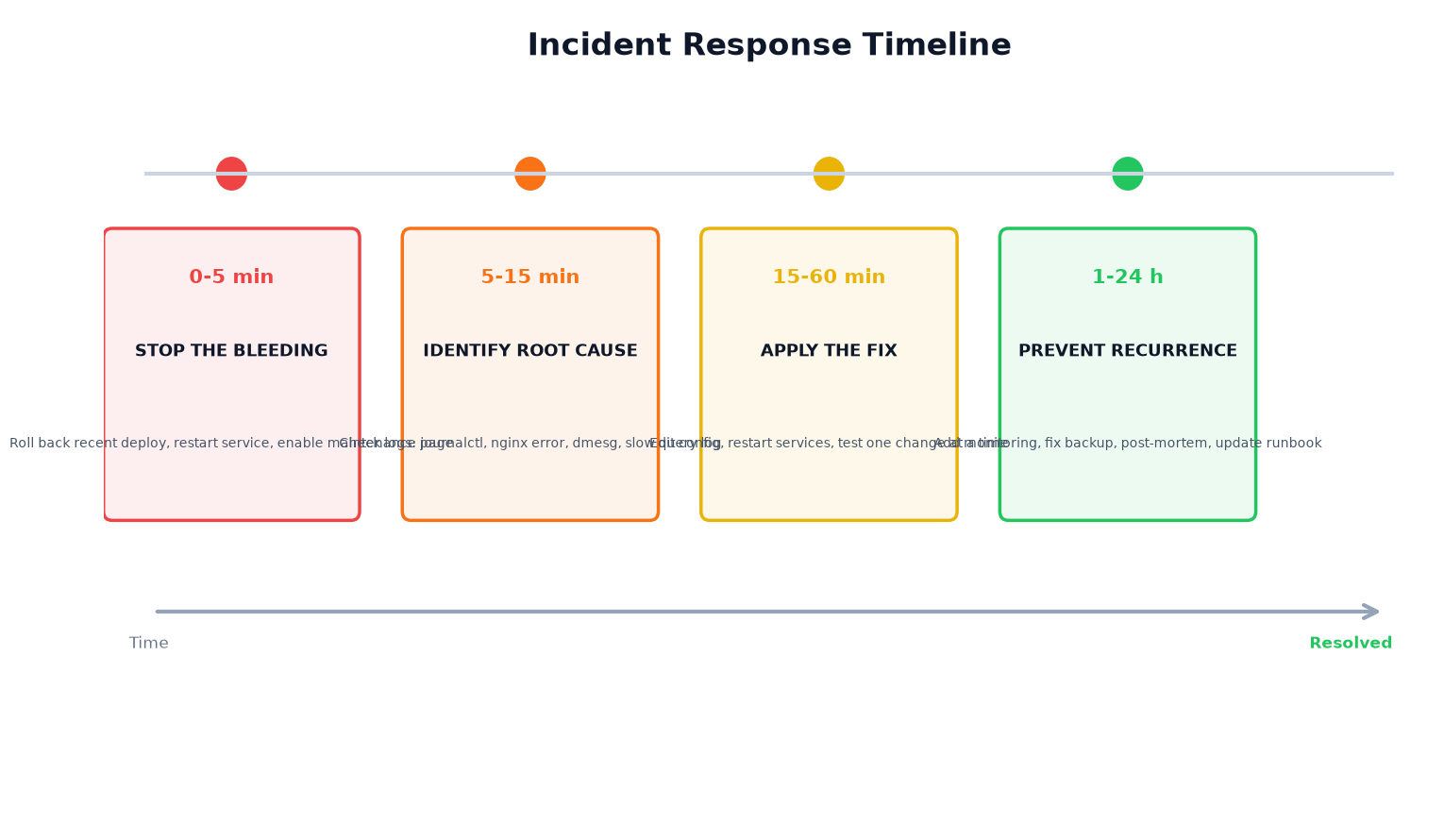 Figure 4: Four phases of incident response - from triage to prevention
- 0-5 minutes: Stop the bleeding. If the site is down, enable a maintenance page or roll back the last deploy. Don't try to diagnose while users see errors.
- 5-15 minutes: Identify root cause. Work through the decision tree in section 2. Read logs. Check resources. Find what changed.
- 15-60 minutes: Apply the fix. One change at a time. Test after each change. If a restart fixes it, you haven't fixed the root cause - you've delayed the next outage.
- 1-24 hours: Prevent recurrence. Add monitoring. Fix the backup. Write a short post-mortem (what happened, why, what you changed, how to detect it next time). Update this checklist.
12. Preventing Future Outages
The best troubleshooting is avoiding the problem entirely. These 8 preventive steps will eliminate the majority of incidents:
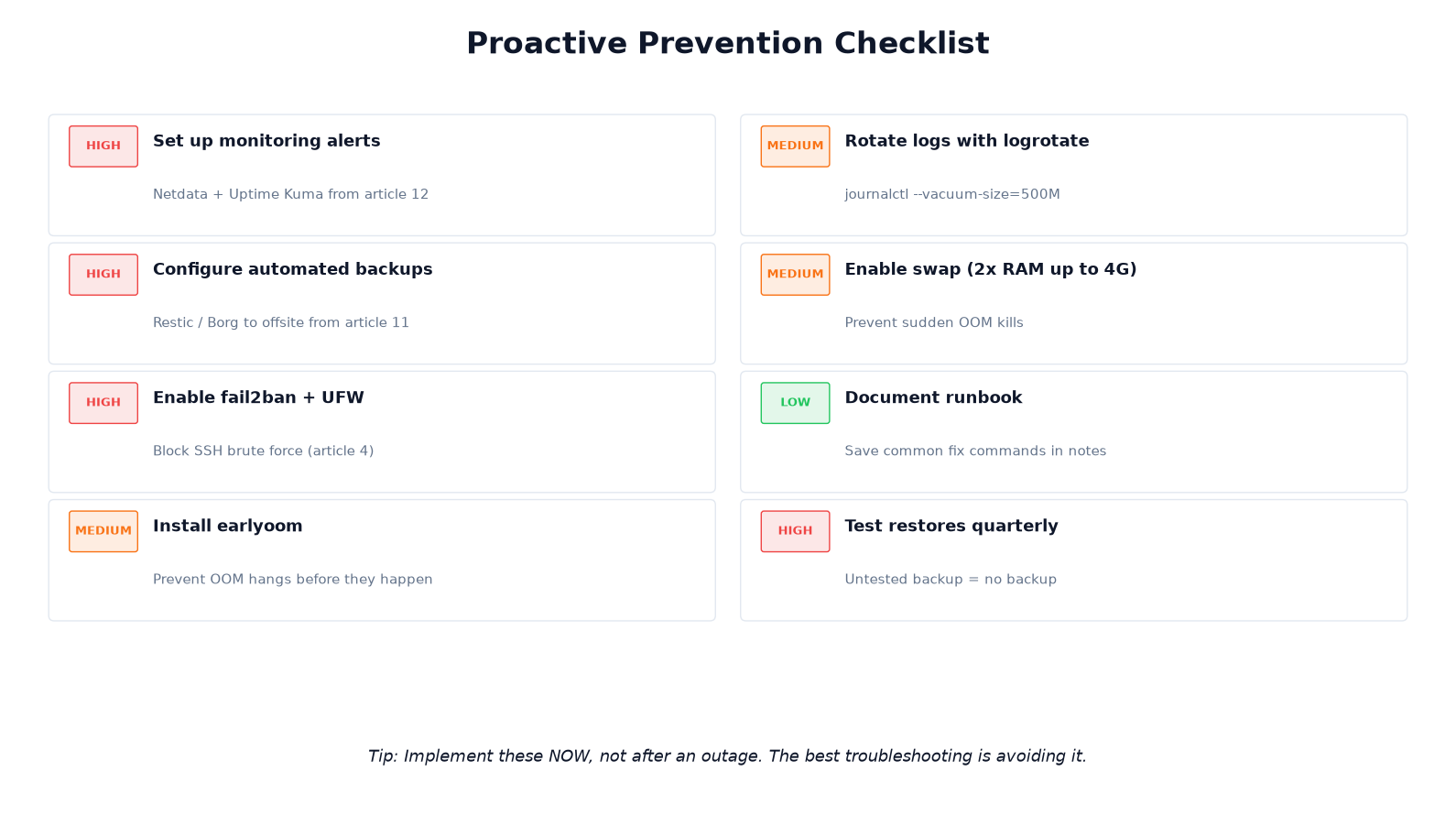 Figure 5: Implement these before your next outage - high priority items first
- Set up monitoring and alerts. CPU, memory, disk, HTTP status, and SSL expiration should all page you before they cause outages. See Netdata + Uptime Kuma guide.
- Automate backups and test restores. An untested backup is not a backup. See the VPS backup strategy guide for Restic/Borg setup and quarterly restore testing.
- Enable fail2ban and UFW. Block SSH brute force, close unused ports. See VPS security hardening checklist.
- Install earlyoom to prevent OOM hangs.
- Configure logrotate (usually automatic, but verify with
logrotate -d /etc/logrotate.conf). - Add swap space as a safety net (2GB is plenty for most small VPS).
- Document your setup. A simple markdown file in your home directory with common commands is worth gold during a panic.
- Test your backups quarterly. Actually spin up a test VPS and restore from backup. You might be surprised what doesn't work.
If you're currently troubleshooting a VPS issue and finding that underlying hardware problems (constant CPU steal, I/O timeouts, network drops) are the root cause - those are provider problems no amount of configuration fixes. A reliable VPS provider with honest resource allocation eliminates an entire class of headaches. See our VPS plans starting at $8.80/month with KVM virtualization, NVMe SSD, and a 99.9% uptime SLA.
Frequently Asked Questions
My VPS is completely unreachable - what do I check first?
First, ping the IP. If ping fails, use your provider's VNC/noVNC console to access the server directly - that works even when the network is broken. Then check if SSH is running (systemctl status sshd) and whether UFW is blocking port 22. If the VNC console also shows a frozen screen, the VPS likely kernel-panicked and needs a reboot.
How do I fix a 502 Bad Gateway error?
502 means Nginx cannot reach the backend application. Run systemctl status php8.2-fpm (or whatever version you have). If it's stopped, restart it. The most common cause after PHP upgrades is the socket path changing - verify fastcgi_pass in your Nginx config points to the socket that actually exists in /run/php/.
Why is my VPS suddenly slow?
Run htop (press F6 to sort by CPU). Also check free -h for memory and df -h for disk space. Look at top for %st (steal time) - high steal means the host node is oversold, which is a provider problem. Also check dmesg for OOM kills that may have silently restarted services.
How do I free up disk space?
Run du -sh /* | sort -hr | head to find the big directories. Common culprits: old Docker images (docker system prune -a), bloated systemd journals (journalctl --vacuum-size=200M), gzipped old logs in /var/log, and forgotten backup files. Set up an alert at 80% so you catch this before it causes failures.
SSH says Connection refused - what does that mean?
The server is reachable but sshd isn't listening, or something is blocking port 22. Use VNC console to log in, then check systemctl status sshd, ss -tulpn | grep :22, and ufw status. The #1 self-inflicted cause is running ufw enable without first allowing port 22.
What causes Out of Memory killed processes?
Linux's OOM Killer terminates processes when RAM is fully exhausted. Check dmesg | grep "Killed process" to see which processes died. Fix by adding swap (as a safety net, not a solution), tuning php-fpm pm.max_children, optimizing MySQL's buffer pool, installing earlyoom, or upgrading to more RAM.
Why won't my VPS send emails?
Most VPS providers block outbound port 25 to prevent spam. Don't fight this - use a transactional email service like Resend, Postmark, or SendGrid. They also handle SPF/DKIM/DMARC setup, which you need for deliverability anyway. Self-hosting SMTP in 2026 is rarely worth the deliverability and reputation headaches.
Should I restart my VPS when something breaks?
As a last resort only. Restarting clears logs and process state - the evidence you need to diagnose the root cause. Always check logs first with journalctl and tail -f. If you must reboot, use sync && reboot (clean shutdown) instead of hard power cycle, which risks filesystem corruption on NVMe drives.
Sick of troubleshooting a bad VPS?
LuckVM offers reliable KVM VPS hosting with NVMe SSD, 99.9% uptime SLA, and 24/7 support. Starting at $8.80/month for Hong Kong, Los Angeles, Singapore, Tokyo, and Frankfurt nodes. 24-hour refund policy.
View VPS Plans