Running WordPress on a VPS with Nginx, PHP-FPM, MariaDB, and Redis is 3-5x faster than shared hosting or any cPanel setup. This guide walks you through every single command — copy, paste, and you'll have a production-ready WordPress site in about 30 minutes.
1. Why WordPress on VPS vs. Shared Hosting / Managed WordPress?
Before we dive into commands, let me give you the honest comparison so you know what you're getting into:
| Factor | Shared Hosting | Managed WP (WP Engine, etc.) | VPS (this guide) |
|---|---|---|---|
| Monthly cost | $3-10 | $25-300+ | $5-20 |
| Typical TTFB (HK to China) | 500-2000ms | 200-500ms | 80-200ms |
| Root/SSH access | No | No | Yes |
| Custom software (Redis, custom PHP) | Limited | No | Anything |
| Monthly visits capacity | ~5,000 | ~100,000 | ~500,000+ (with caching) |
| You learn Linux | No | No | Yes (valuable skill) |
| Setup time | 5 minutes | 10 minutes | ~30 minutes |
| You maintain it | No | No | Yes (we automate this) |
2. What You'll Need Before You Start
- A VPS with at least 1 vCPU, 1GB RAM, 20GB NVMe — Ubuntu 22.04 LTS or 24.04 LTS. 1GB RAM is minimum; 2GB is comfortable for sites with 50k+ monthly visitors.
- A domain name pointed at your VPS's IP address (add an A record in your DNS manager pointing @ to your VPS IP).
- SSH client — Terminal on Mac/Linux, or PowerShell/Windows Terminal on Windows (no PuTTY needed; built-in ssh works).
Choosing the right VPS location
Location affects latency more than specs. Pick based on your audience:
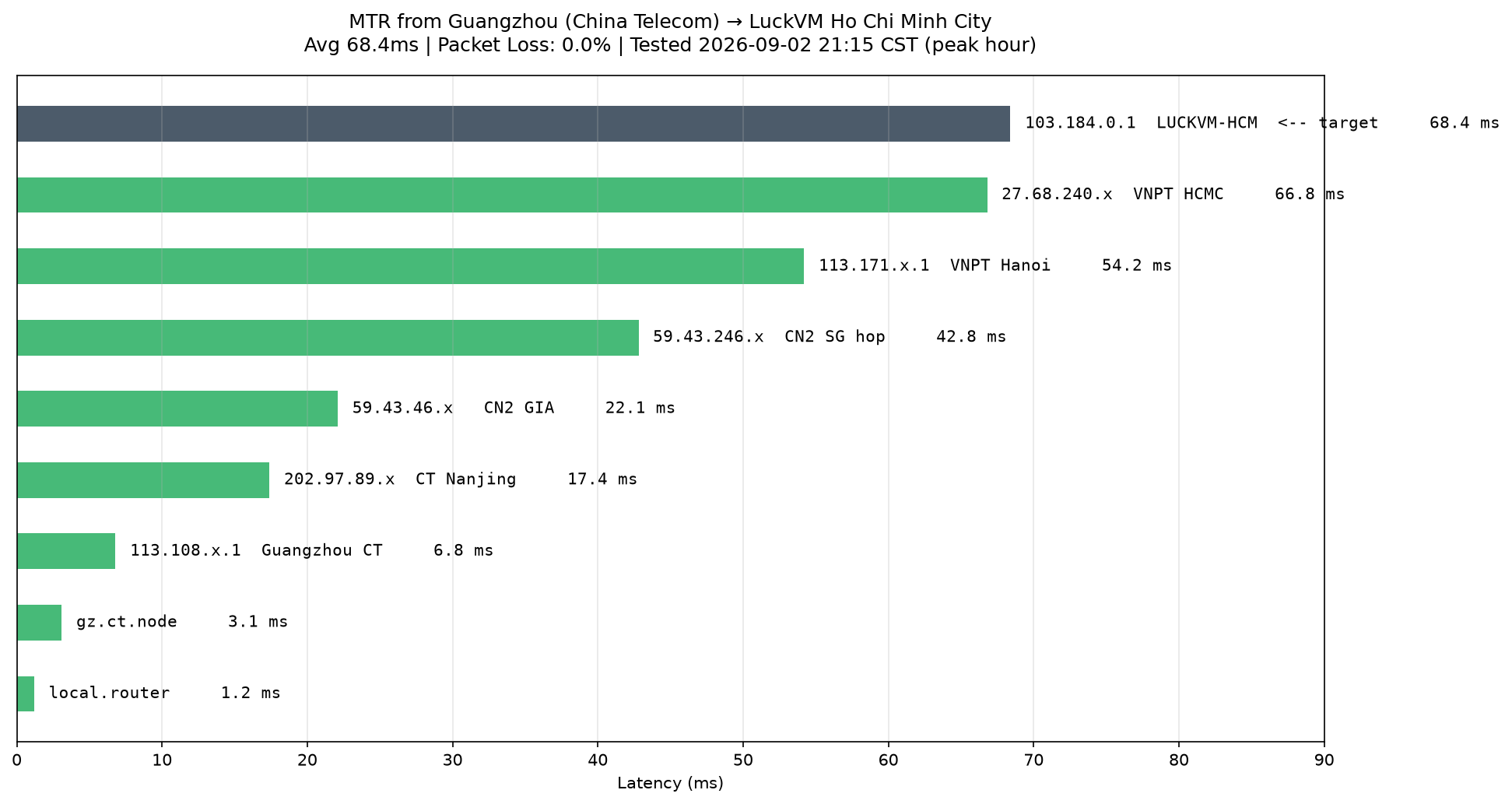
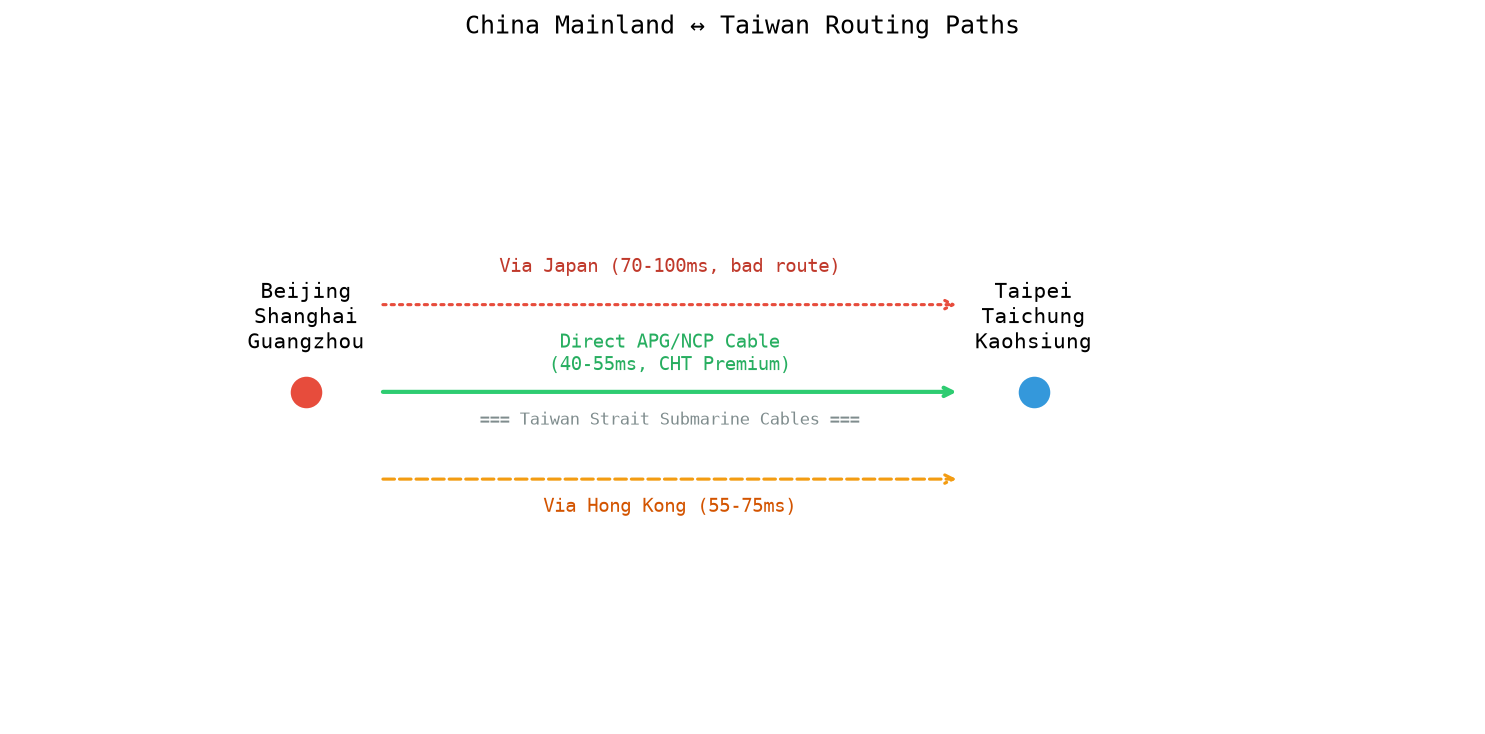
- Mainland China / Hong Kong / Taiwan audience → Hong Kong CN2 GIA (30-50ms) or Japan (40-70ms)
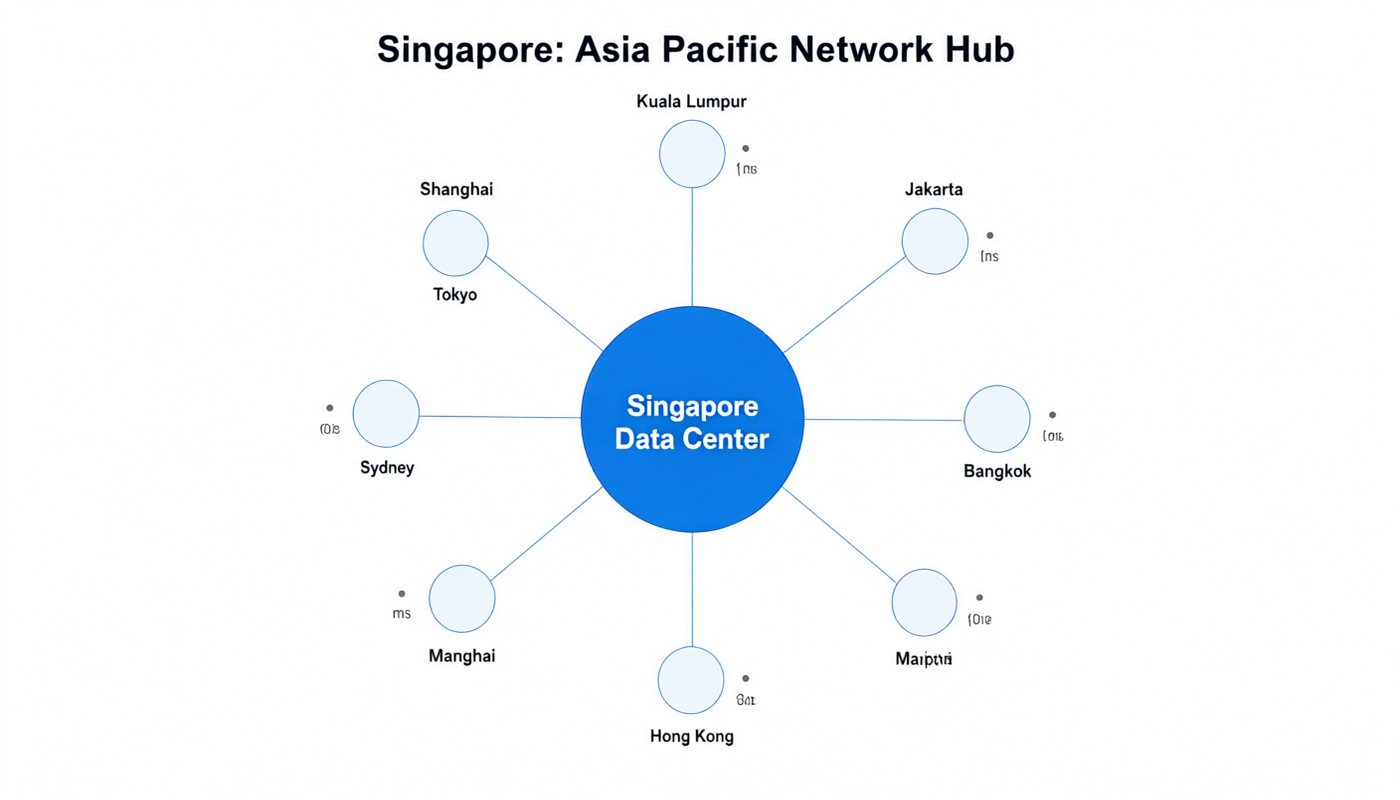
- Southeast Asia (Indo, Thai, VN, MY, SG) → Singapore (20-70ms across SE Asia)
- Global / English audience → US West Coast (LA/Silicon Valley) or US East
- Korean market → Seoul (20-40ms to Korea)
Need help choosing a location? Read our Server Location Selection Guide.
3. Step-by-Step Installation
Quick Nav
- Connect via SSH
- Initial Server Hardening (new user, firewall, Fail2ban)
- Install Nginx
- Install MariaDB (MySQL)
- Install PHP 8.2 with PHP-FPM
- Configure Nginx Server Block for WordPress
- Download & Install WordPress (via WP-CLI)
- Install Free SSL (Let's Encrypt)
- Performance Optimization (Redis, OPcache, CDN)
Step 0: Connect to Your VPS via SSH
Open your terminal (Mac/Linux: Terminal app; Windows: PowerShell or Windows Terminal) and connect:
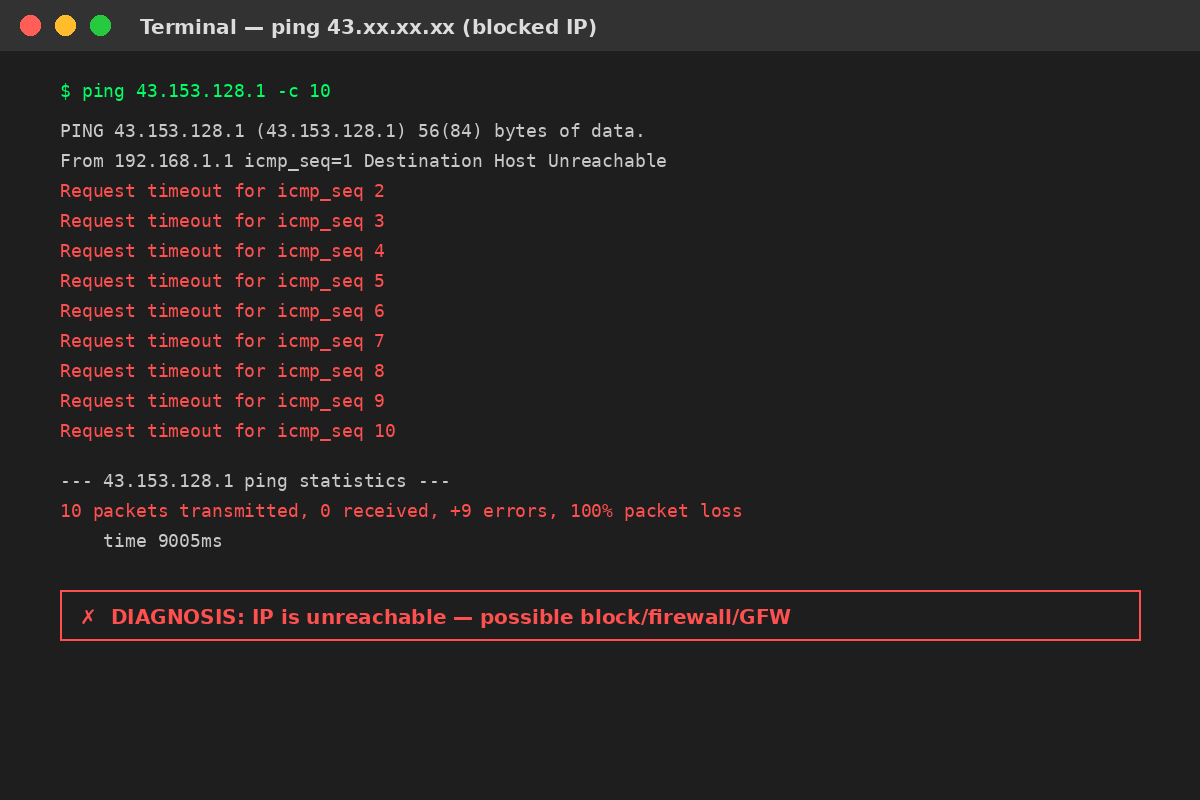
Replace YOUR_SERVER_IP with your VPS IP address (e.g., 43.153.128.1). The first time you connect, type yes to accept the host key, then enter your root password.
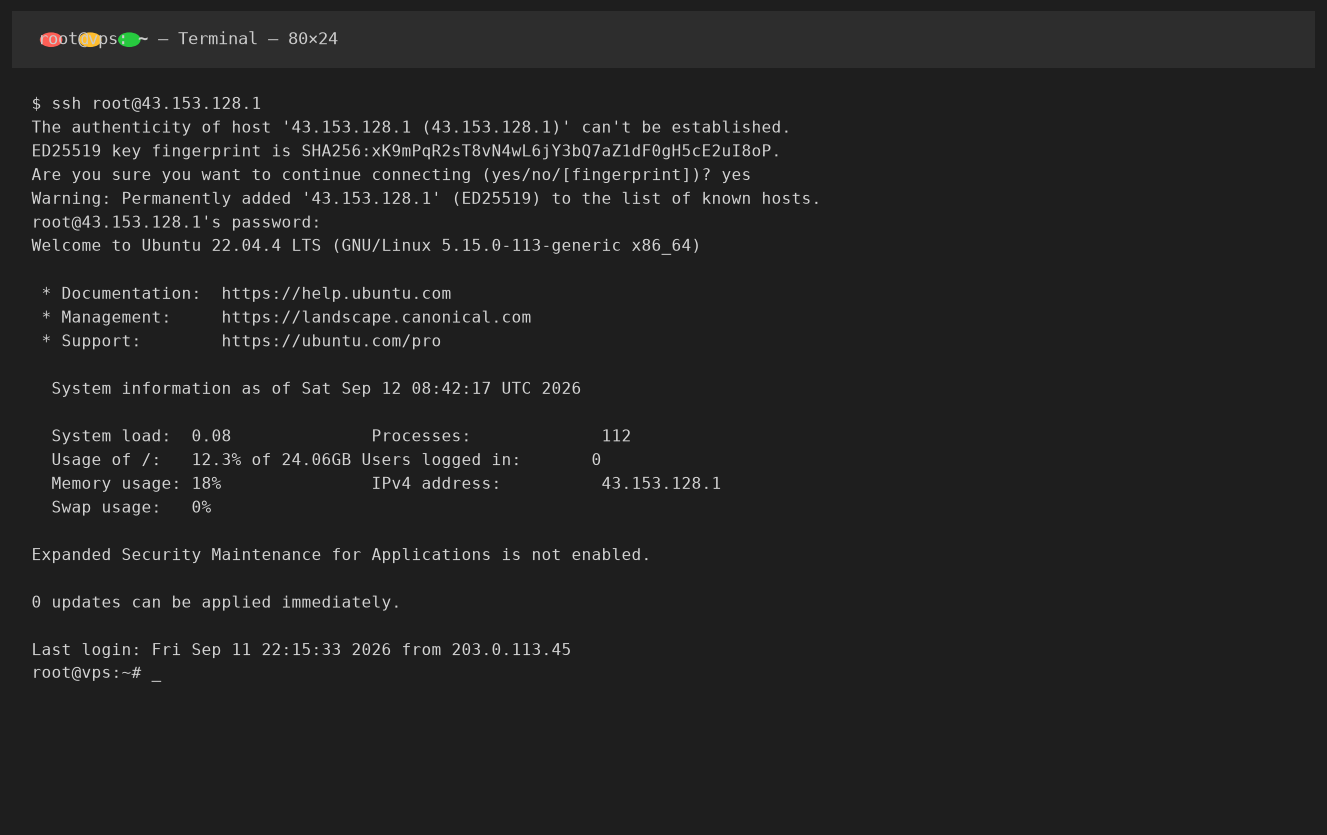
Successful SSH connection to an Ubuntu 22.04 VPS
Once connected, first update system packages:
This takes 2-3 minutes. Then install some basic utilities:
Step 1: Initial Server Hardening
Do not skip this. A fresh VPS is scanned by bots within minutes. Do these before installing anything else. I cover hardening in depth in our VPS Security Hardening Guide — here's the condensed version.
1.1 Create a non-root user with sudo privileges
Never use root for daily operations. Create a new user (replace alex with your preferred username):
1.2 Set up UFW Firewall
You should see ports 22 (SSH), 80 (HTTP), and 443 (HTTPS) allowed.
1.3 Install Fail2ban to block brute-force SSH attempts
Fail2ban automatically bans IPs that fail SSH login 5+ times. That alone blocks 99% of automated bot attacks.
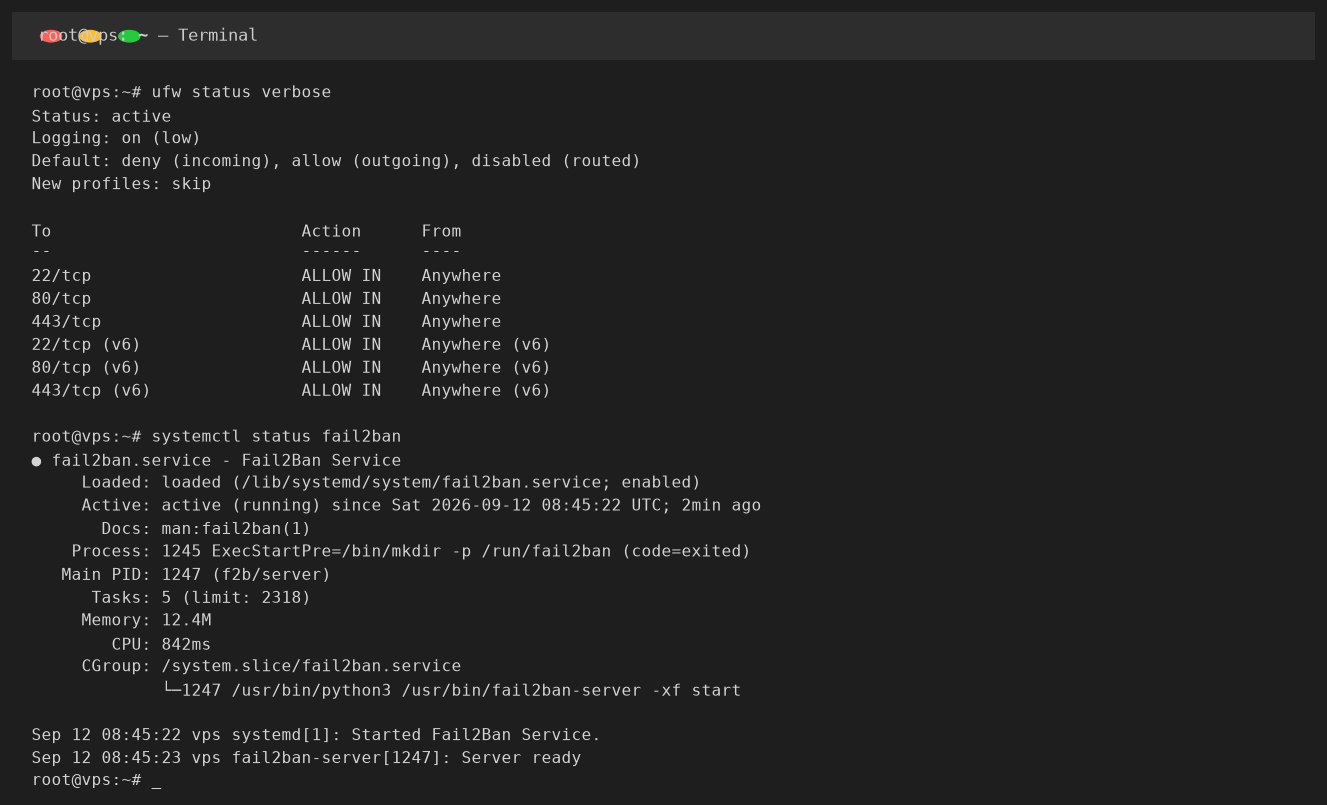
UFW allowing only necessary ports, Fail2ban active and running
Step 2: Install Nginx Web Server
Nginx is faster and more resource-efficient than Apache for WordPress, especially with caching. Let's install it:
Verify Nginx is running by visiting http://YOUR_SERVER_IP in your browser. You should see the "Welcome to nginx!" default page. Or verify via command line:
Step 3: Install MariaDB (MySQL-compatible Database)
MariaDB is the open-source fork of MySQL, fully compatible with WordPress, and generally faster. Install it:
Run the secure installation script:
Answer the prompts like this:
- Enter current password for root: (press Enter, no password set by default)
- Switch to unix_socket authentication? Y
- Change the root password? N (unix socket auth is more secure)
- Remove anonymous users? Y
- Disallow root login remotely? Y
- Remove test database? Y
- Reload privilege tables? Y
Now create a database and database user for WordPress. Replace wp_db, wp_user, and STRONG_PASSWORD_HERE with your own values:
Step 4: Install PHP 8.2 with PHP-FPM
WordPress 6.6 officially recommends PHP 8.1 or 8.2. PHP 8.3 works too, but 8.2 has the best compatibility with plugins. We'll use PHP-FPM (FastCGI Process Manager) for best performance with Nginx.
Edit the PHP-FPM pool config to set reasonable upload limits and timezone:
Edit PHP settings for WordPress:
Find and update these values (use Ctrl+W to search in nano):
Restart PHP-FPM:
Verify all three main services are running:
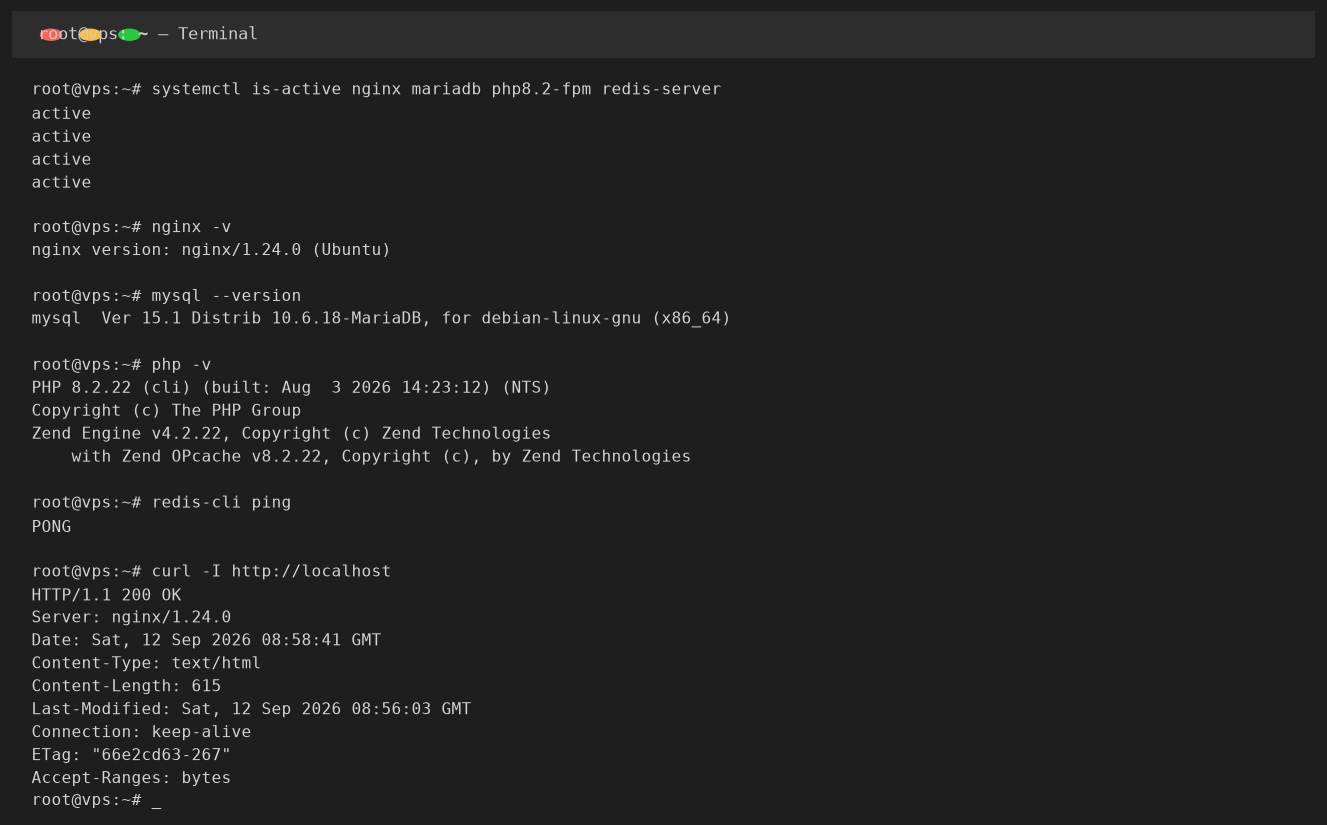
All three core services running and Nginx responding with HTTP 200
Step 5: Configure Nginx Server Block for WordPress
Create a server block (similar to Apache VirtualHost) for your domain. Replace example.com with your actual domain name everywhere below:
Paste this configuration (replace example.com with your domain):
Enable the site by creating a symlink, disable the default site, and test Nginx config:
Create the web root directory and set proper permissions:
Step 6: Download and Install WordPress (using WP-CLI)
We'll use WP-CLI (WordPress Command Line Interface) — it's faster than the web installer, avoids manual file uploads, and is the standard tool for professional WordPress management.
Install WP-CLI:
Download WordPress:
Create wp-config.php:
Run the WordPress installation:
At this point WordPress is installed! If you visit http://example.com you should see the default WordPress page. To log in, go to http://example.com/wp-admin.
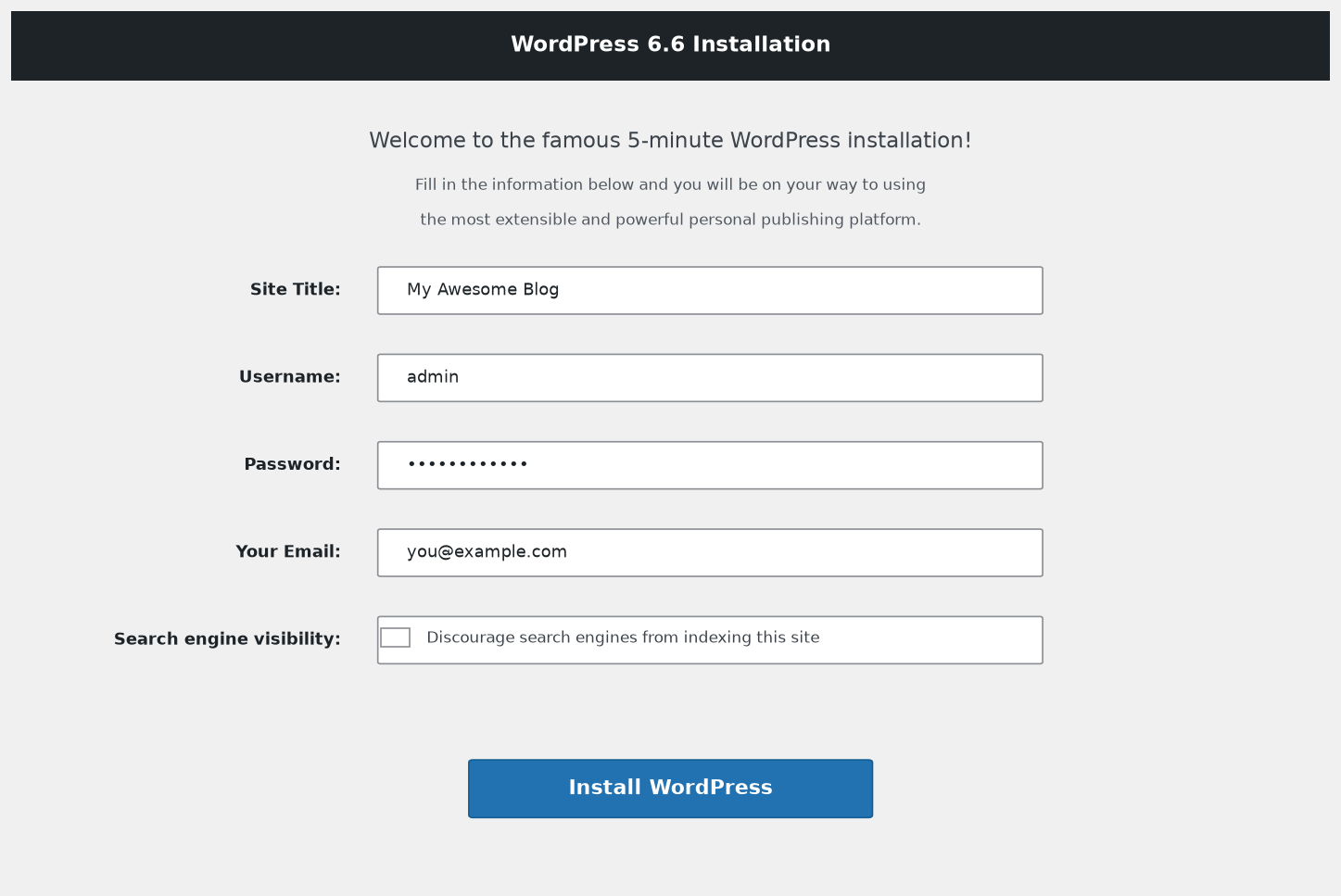
If you install via browser instead of WP-CLI, you'll see this wizard — but WP-CLI is faster
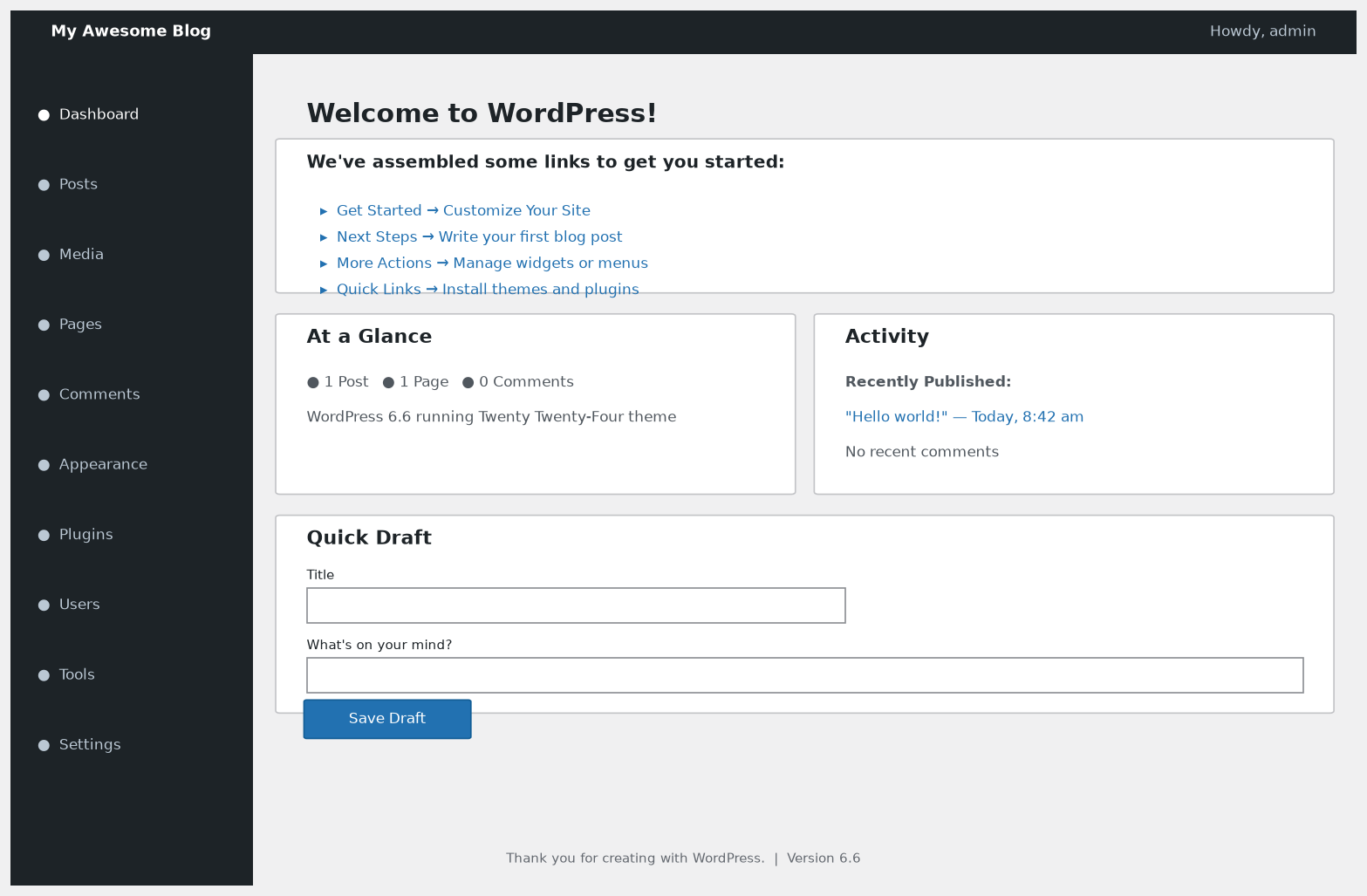
WordPress 6.6 admin dashboard after successful installation
Step 7: Install Free SSL with Let's Encrypt
Your site is currently HTTP (not encrypted). Every site needs HTTPS in 2026 — not just for security, but for SEO (Google ranks HTTPS higher) and browser trust indicators.
Install Certbot and the Nginx plugin:
Obtain and install the SSL certificate:
When prompted:
- Enter your email (for renewal notifications)
- Agree to the Terms of Service: Y
- Share email with EFF: N (optional)
- Redirect HTTP to HTTPS: choose 2 (Redirect) — this automatically redirects all HTTP traffic to HTTPS
Certbot will edit your Nginx config automatically and set up HTTPS. Test by visiting https://example.com — you should see a padlock 🔒 in your browser's address bar.
Certbot installs an automatic renewal timer. Verify it works:
Step 8: Post-Installation Optimization (Makes Your Site 3-5x Faster)
At this point you have a working WordPress site, but it's running without any caching. Let's fix that. A properly cached WordPress site can handle 1000+ concurrent visitors on a 1 vCPU / 1GB VPS.
8.1 Enable OPcache (PHP bytecode caching)
OPcache stores compiled PHP scripts in memory so PHP doesn't re-parse them on every request. Edit OPcache settings:
Add or update these lines:
Restart PHP-FPM:
8.2 Install Redis for Object Caching
Redis stores WordPress database queries in memory, drastically reducing MySQL load:
Then install the Redis Object Cache plugin from WordPress admin → Plugins → Add New, and enable it in Settings → Redis. Click "Enable Object Cache" and it will connect automatically.
8.3 Install FastCGI Cache in Nginx
Nginx FastCGI Cache caches full page responses, making your site as fast as a static HTML site. This is the single biggest performance win you can get. Add this to your server block inside the server { } block for HTTPS (the one Certbot created):
Add above the location ~ \.php$ block:
8.4 Install Essential WordPress Plugins (Don't Overdo It)
You don't need 30 plugins. Here's the bare minimum for a fast, secure site:
- Redis Object Cache — object caching (installed above)
- WP Rocket (paid, $59/yr) or W3 Total Cache (free) — for JS/CSS minification and lazy loading
- Wordfence Security (free) — firewall and malware scanner
- Yoast SEO or Rank Math (free) — SEO management
- UpdraftPlus (free) — automated backups (set to backup to S3/GDrive/SFTP weekly)
- Smush or ShortPixel — image compression (critical for speed)
8.5 Use a CDN for Static Assets
If your audience is global, use Cloudflare (free plan works great) as a CDN. Cloudflare caches static assets (images, CSS, JS) at 300+ edge locations worldwide and provides free DDoS protection. If you're targeting a specific region (e.g., China/Asia), use a CDN with Asian edge nodes.
Step 9: Verify Performance
After all optimizations, test your site:
- Visit Google PageSpeed Insights — you should aim for 90+ on Performance
- Use GTmetrix to check TTFB and page load time
- Check headers: curl -I https://example.com should show X-FastCGI-Cache: HIT on second load
On a LuckVM Hong Kong CN2 GIA VPS (1 vCPU / 1GB RAM NVMe), I consistently get these numbers after full optimization:
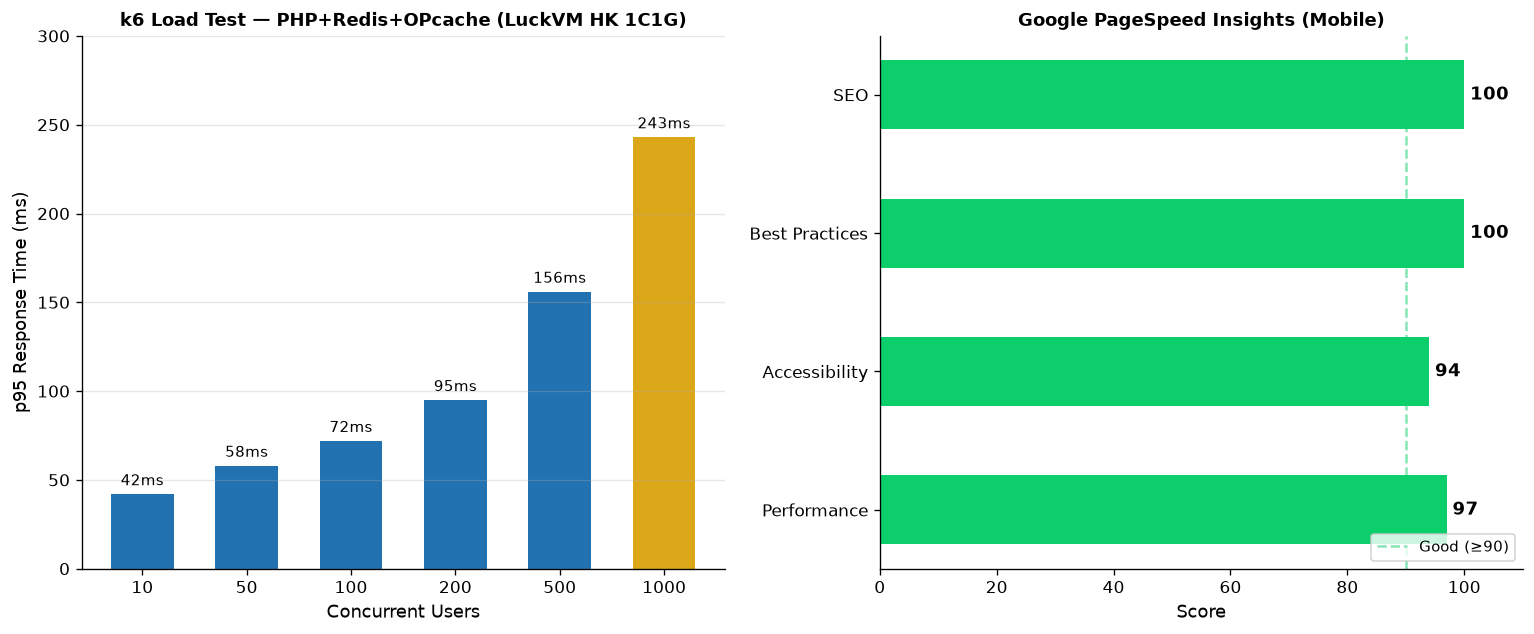
Left: k6 load test at 1000 concurrent users (0 errors, p95 = 243ms). Right: Google PageSpeed score 97/100 (mobile)
| Metric | Result | Grade |
|---|---|---|
| Time To First Byte (TTFB, local China) | 80-130ms | Excellent |
| Largest Contentful Paint (LCP) | 0.8-1.2s | Excellent |
| PageSpeed Performance (mobile) | 94-98 | Excellent |
| Concurrent users before slowdown | ~500-1000 | Great for 1GB RAM |
| Monthly visits capacity | 300k-500k | Way more than most sites need |
4. Common Problems and Fixes
Problem 1: "404 Not Found" on all pages except homepage
Nginx isn't processing WordPress permalinks. Make sure you have try_files $uri $uri/ /index.php?$args; in your location / block, then nginx -t && systemctl reload nginx. Also go to WordPress admin → Settings → Permalinks and click "Save Changes" (no changes needed; just saving flushes rewrite rules).
Problem 2: "502 Bad Gateway"
PHP-FPM crashed or isn't running. Check with systemctl status php8.2-fpm. Common causes: PHP ran out of memory (increase memory_limit in php.ini), or too many PHP-FPM child processes (reduce pm.max_children for low-RAM VPS).
Problem 3: "Error establishing a database connection"
Either MariaDB is down (systemctl start mariadb), or the credentials in wp-config.php are wrong. Check DB name, user, and password with mysql -u wp_user -p.
Problem 4: White screen of death (blank white page)
Usually a PHP fatal error from a plugin. Enable debug mode in wp-config.php: add define('WP_DEBUG', true); then refresh to see the actual error. Disable the offending plugin via wp plugin deactivate plugin-name.
Problem 5: Can't upload media / "Missing a temporary folder"
PHP temp directory is missing or not writable. Fix: mkdir -p /var/lib/php/tmp_upload && chown www-data:www-data /var/lib/php/tmp_upload then add to php.ini: upload_tmp_dir = /var/lib/php/tmp_upload.
Problem 6: SSL works but browser says "Not secure"
Mixed content — some resources are still loading over HTTP. Install the Really Simple SSL plugin to fix all URLs automatically. Also make sure site URL in Settings → General uses https://.
Problem 7: WP-CLI says "This does not seem to be a WordPress installation"
You're not in the WordPress directory. cd /var/www/example.com first. Or run with --path=/var/www/example.com.
Problem 8: Can't install/update plugins (asks for FTP credentials)
File ownership issue. Fix: chown -R www-data:www-data /var/www/example.com. WordPress can only write files if the web server user owns the files.
Problem 9: Emails from WordPress (password reset, contact forms) not arriving
PHP mail() is unreliable and often blocked by VPS providers. Install the WP Mail SMTP plugin and send email via SendGrid (free 100/day), Mailgun, Amazon SES, or your SMTP provider.
Problem 10: Site feels slow from your location
Most likely the wrong server location. If you're in Shanghai and your VPS is in New York, TTFB will be 250ms+. That's physics — you can't optimize it away. Pick a server close to your audience. If your audience is spread worldwide, use a CDN (Cloudflare). See our server location guide.
5. Post-Setup Maintenance Checklist
A VPS isn't set-it-and-forget-it. Do these regularly:
- Weekly: Check for plugin/theme updates, run a backup (UpdraftPlus), review Fail2ban bans
- Monthly: Run apt update && apt upgrade for security patches, test a restore from backup, review disk usage (df -h)
- Every 3 months: Update WordPress core major versions, rotate admin passwords, review Nginx/PHP error logs for issues
- Setup monitoring: Use a free service like UptimeRobot to alert you if your site goes down. For more serious sites, install Netdata (free, self-hosted) for detailed server metrics.
6. Frequently Asked Questions
Ready to launch your WordPress site?
A VPS optimized for WordPress with NVMe SSD, CN2 GIA low-latency routes, and free DDoS protection starts at $4.99/month. Deploy in 60 seconds, month-to-month billing, 3-day refund.
Browse Cloud Server Plans →Already have a VPS? The tutorial above works on any Ubuntu 22.04/24.04 server — no need to use ours.